The console’s real screens, linked, so you can click through Cloud Console as if it were running. Each screen is a picture of a local copy with the made-up demo project shop, and the areas you can click are outlined. Clicking shows the next screen: nothing is saved, sent or checked.
Click an outlined area to go where that control goes. The outline turns solid under the pointer.
With a keyboard, Tab moves from one outlined area to the next, and Enter follows it.
Above each picture a strip names the screen, says what it is, and lists the same links as text. Use them on a phone, or with a screen reader.
A button that changes something shows the picture of its outcome, such as a task created or a confirm dialog, on a page of its own with a way back.
Buttons whose outcome has no picture (Refresh, Pause, Save, a file chooser) are not outlined. Where one matters, a note on its screen says what it does.
The Dark switch in the top bar shows the screens in the console’s dark theme. The pictures of states are light only.
Every screen has Back to the start, which brings you here.
Every picture is an admin’s view, so every button shows. A member sees fewer, by their permissions: see Role-based views.
Demo scenarios
Eight short walks to show the console or test it. Each step names the screen, linked, and what to click on it.
1. Sign in and find a project’s failing work
For someone on call, starting the day.
On Sign in, click Sign in with Google. Or click Sign in as the break-glass admin, then Sign in on Admin sign-in.
You land on the Dashboard. Read Failing jobs and Backlogs at the top; in the demo both are empty. Further down, Queues gives each queue’s failed attempts and what is waiting.
Click orders in the Queues table. The queue opens on its Tasks tab: Queue tasks.
Click the Failed tab: Failed tasks lists the tasks that failed for good, with Retry all and Delete all.
Click the Logs tab: Queue logs shows each attempt. Type a task’s name and click Filter to see only its attempts.
Click the Tasks tab, then order-1001: Task shows its call and every attempt with its answer.
For a job, go back to the Dashboard and click homepage-check in its Jobs table: Uptime check.
Expected: you reach one task’s attempts from sign-in without choosing a project first, because the dashboard covers every project you may read.
Type a Queue name: lower-case letters, digits and dashes, starting with a letter. It cannot be changed later. Keep the rate limits and retries, or change them, and click Create.
The queue’s page opens with a green notice, said once: Saved notice. For a new queue it reads “Created the queue” and its name.
Click Create HTTP task in the toolbar: Create a task.
Type the URL, pick the HTTP method, add a header, a body or auth if the target needs them, and click Create.
Expected: the task’s page with “Created the task” and its name: Task created. Its crumbs lead back to the queue.
3. Add many tasks from a file, using the sample
For a one-off batch, such as replaying a day’s orders.
Click Download a sample. It saves cloud-console-tasks-sample.json: two tasks inside { "tasks": [ ... ] }.
Open the file and change each task’s url, and anything else: the sample’s tasks call https://example.com/ as soon as they are made. Only url is required, and a file holds up to 50 tasks.
Under Tasks file, choose the file, then click Create tasks.
Expected: a status line such as “Created 2 tasks”, any task that could not be made with why, and Go to the queue. The file counts against the daily quota as a whole, and when one task is wrong none is made.
The prototype cannot choose a file: Download a sample and Create tasks open the note on From a file.
4. Create a scheduled job in three steps, then pause it
For anything that runs on a clock, such as a nightly report.
Click Create job: Create a job, at step 1, Define the schedule.
Type a Name, pick the Kind (Call a target, or Uptime check), and type the Frequency in unix-cron (0 9 * * 1 is every Monday at 9:00) and the Time zone. The step shows the next 5 runs. Click Continue.
Step 2, Configure the execution: the target, HTTP or a queue to add a task to, and the call. Click Continue.
Step 3, Configure optional settings: the retries and the attempt deadline. Click Create.
The job’s page opens, Job logs, saying “Created the job” and its name once.
Click Pause in the job’s toolbar. It shows while the job is enabled; nightly-report in the picture is already paused, so it shows Resume.
Expected: the job reads Paused, and its scheduled times do not run until someone clicks Resume.
Under Add a secret, type a Name, pick the Kind (HMAC signing secret, Basic auth, Bearer token, OAuth client or Google Chat webhook), fill in what that kind takes, and click Add the secret. For Basic auth, a bearer token or an OAuth client, list the https origins it may be sent to.
Expected: the secret is listed by name, never by its value; an HMAC signing secret is made by the console and shown once. A task or job then picks it by name in its Auth, and the app sends its key with each call to the console’s API.
6. Copy a project’s settings with Export and import
For setting up a second project like the first.
With the project to copy chosen at the top, click Export and import in the sidebar: Export and import.
Click Download. It saves shop-settings.json: the queues, the jobs, the alert settings, the daily quota, and the names of the secrets and service accounts. Never a secret’s value, a key or a token.
Choose the other project in the picker at the top, and open its Export and import.
Under Settings file, choose the file and click Preview: a dry run that lists what would be made, changed and skipped, and the secrets and service accounts the other project lacks.
Add any missing secrets on its Secrets page, then click Apply.
Expected: the changes are made in one go, with one audit line. Nothing is deleted or renamed, and no secret is made.
For the owner, keeping the console on the free plan.
In the sidebar, click Usage: Usage. The free plan’s four lines (Worker requests, Durable Object requests, D1 rows read and D1 rows written) each have a level, and each project’s tasks and runs today stand against its daily cap.
As an admin, click Set the cap on a project’s row to change it: 1 to 1,000,000, 0 for no cap, or back to the default of 5,000.
Choose the project at the top, then click Alerts in the sidebar: Alerts.
Under Where alerts go, type the email addresses (console users who may read the project) and pick a Google Chat webhook, or follow Add one on the Secrets page. Under When to alert, set the events. Click Save.
Click Send a test. Under Quiet hours, set a window and its time zone, and click Save quiet hours.
Expected: alerts reach the addresses and the chat when an event happens, at most one of a kind about a project every 10 minutes. On a queue’s Metrics tab, Create alerting policy opens the same page.
8. Invite a person, and read the audit log
For an admin bringing in a colleague.
In the sidebar, under Admin, click People: People.
Click Invite. In Invite someone, type the Email of the Google account they will sign in with, and pick the Role: member (the default) or admin.
For a member, tick the permissions per project, or pick a preset (viewer, editor or manager) to tick them. Click Send the invitation.
A notice says they were invited, and the invitation is listed under Invitations with Resend and Cancel. They accept from the link in their mail, with Google.
In the sidebar, click Audit log: Audit log. Each line gives when, who, the project, the action (such as job.create or alerts.update), the target and the detail, newest first. Pick a project under Show to see only its lines.
Expected: the invitation is in the audit log as invitation.create, and its acceptance as invitation.accept.
The Invite form is not pictured.
Key edge cases to test
True to the code. Each says how to try it in the running console, what should happen, and the picture where there is one. The console checks nothing in the page: every message below is the API’s answer, shown as it is.
Validation errors
Try: on Create queue, type Bad Name! as the name and 9999 as Max dispatches per second, then Create.
Expected: nothing is saved. Each field shows its message beside it (“name is 1 to 63 lower-case letters, digits and dashes, starting with a letter”, “maxDispatchesPerSecond is more than 0 and at most 500”), with the summary at the top.
Try: on Create a task, create a task with the name of one in the queue, or of one that succeeded or was deleted within the last day.
Expected: refused at the top of the form: “A task named … is in this queue, or succeeded or was deleted within the last day”. Nothing is made. The page stays at Create, so scroll up to read the message.
Try: in From a file, a task with no url, or the same name twice; in Export and import, a queue whose maxAttempts is out of range.
Expected: nothing is made or changed, and the message names the place in the file, such as tasks.2.url, “x is in the file twice”, or settings.queues.2.maxAttempts. One wrong task stops the whole file.
No picture of this one.
A file that is not JSON
Try: choose a text file, or a JSON file cut short, then Create tasks or Preview.
Expected: the page says the file “is not a JSON file”, before anything is sent.
No picture of this one.
Over the daily quota
Try: create tasks or click Force run once the project’s tasks and job runs today reach its cap (5,000 by default; shop’s is 2,000, see Usage).
Expected: refused: “The project’s daily quota of 2000 tasks and job runs is used up”. A file larger than the room left is refused whole (“has room for 12 more today; the file has 30 tasks”). A scheduled run is skipped and logged. The count starts again at 00:00 UTC.
No picture of this one.
Too many changes in an hour
Try: make more than 120 changes in an hour as one person, across every project. A file of tasks counts one change per 10 tasks.
Expected: the red notice “Too many changes this hour; try again later”, and nothing is written. Exports and imports have their own limit: “At most 20 exports and imports an hour; try again later”.
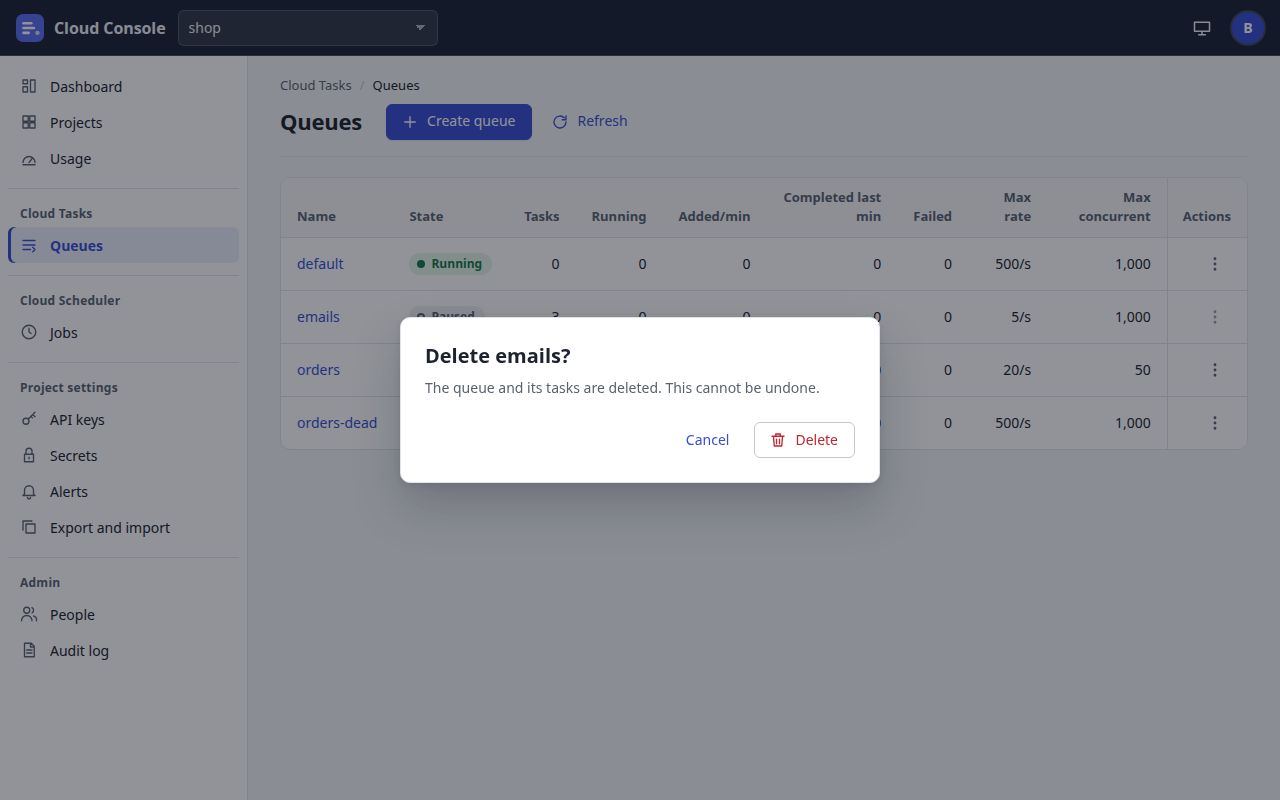
Try: Delete in a queue’s row menu; also Purge, Delete all, Revoke, a secret’s Delete, or Hold dispatch.
Expected: a dialog asks first and says what is lost: “Delete emails? The queue and its tasks are deleted. This cannot be undone.” Cancel changes nothing. The default queue has no Delete.
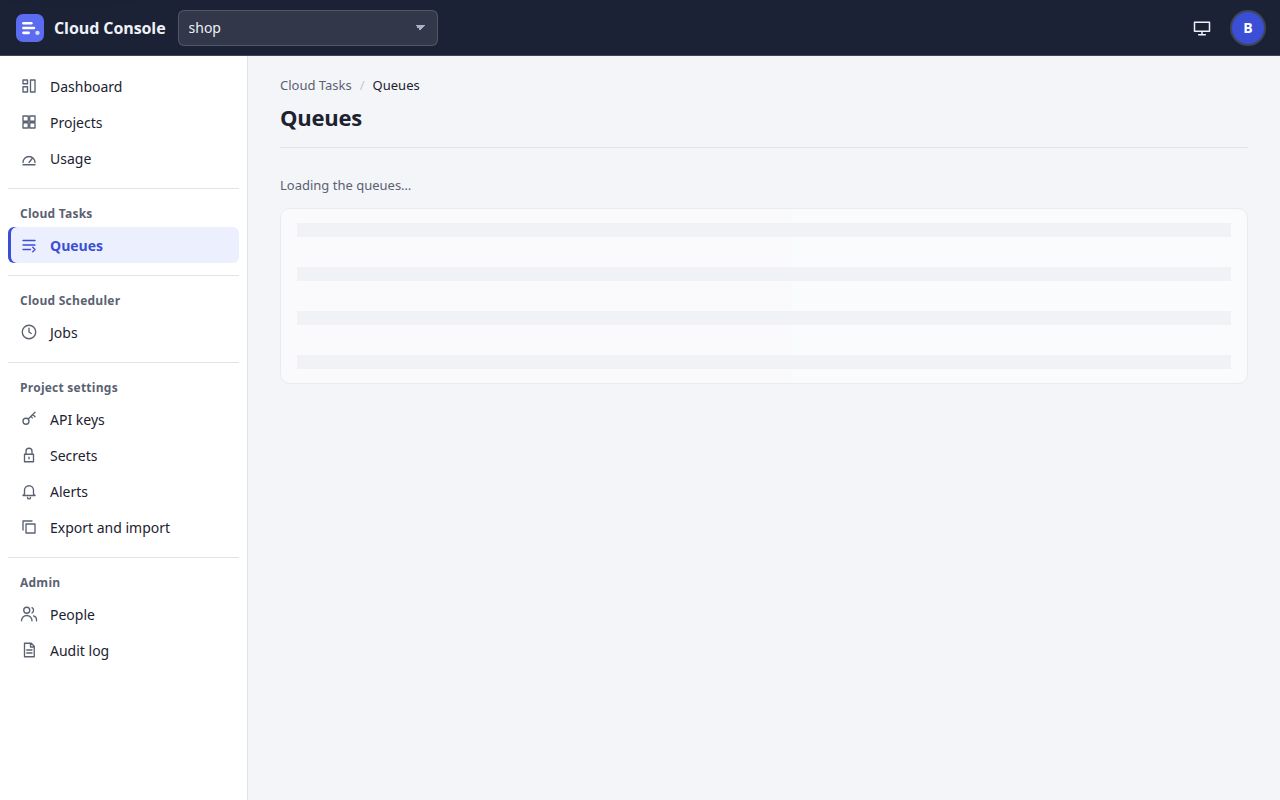
Try: open Queues on a slow connection, and Jobs with the connection off.
Expected: a placeholder, “Loading the queues…”, until the first answer. If it fails, the heading stays with “The console could not be reached. Check the connection and try again.” and Try again: never a blank page.
The pictures are all an admin’s. A member sees only what their permissions in that project allow: for each row and page the API answers the actions allowed, and the page shows a button only then. The eight permissions are read, create, update, delete, pause, run, keys and secrets. When inviting, a preset ticks them: viewer (read), editor (read, create, update, pause, run) or manager (all eight).
Where
Admin
Member, read only (viewer)
Member, create but not delete (editor)
Sidebar
Everything, and the Admin group: People and Audit log.
Dashboard, Projects, Usage; the project’s Queues, Jobs, Secrets, and Export and import. No API keys, no Alerts, no Admin group.
As read only, plus Alerts. API keys only with the keys permission.
Projects
Create project, Hold every project, and Hold dispatch on each project.
The list and its links only.
Hold dispatch on its projects (the pause permission). No Create project.
Queues
Create queue. Each row’s menu: Edit, Pause or Resume, Purge, and Delete (never for the default queue).
The list, with no Create queue and no row menu actions.
Create queue; Edit, and Pause or Resume. No Purge, no Delete.
A queue’s page
Create HTTP task, Edit, Pause or Resume, Delete, Purge, Delete task, Run task; Retry all and Delete all on Failed; Run now or Retry, and Delete, on each task.
The tabs and Refresh only.
Create HTTP task, Edit, Pause or Resume, Run task, Retry all, and Run now or Retry. No Delete, Purge, Delete task or Delete all.
Jobs and a job
Create job; Force run, Pause or Resume, Copy, Edit and Delete.
The list and each job’s logs, with no actions.
Create job; Force run, Pause or Resume, Copy and Edit. No Delete.
API keys
Create key, Rotate and Revoke.
Not in the sidebar, and the API refuses the page.
The same, unless granted keys.
Secrets
Add, Rotate, change the origins, and Delete; service accounts too.
The names only.
The names only: adding needs the secrets permission.
Alerts
The whole page.
Not in the sidebar.
The whole page (the update permission).
Export and import
Download, Preview and Apply, the daily quota included.
Download only; the page says importing needs the update permission.
Download, Preview and Apply. A change to the daily quota needs an admin, and the dry run says so.
Usage
Set the cap on each project, and the Backups section.
The free-plan lines and the counts of their projects. No Set the cap, no Backups.
The same as read only.
People and Audit log
Both.
Not in the sidebar.
Not in the sidebar.
To try it, invite a second Google account as a member with the viewer or editor preset (scenario 8), sign in as them in another browser, and walk scenarios 2 and 4 again.
Every screen
Jump straight to any screen, or to a state the console shows on its way.
Pictures of a local copy of Cloud Console with the made-up demo project shop, as it is on main. Clicking shows the next screen; nothing is saved. 22 Oct 2026.
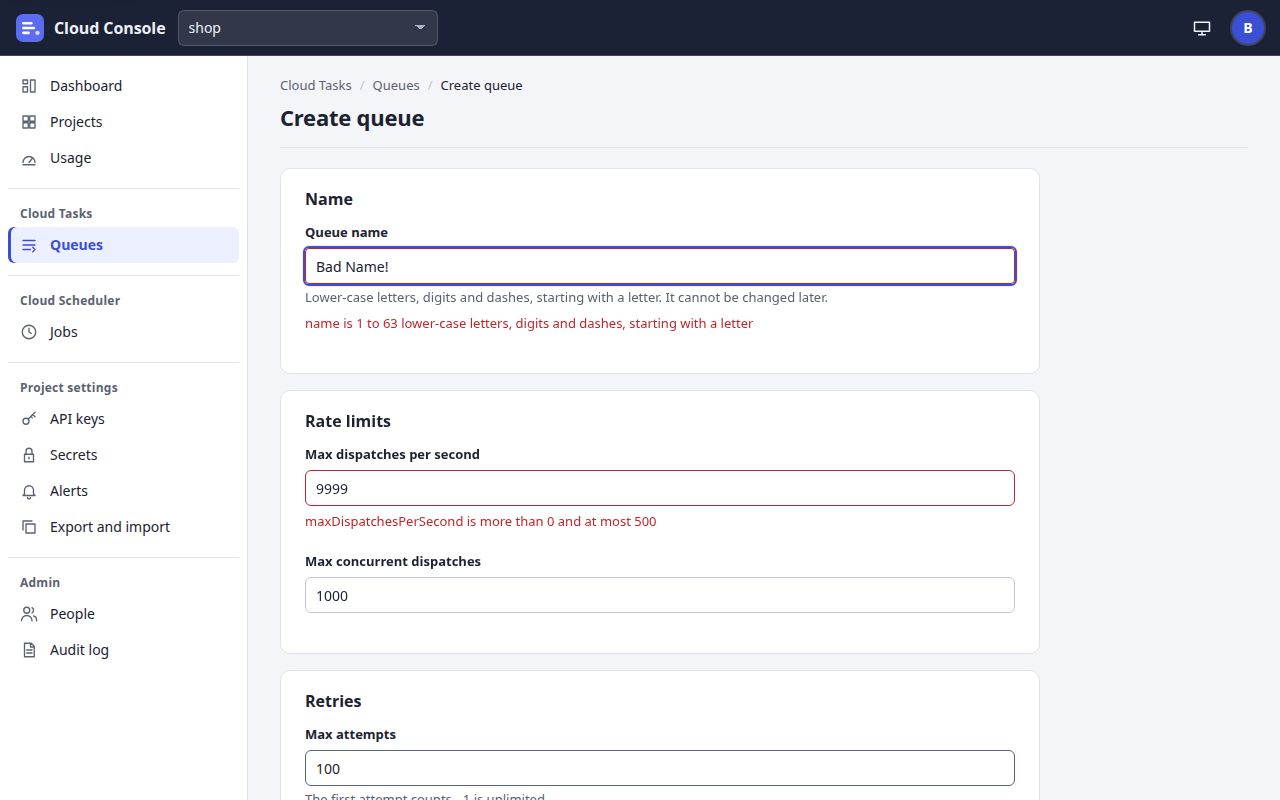 Field errors
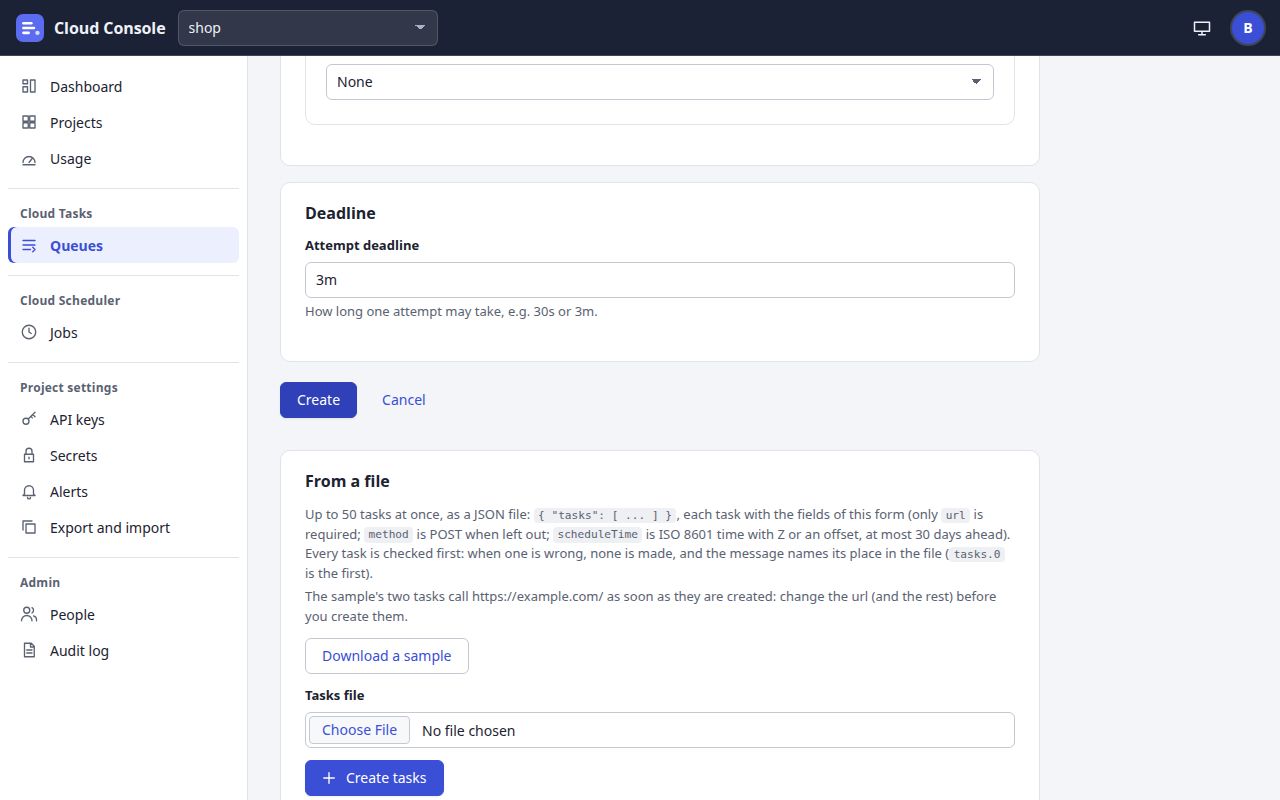 Name already taken
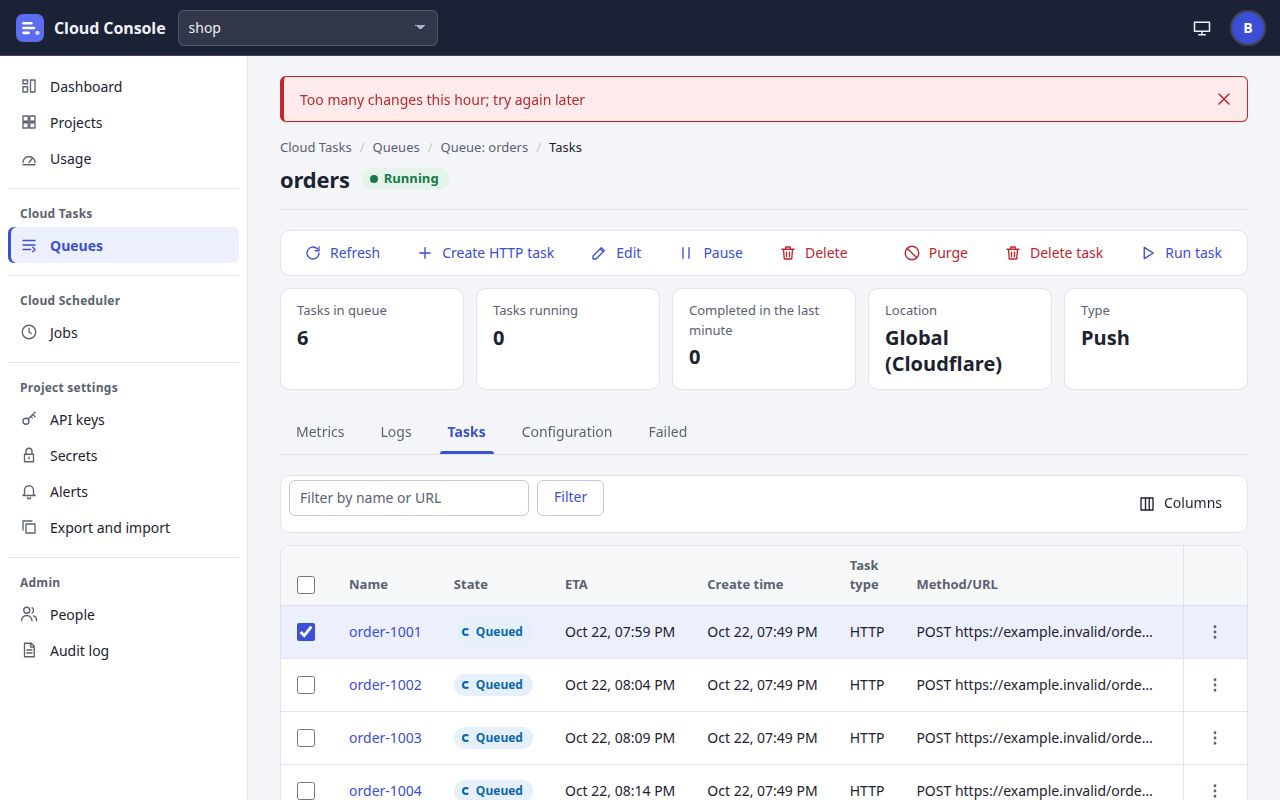 Refused notice
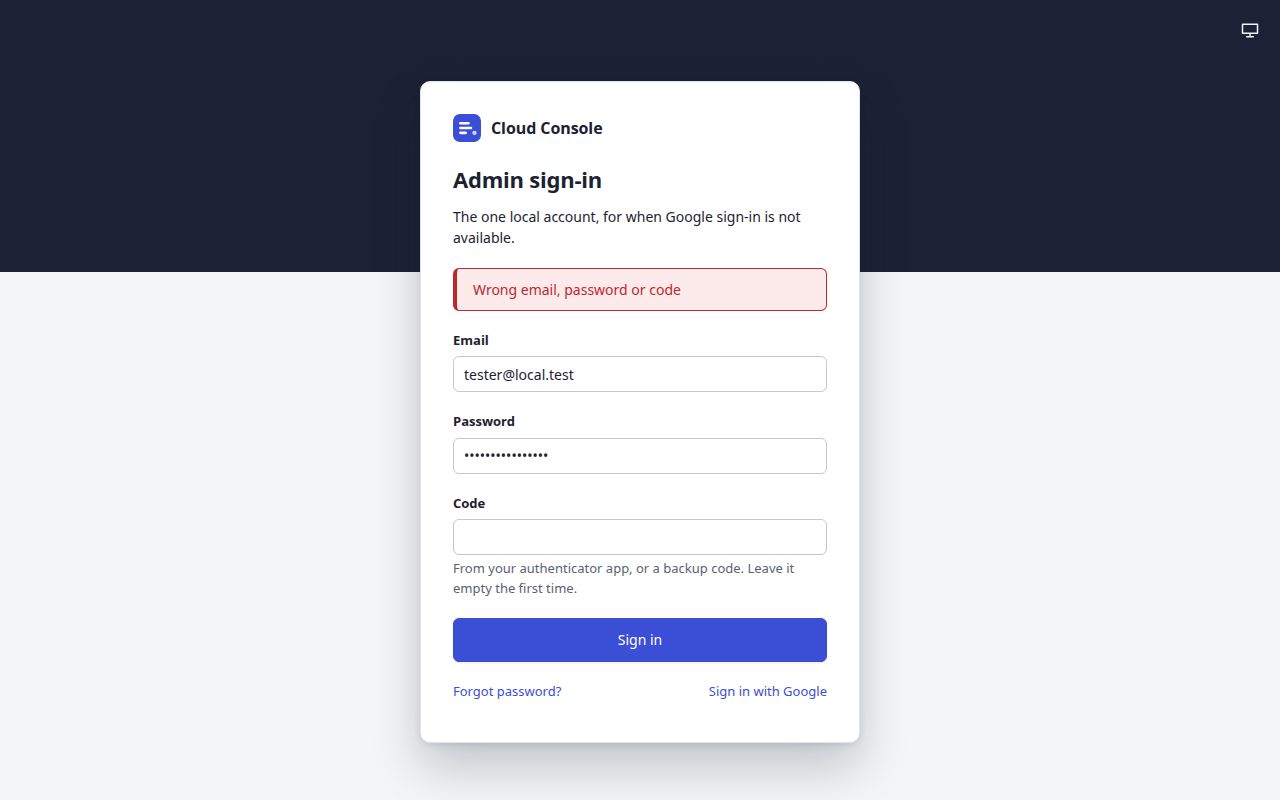 Sign-in refused
 Confirm dialog
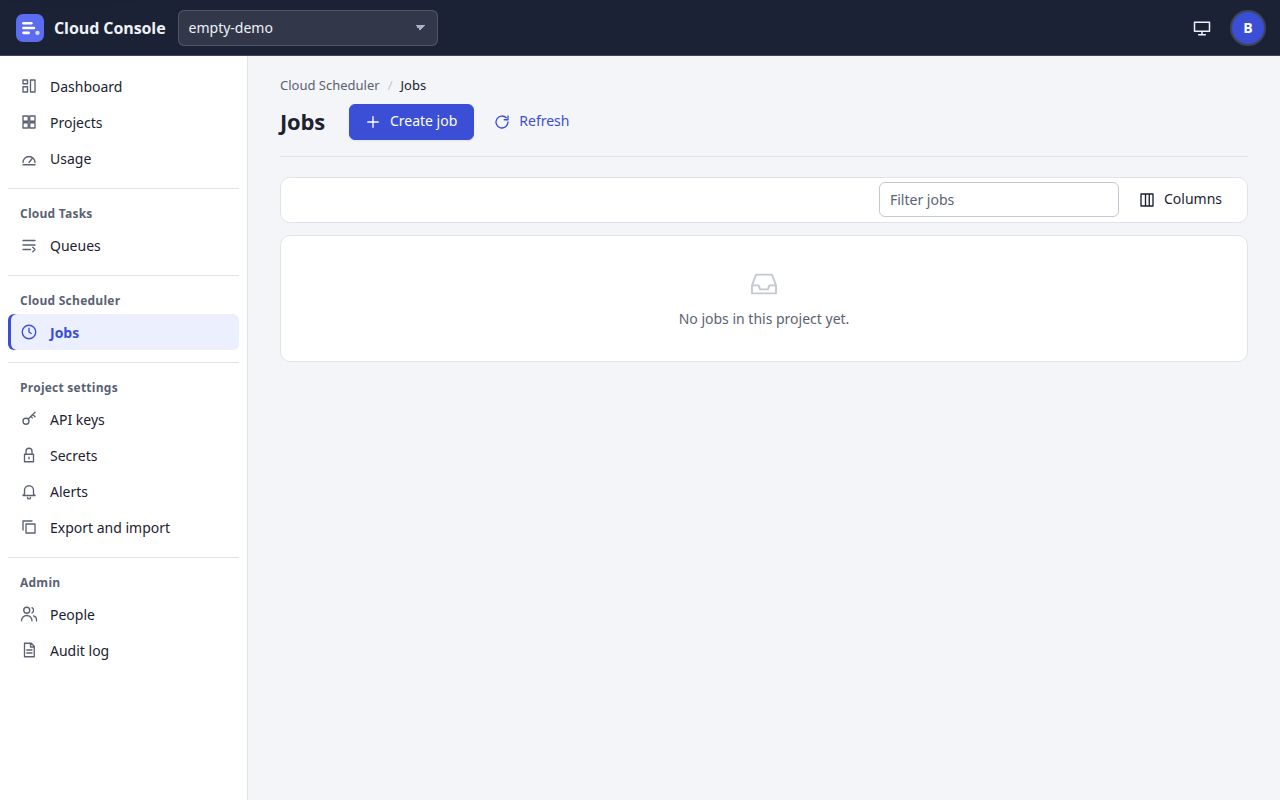 No jobs yet
 Loading
 Busy button