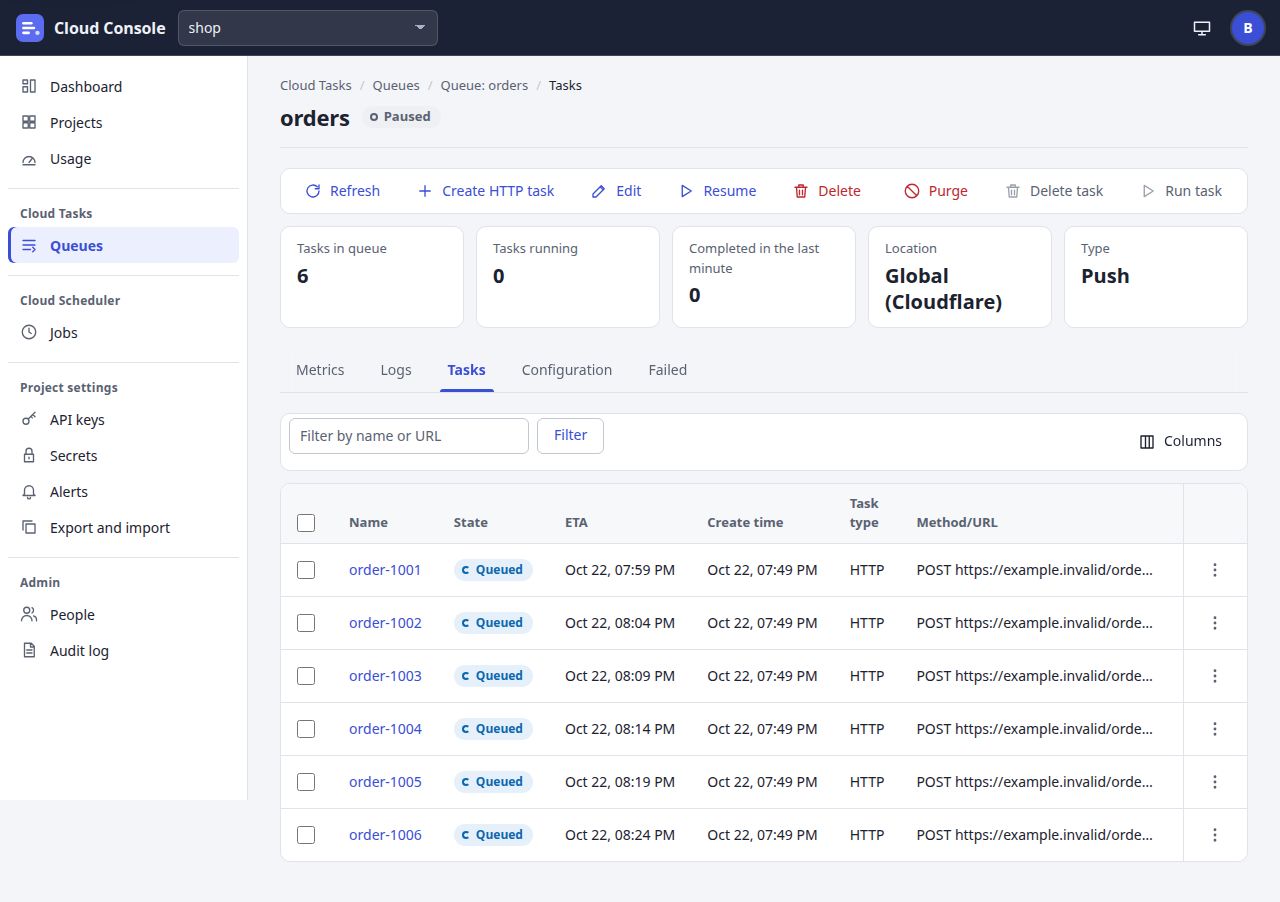
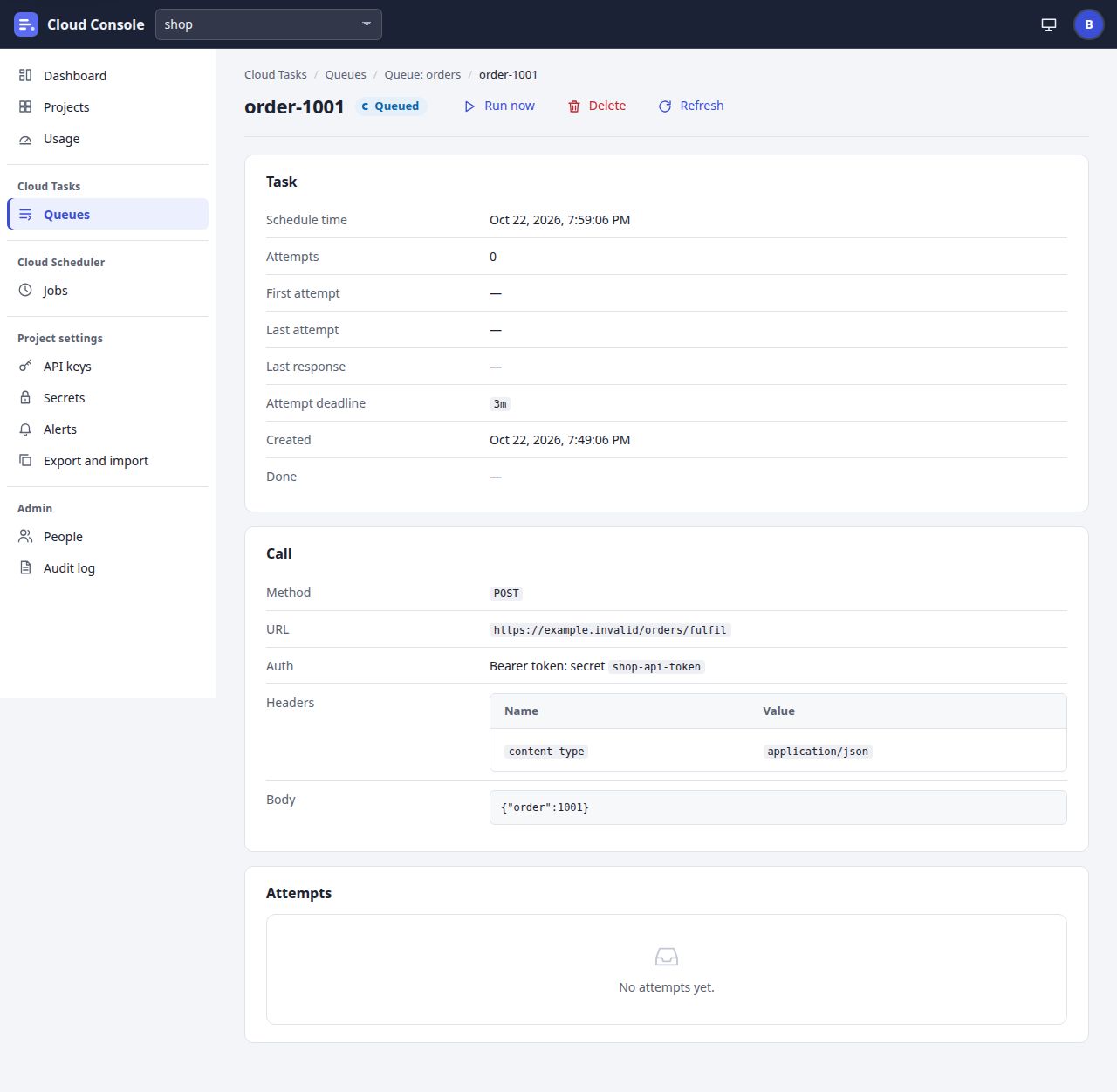
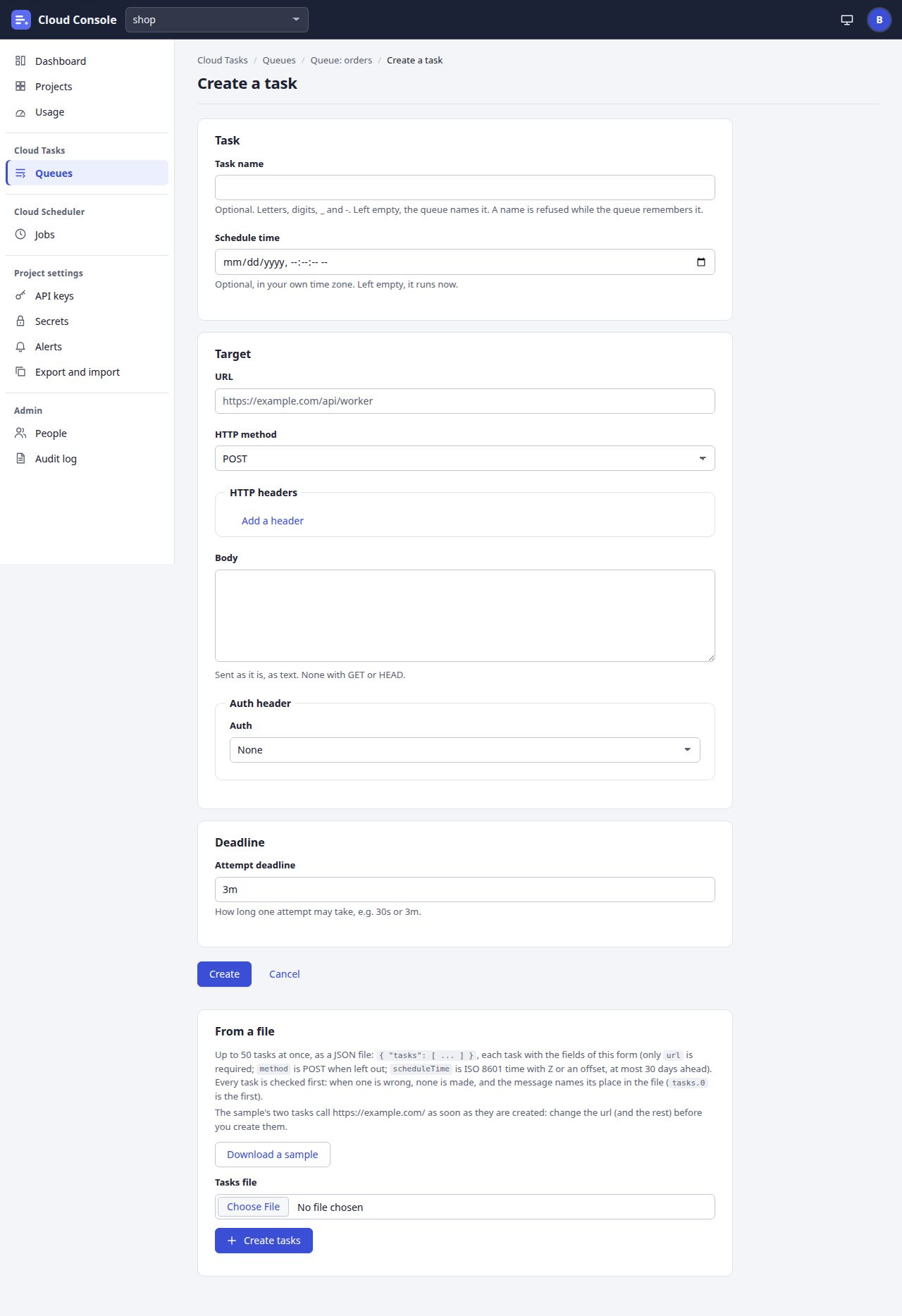
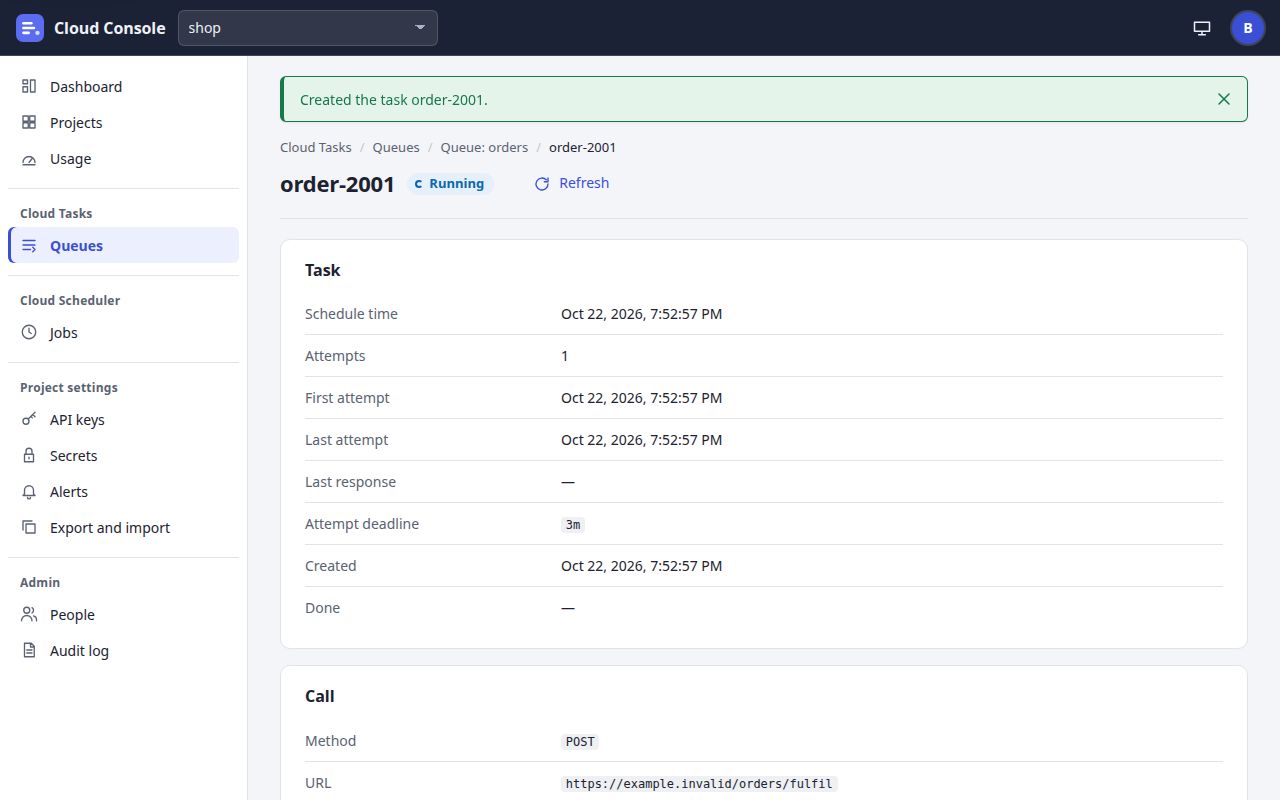
The blueprint of how Cloud Console's screens connect. It has every page and the ways between them, the paths people take most, what the console does at each decision, and how each component looks in each state. It is written from the console's code (web/src/shell.ts, web/src/pages, web/src/ui.ts) and its pages table (docs/API.md §16). The pictures are of a local copy with a made-up demo project, shop.
Each page has its own address, and names travel in the query string (/queue?project=shop&queue=orders). The signed-out pages are one card in the middle of the screen. Every signed-in page has the same frame: the top bar, the navigation on the left and the page. Nothing is offered that the API does not allow: a page shows a button only when its action is in the answer's allowedActions.
Signed out
Sign in
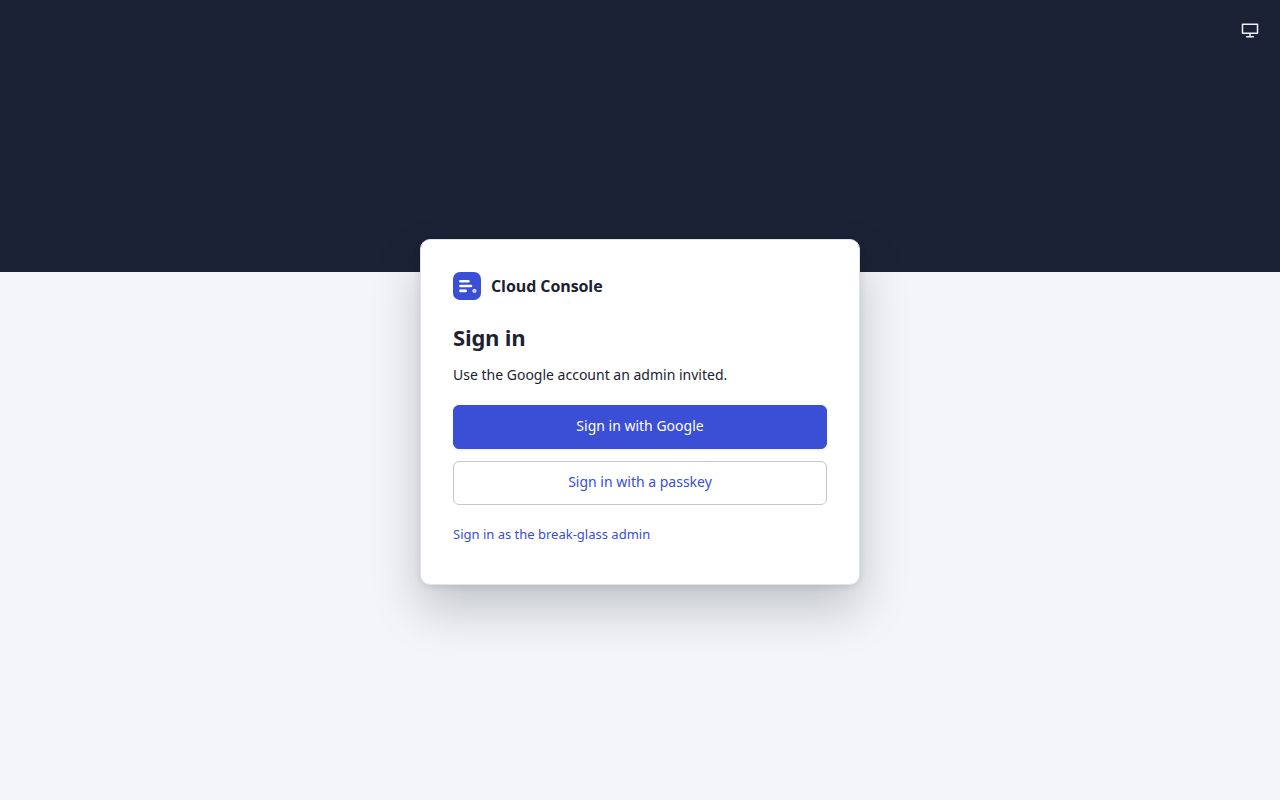
Sign in/Sign in with Google, Sign in with a passkey, and the link to the admin's sign-in
Sign in with Google
Google's sign-inOutside the console; it comes back to /
Signed in
To the dashboard
An invitation
The invitation mailSent by an admin from People
Its link
Accept your invitation/invite?token=
Accept with Google
Google's sign-inWith the account the invitation was sent to
The person is made
To the dashboard
The break-glass admin
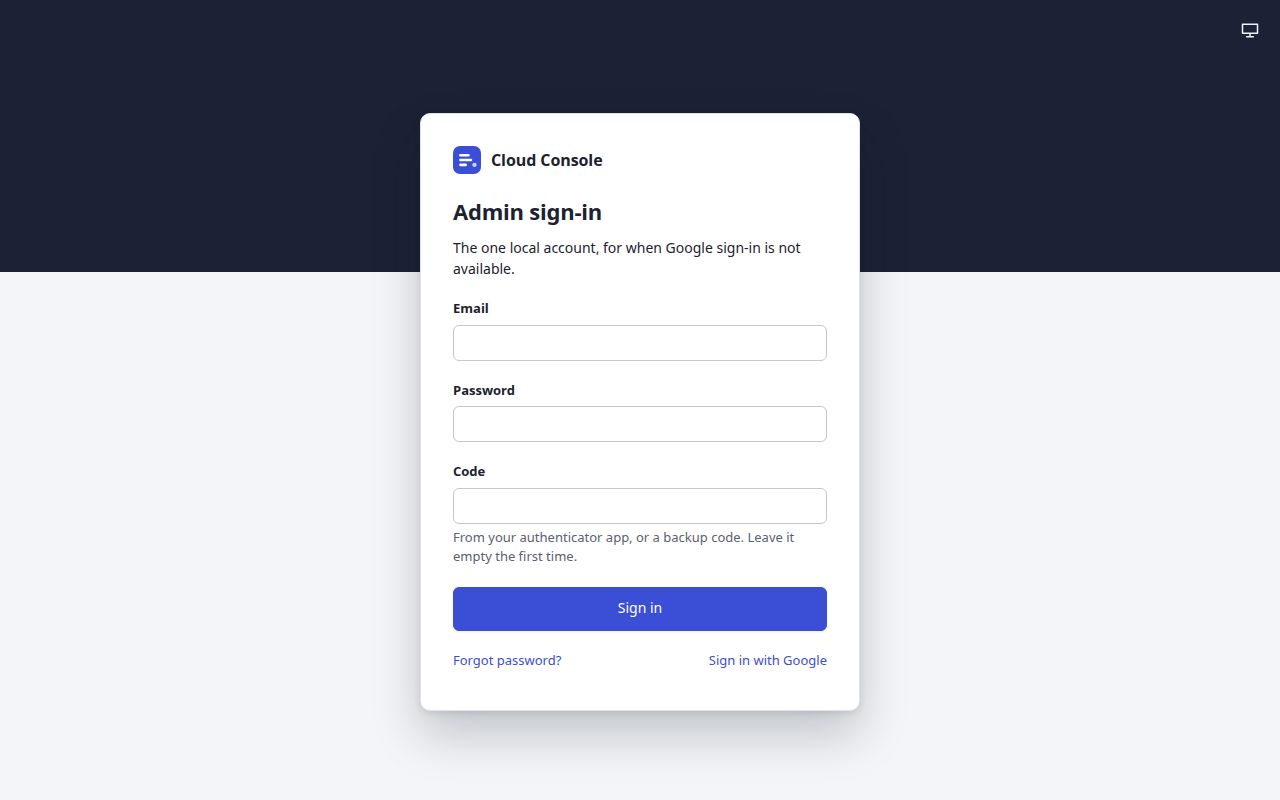
Admin sign-in/break-glassEmail, password and code
Forgot password?
Forgot password/forgot
Send the link, then the mailed link
Set a new password/reset?token=
Then Sign in: back to the admin sign-in
Sign in (the first time: two-step setup, then the backup codes)
To the dashboard
Every way in ends on the dashboard
Signed in: the frame of every page
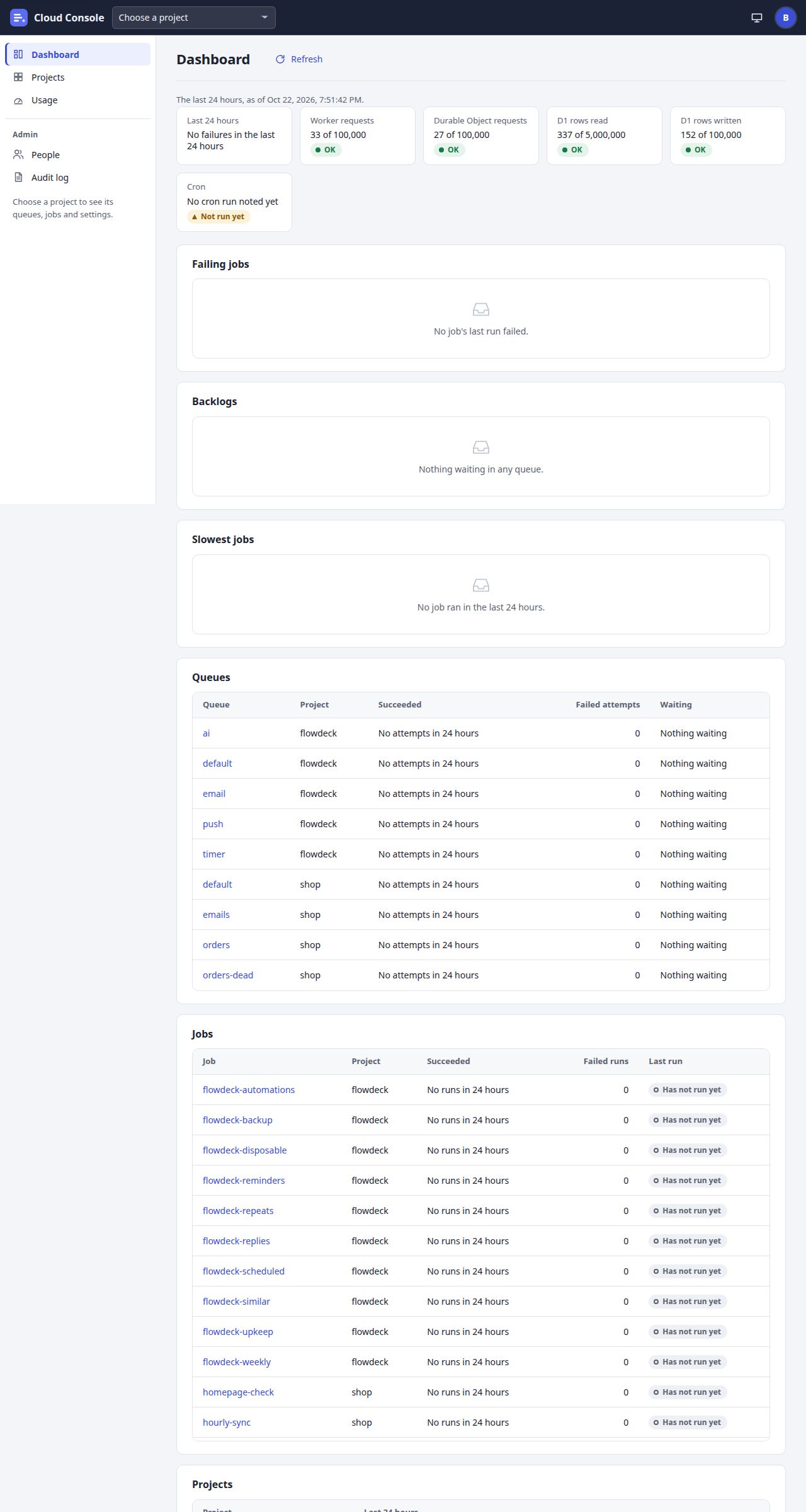
Dashboard/dashboardThe first page after sign-in. Its rows link to a queue or a job.
Cloud ConsoleThe name in the top bar: to the dashboard
Project pickerThe same page of the chosen project, or its Queues
Person menuYour account; Sign out and Sign out on every device, both to /
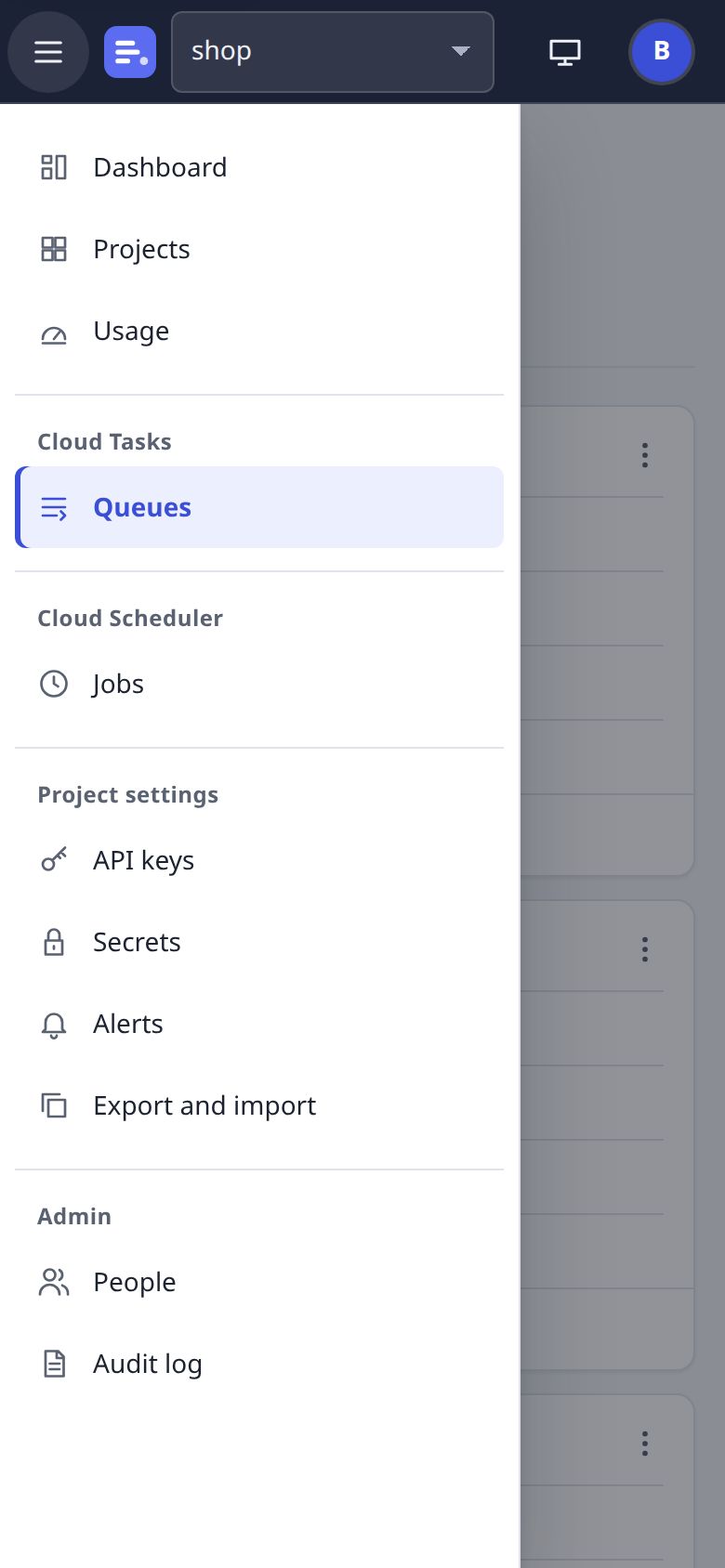
NavigationOn the left; a drawer behind Menu on a narrow screen
From the navigation, no project needed
The console, the admin pages and the account
Console
Dashboard/dashboardRefresh
Projects/projectsA name opens its Queues; its links: Queues, Jobs, API keys, Secrets, Alerts
Usage/usageThe free plan; each project's count; Backups
Admin
People/usersInvite: the mail's link opens /invite
Audit log/auditLoad more, a page at a time
Your account
Your account/accountDaily summary, passkeys
Unsubscribe/unsubscribe?token=From the summary mail, signed out
Choose a project: in the picker, or a name on Projects
Create a task/task-new?project=&queue=The form, then From a file
Create: to the new task's page
Click a task's name
Task/task?project=&queue=&task=The task and its attempts
Cloud Scheduler
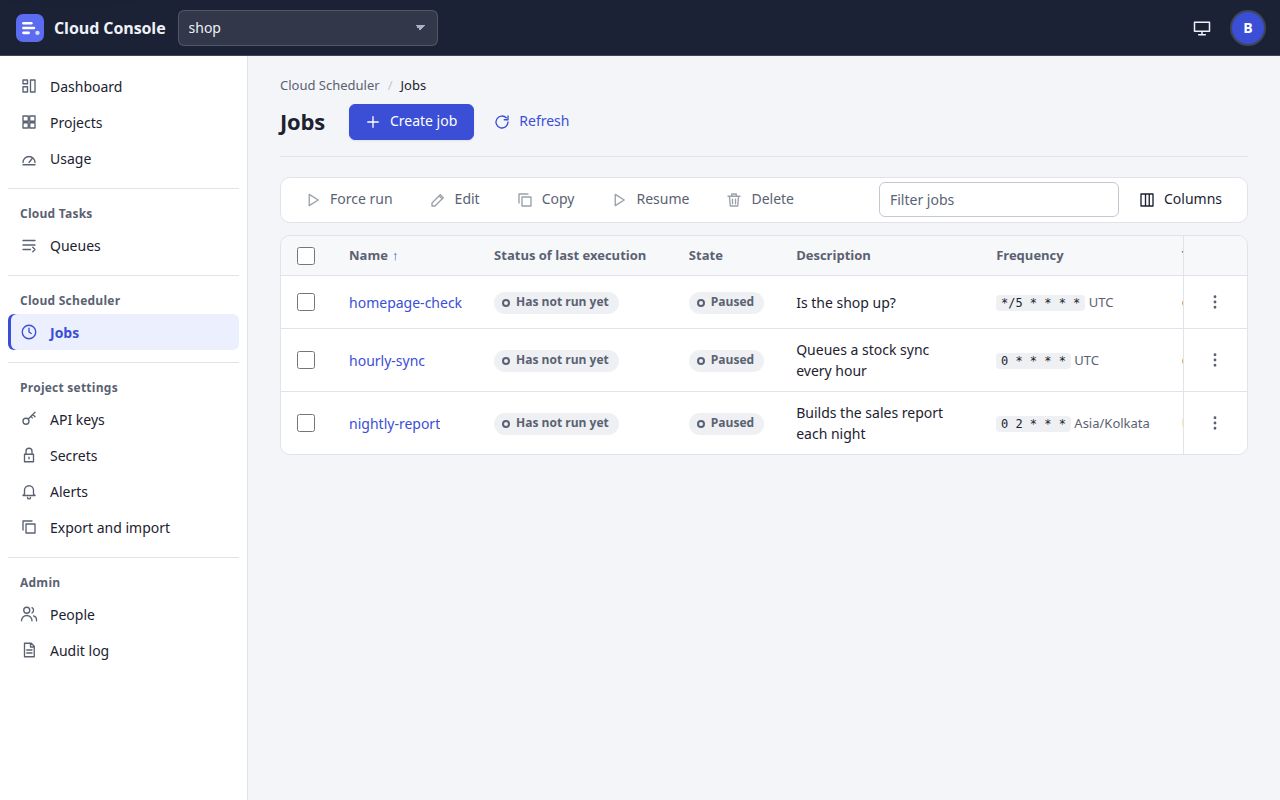
Jobs/jobs?project=
Create job, Copy or Edit
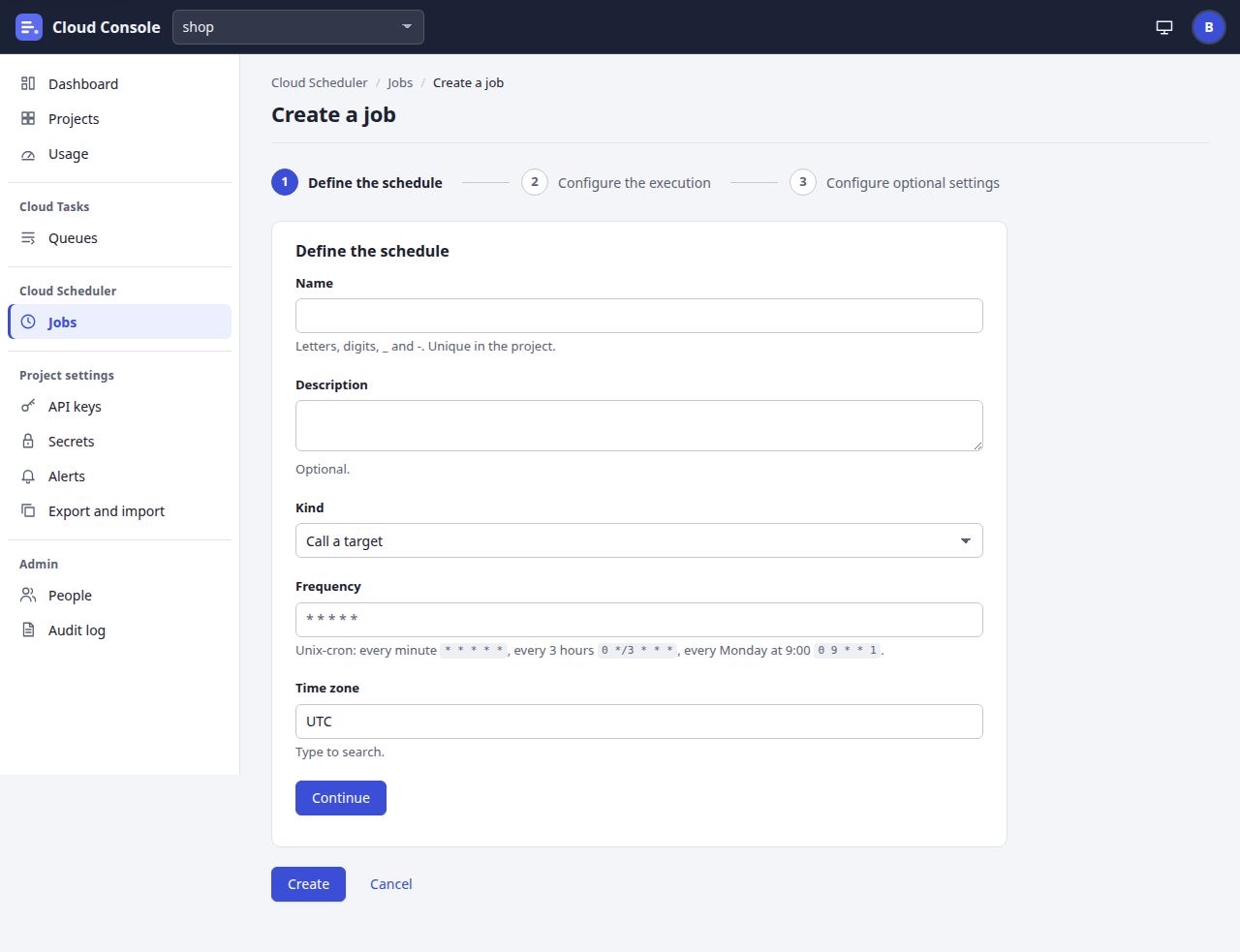
Create a job/job-edit?project=Three steps, with Continue and Back
Create or Save: to the job's page
Click a job's name
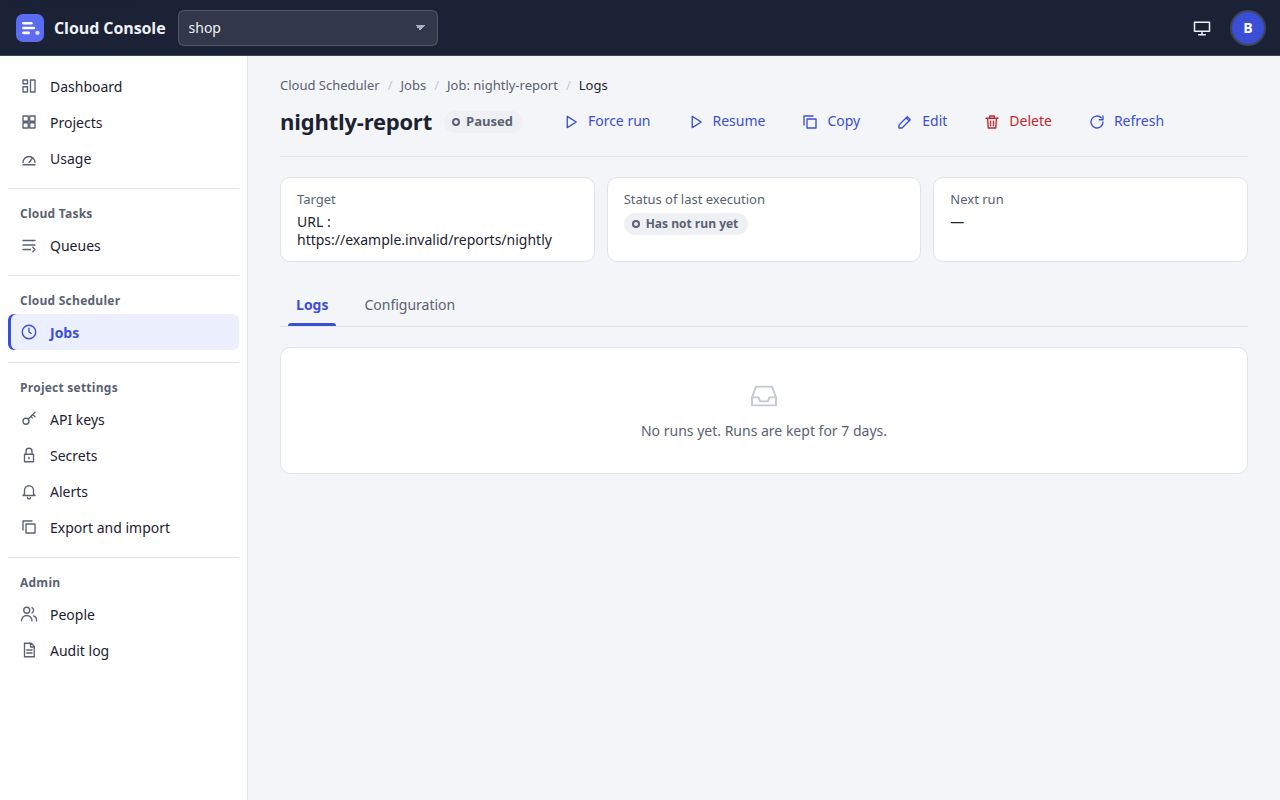
Job/job?project=&job=Tabs: Logs, Results (a check only), Configuration
Project settings
API keys/keys?project=
Secrets/secrets?project=Secrets and service accounts
Alerts/alerts?project=Also from a queue's Metrics: Create alerting policy
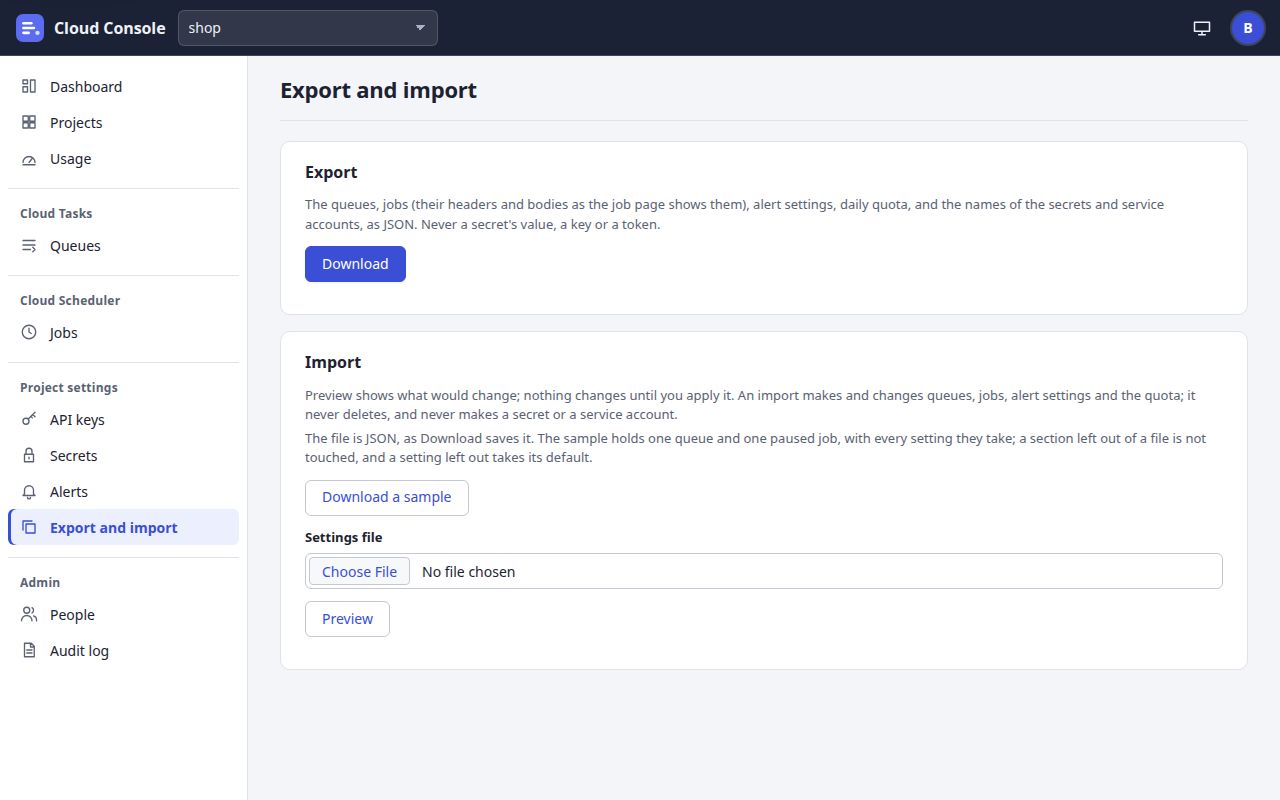
Export and import/settings-file?project=Download, Preview, Apply
Every console page. A blue box starts a module, a dashed box opens from the line beside it, and a grey box is outside the console (Google, a mail). The same map follows as a list.
The site map as a list
Signed out
Sign in, /: Sign in with Google (shown while it is set up), Sign in with a passkey (when the browser can use one), Sign in as the break-glass admin. Someone signed in already goes on to /dashboard.
Accept your invitation, /invite?token=: from the invitation mail; Accept with Google.
Admin sign-in, /break-glass: email, password and code; the first time, the two-step setup and the backup codes.
Forgot password, /forgot: Send the link.
Set a new password, /reset?token=: from the mailed link; then Sign in, back to /break-glass.
Unsubscribe, /unsubscribe?token=: from the daily summary mail.
Signed in: the frame of every page
Top bar: Cloud Console (to the dashboard), the project picker, the theme menu, the person menu (Your account, Sign out, Sign out on every device).
Navigation: Dashboard, Projects, Usage; with a project chosen, Cloud Tasks, Cloud Scheduler and Project settings; then Admin.
Console
Dashboard, /dashboard: its rows link to a queue or a job.
Projects, /projects: a project's name opens its Queues.
Usage, /usage.
Cloud Tasks
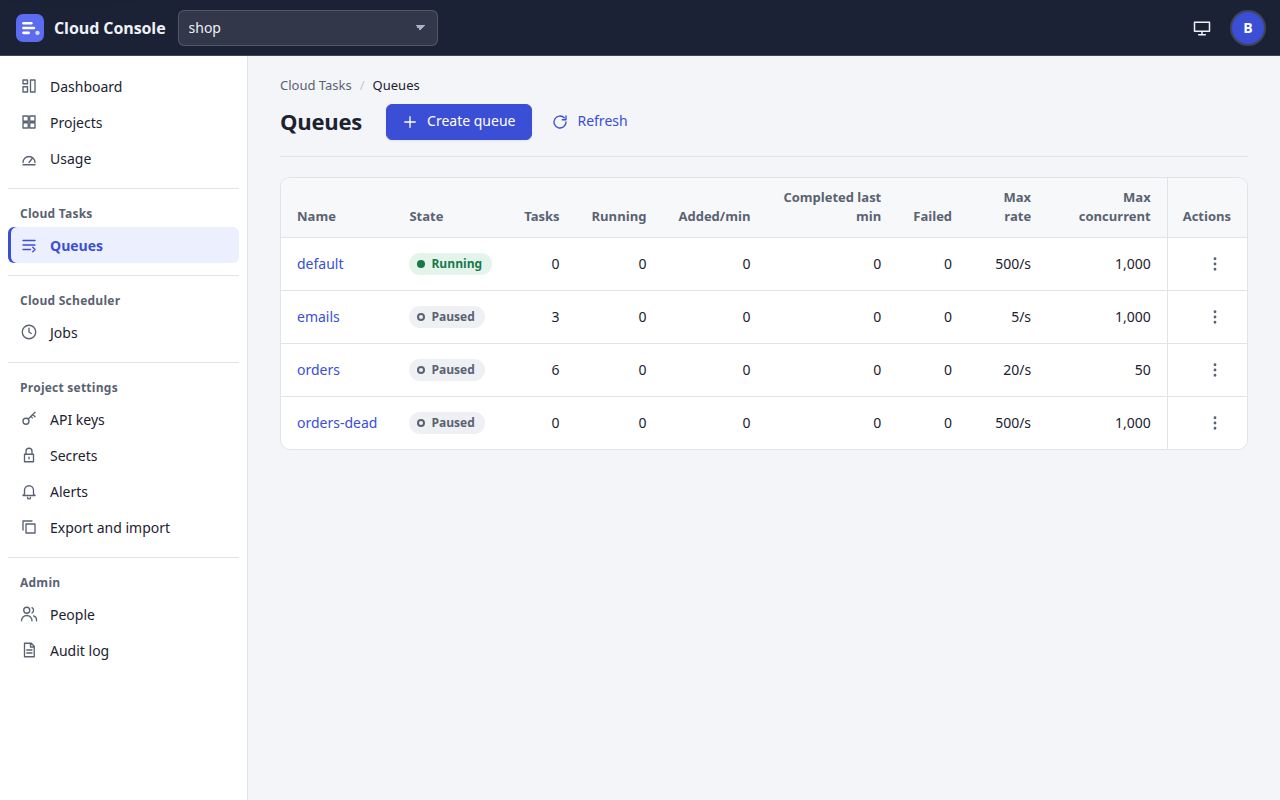
Queues, /queues?project=
Create queue (or Edit), /queue-edit?project=: Create or Save goes to the queue's page.
Queue, /queue?project=&queue=: tabs Metrics, Logs, Tasks, Configuration and Failed.
Create a task, /task-new?project=&queue=: Create goes to the new task's page; From a file stays on the page.
Task, /task?project=&queue=&task=.
Cloud Scheduler
Jobs, /jobs?project=
Create a job (or Copy, or Edit), /job-edit?project=: three steps; Create or Save goes to the job's page.
Job, /job?project=&job=: tabs Logs, Results (a check only) and Configuration.
Project settings: API keys /keys, Secrets /secrets, Alerts /alerts, Export and import /settings-file, each with ?project=.
Admin: People /users, Audit log /audit.
Your account, /account.
What the frame offers, and when
Control
Where
Leads to
Shown when
Cloud Console
Top bar
/dashboard
Always
Project picker
Top bar
The chosen project's page of the same kind (Queues, Jobs, API keys, Secrets, Alerts, Export and import); from any other page, its Queues
Always; it lists the projects the person may see, and the last one chosen is remembered
Person menu
Top bar
Your account (/account); Sign out and Sign out on every device (both to /); Reload for the new version
Always; Reload only when a newer build is out
Dashboard, Projects, Usage
Navigation
Their pages
Always
Queues; Jobs
Navigation, Cloud Tasks; Cloud Scheduler
/queues?project=; /jobs?project=
A project is chosen. Without one the navigation says “Choose a project to see its queues, jobs and settings.”
API keys
Navigation, Project settings
/keys?project=
The project's keys permission
Secrets; Export and import
Navigation, Project settings
/secrets?project=; /settings-file?project=
A project is chosen
Alerts
Navigation, Project settings
/alerts?project=
The project's update permission
People
Navigation, Admin
/users
manageUsers or invite (admins)
Audit log
Navigation, Admin
/audit
readAudit (admins)
Menu
Top bar, 960px wide and less
The navigation as a drawer; Escape, a click outside it or a link in it closes it (picture)
On a narrow screen
A project page opened without a project says “Choose a project” (“Pick a project at the top, or from the list.”) and lists the projects. One the person may not see says “No such project” (“That project does not exist, or you have no access to it.”). A signed-in page whose GET /api/me answers 401 goes to /.
2. Screen by screen
The paths people take most, one screen after another. Each arrow names what moves the person on. The table under each path says who may do it: a permission in the project (read, create, update, pause, run, delete, keys, secrets), or an admin (admins may do everything). The console shows a control only when the API allows it, and the API checks again.
2.1 Sign in, to the dashboard
Sign in with Google leaves for Google's page and comes back to /, which goes on to the dashboard. The strip shows the break-glass admin's way in.
Sign in/
Sign in as the break-glass admin
Admin sign-in/break-glass
Sign in
Dashboard/dashboard
From
Action
To
Who may do it
Sign in
Sign in with Google
Google's page, then /, then /dashboard
A person already in the console. Shown only while Google sign-in is set up
Sign in
Sign in with a passkey
/dashboard
A person who added a passkey on Your account, within 30 days of a Google or password sign-in. Shown when the browser can use passkeys
Sign in
Sign in as the break-glass admin
/break-glass
Anyone may open it; only the break-glass admin gets in
Admin sign-in
Sign in
/dashboard; the first time, the two-step setup
The break-glass admin
Admin sign-in
Forgot password?
/forgot; the mailed link opens /reset?token=
Anyone may ask; a link goes only to the admin's own address
The invitation mail
Its link, then Accept with Google
Google's page, then /dashboard
The person invited, with the Google account the invitation was sent to
2.2 Choose a project, then a queue, then a task
Any signed-in pageHere the dashboard
Choose a project in the picker
Queues/queues?project=shop
Click a queue's name
Queue/queue?project=shop&queue=orders
Click a task's name
Task/task?…&task=order-1001
From
Action
To
Who may do it
Any signed-in page
Choose a project in the picker
/queues?project=shop; from a project page, the same page of the new project
read: the picker lists only the projects the person may see
Projects
Click a project's name
/queues?project=
read
Queues
Click a queue's name
/queue?project=&queue=, on its Tasks tab
read
Queue
Metrics, Logs, Tasks, Configuration or Failed
That tab, kept in the address (&tab=)
read
Queue, Tasks tab
Click a task's name
/task?project=&queue=&task=
read
Task
Queue: orders, in the breadcrumb
Back to the queue
read
2.3 From a queue, create a task
Queue/queue?project=shop&queue=orders
Create HTTP task
Create a task/task-new?project=shop&queue=orders
Create
The new taskWith “Created the task order-2001.”
From
Action
To
Who may do it
Queue
Create HTTP task
/task-new?project=&queue=
create (the queue's createTask)
Create a task
Create
The new task's page (&done=created), saying “Created the task” and its name once
create
Create a task
Cancel
Back to the queue
Anyone on the page
2.4 Create a job, in three steps
Jobs/jobs?project=shop
Create job
Step 1: Define the schedule/job-edit?project=shop
Continue
Define the schedule
Configure the execution
Configure optional settings
Target type (HTTP or Queue), URL, HTTP method, headers, body, auth.
Then retry config and the attempt deadline.
BackContinueCreate
Steps 2 and 3Drawn from the code; Continue again between them
Create
The job/job?project=shop&job=… (here an existing one)
From
Action
To
Who may do it
Jobs
Create job
/job-edit?project=, step 1
create (the list's createJob)
Define the schedule
Continue
Configure the execution
No request. The next 5 runs come from the API while the frequency is typed (read)
Configure the execution
Continue, or Back
Configure optional settings, or step 1
No request
Any step
Create
The job's page (&done=created), saying “Created the job” and its name once. The job starts enabled
create
Jobs, or a job's page
Copy, or Edit
/job-edit?copy= (a new job from its settings), or /job-edit?job= with Save
create for Copy, update for Edit
Jobs
Click a job's name
/job?project=&job=, on its Logs tab
read
2.5 Export and import: preview, then apply
The drawn answers are for the sample settings file, imported unchanged into shop: it holds one queue (sample-queue) and one paused job (sample-job).
Export and import/settings-file?project=shop
Choose a file, then Preview
To make: 1 queue and 1 job
Queuesample-queueMake
Jobsample-jobMake
Apply
The dry runDrawn from the code; nothing has changed yet
Saves cloud-console-settings-sample.json, without a request
update: the Import part shows only with it
Export and import
Choose a file, then Preview
The dry run's answer under the button; nothing changes
update
The dry run
Apply
The same file applied, and the answer says what was made
Shown only when the dry run allows apply: update, plus create to make a queue or job, pause to pause or resume one (or make one paused, as the sample's job), and an admin to change the quota
2.6 Create a task, from a file
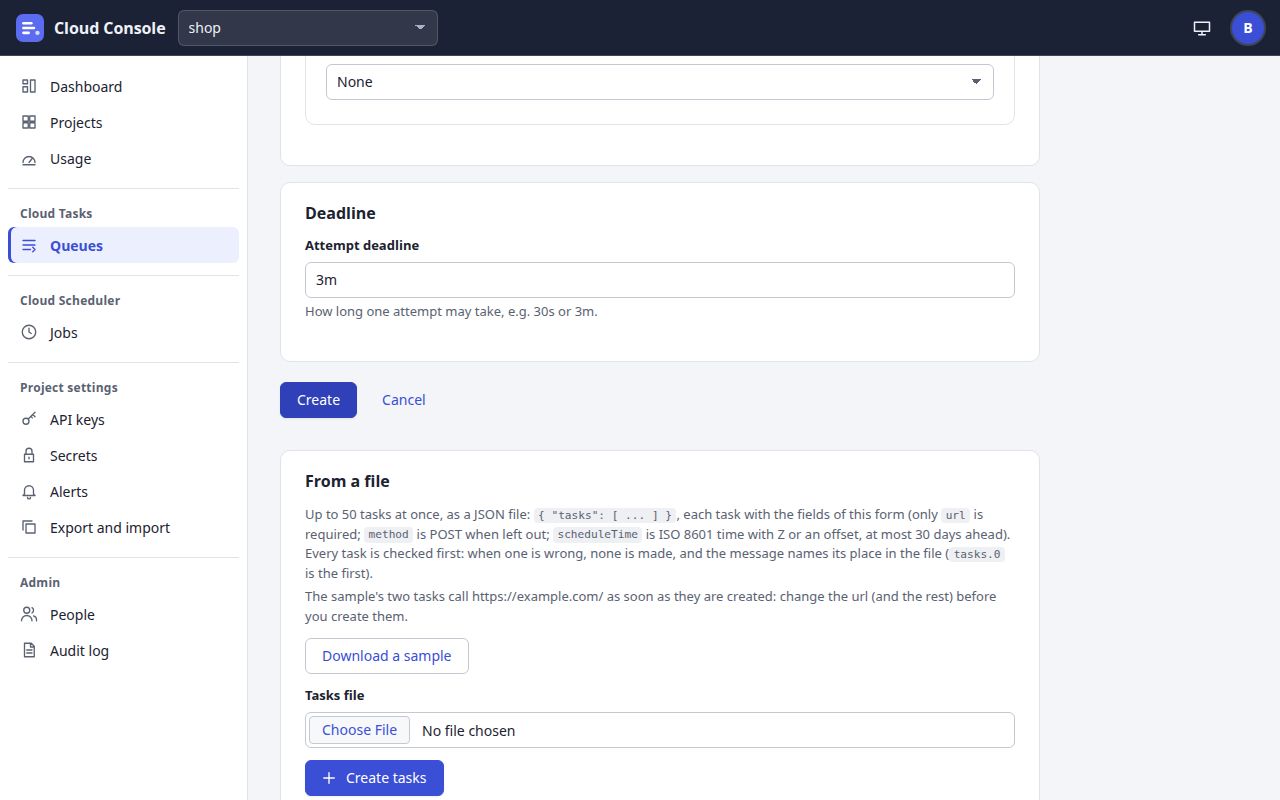
From a file is the panel under the Create a task form: up to 50 tasks in one JSON file, all checked before any is made. The sample's two tasks call https://example.com/ as soon as they are made, so the page says to change them first.
From a fileThe foot of /task-new?project=shop&queue=orders
Download a sample
Saved cloud-console-tasks-sample.json.
Tasks file
Choose Filecloud-console-tasks-sample.json
Create tasks
The file, changed and chosenDrawn from the code
Choose the file, then Create tasks
Created 2 tasks
The chosen file is let go, so a second click cannot make its unnamed tasks again.
Go to the queue
The answerDrawn from the code; it stays on the page
Go to the queue
Queue/queue?project=shop&queue=orders
From
Action
To
Who may do it
Create a task
Download a sample
Saves cloud-console-tasks-sample.json, without a request; “Saved cloud-console-tasks-sample.json.”
Anyone on the page
Create a task
Choose a file, then Create tasks
The answer under the button, such as “Created 2 tasks”; one request however often it is clicked
create
The answer
Go to the queue
/queue?project=&queue=
read
3. Decision points
Where the console goes one way or another, and the words it shows. Every decision is the API's; the page shows its answer as it is. Green ends well, red is refused, amber is a step or a partial answer.
3.1 Sign in with Google
Google sends the person back to the consoleGET /auth/google/callback
Known here, not disabled
InA session; / sends them on to /dashboard.
Invited, the right account
InThe person is made from the invitation, then /dashboard.
Invited, another account
Refused (403)“This invitation is for another address: sign in with the Google account it was sent to”
The invitation stays open for the right account.
Not invited
Refused (403)“Not invited: ask an admin to invite you”
Disabled
Refused (403)“This account is disabled”
While Google sign-in is not set up, the sign-in page has no Google button and says “Sign in with Google is not set up on this console. The break-glass admin can still sign in.”
3.2 The break-glass sign-in
Sign in: email, password and code togetherPOST /auth/local
Wrong password, wrong code, unknown email, or locked
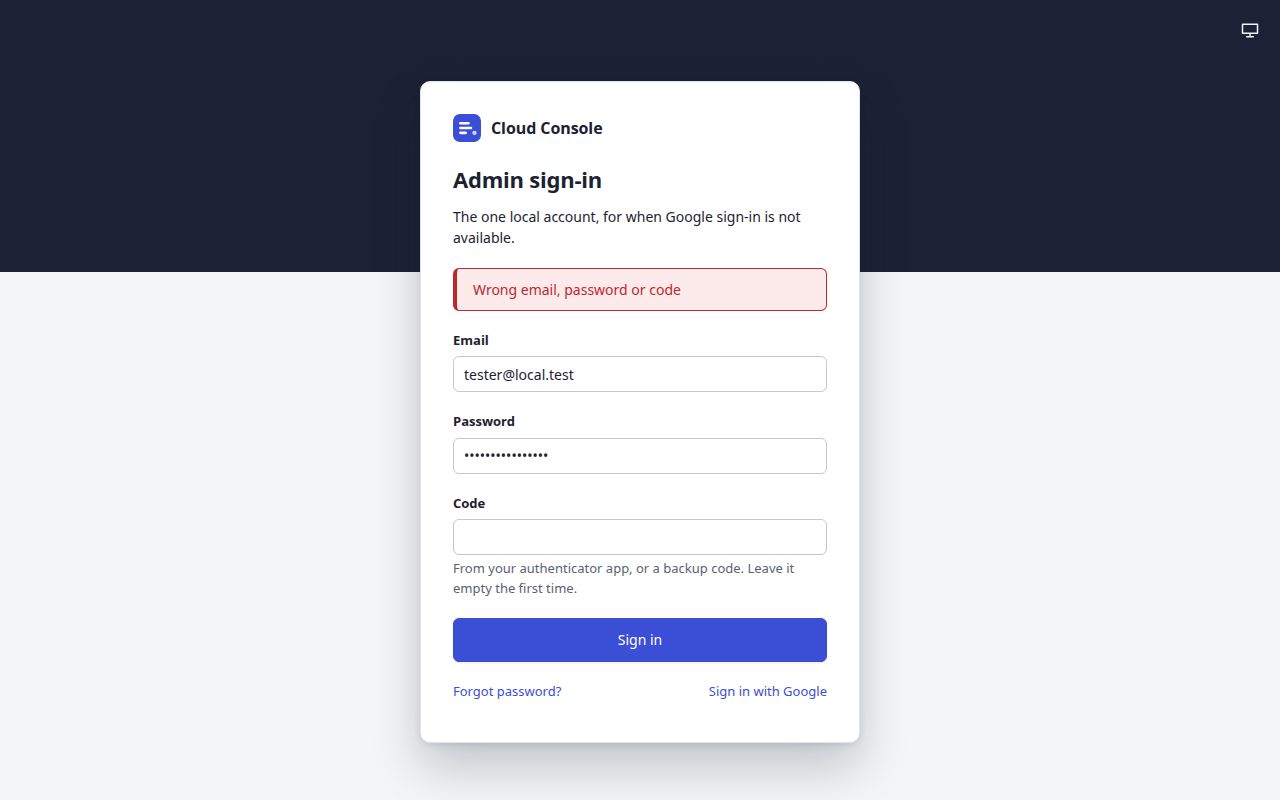
One message for every reason (401)“Wrong email, password or code”
At the top of the form. It tells nothing away: a locked account reads the same.
Right password, no authenticator yet
The first timeNo session yet: the two-step setup below. Code is left empty the first time.
Right password and code
In/dashboard. A code from the app, or a backup code.
The first time, in the same card:
Set up two-step sign-inScan the QR code, or enter the setup key, or open the setup link.
Enter the 6-digit code, then Turn on two-step sign-inPOST /auth/local/enrol
“Wrong code: enter the code your authenticator shows now”. Locked: “Locked after too many wrong tries; try again in 15 minutes”. Too late: “The enrolment has expired; sign in again”.
Two-step sign-in is on: the backup codes, onceCopy all, or Download .txt. “Keep these somewhere safe. Each one works once, in place of a code, and you will not see them again.”
Leaving the page closes the setup: “Sign in again”.
Tick “I have saved these codes”, then Continue to the consoleContinue stays disabled until the box is ticked.
In: /dashboard.
A wrong password: one message for every reason.
3.3 Create a task
Create, on Create a taskPOST …/queues/{q}/tasks; the button is busy until the answer
201
The task's pageWith a notice, said once: “Created the task order-2001.”
400
Field messagesEach beside its input, which is marked and gets the focus, such as “url is required: an http:// or https:// URL” or “scheduleTime is at most 30 days ahead”. A message with no input of its own goes under “Check these:” at the top.
409
The name is remembered“A task named order-1001 is in this queue, or succeeded or was deleted within the last day”, at the top of the form; what was typed stays.
429
Quota“The project's daily quota of 5000 tasks and job runs is used up”, or while the console is held “The console is over a free-plan limit today; new tasks are refused until … UTC”.
201: the task's page, with the notice that it was created.409: Create HTTP task with a name the queue remembers. The message is at the top of the form, out of this view: the page stays at Create.
3.4 A file of tasks
Create tasks, with a file chosenRead on the page first, then POST …/tasks/batch-create
Not JSON
Said on the page“orders.txt is not a JSON file.” No request is sent. With no file: “Choose a file of tasks first.”
400
The paths in the fileThe message and each problem at its place: tasks.3.url, or tasks.2.name“sample-task-1 is in the file twice”. Nothing is made.
429
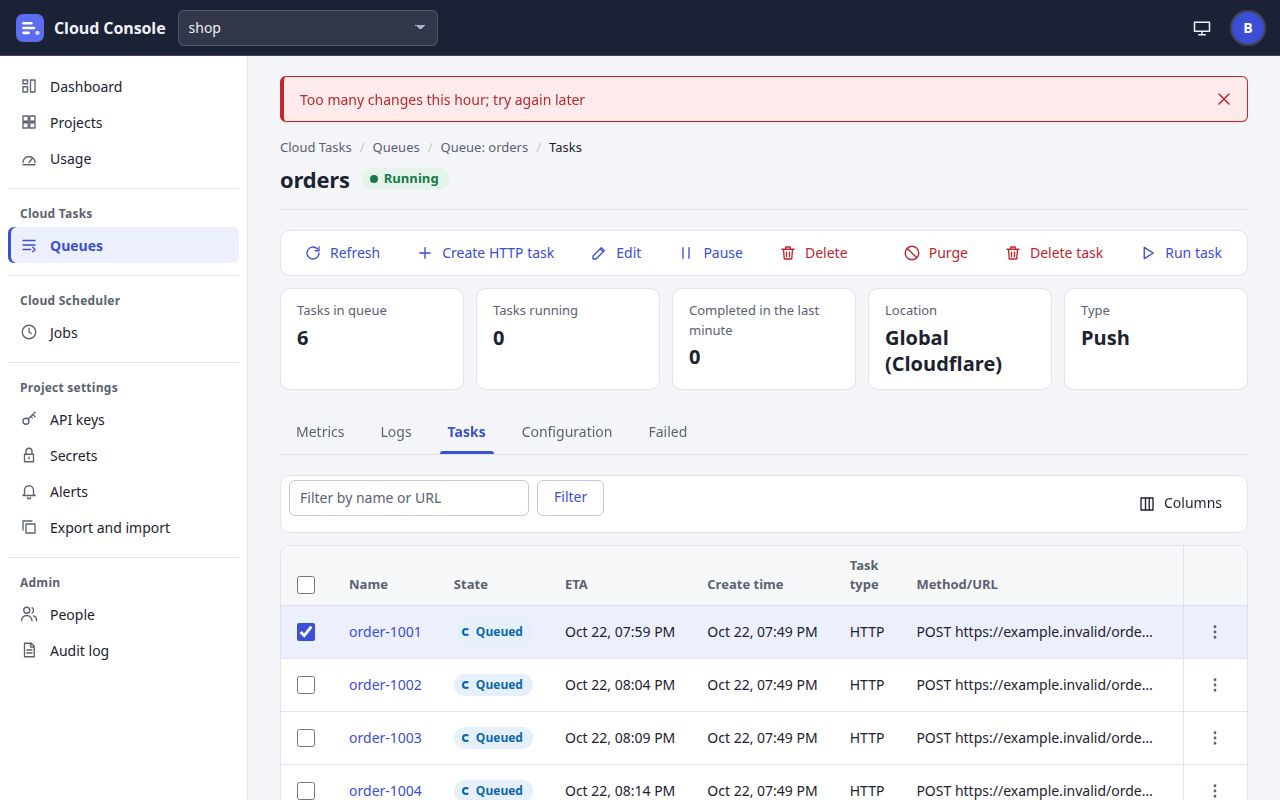
Quota or change budget“The project's daily quota of 5000 tasks and job runs has room for 12 more today; the file has 30 tasks”, or “Too many changes this hour; try again later”. Nothing is made.
200, some refused
Made, but not all“Created 2 tasks; 1 could not be”, then the refused tasks and why (“A task named sample-task-1 is in this queue, or succeeded or was deleted within the last day”). When none was made, the line shows as a refusal.
200
Created“Created 2 tasks” in the status line, and Go to the queue. The chosen file is let go.
3.5 Export and import
Preview: the file as a dry runPOST …/settings-file, nothing changed
No file, or not JSON
Said on the page“Choose a settings file first.” or “shop-settings.txt is not a JSON file.” No request.
400 or 429
RefusedEach problem at its path (settings.queues.2.maxAttempts), or “At most 20 exports and imports an hour; try again later”.
Nothing to change
Said, no Apply“Nothing to change”
Changes
The diff“To make: 1 queue and 1 job”, the changes, what is skipped and why, and the secrets and service accounts the project lacks.
Apply: shown only when the dry run allows itThe same file, with apply: true
Not allowed
No Apply buttonThe line ends, for example, “; applying it needs the create permission”. Sent anyway, the API answers 403 “Applying this needs the create permission” and changes nothing.
Allowed
Made“Made 1 queue and 1 job”. One not yet told its settings is named: “Saved, but not yet told: … Save each again from its page.”
Without the update permission the page has Export only, and says “Importing needs the update permission in this project.”
3.6 A destructive action
The confirm dialogPurge, Delete, Revoke, Remove, Hold dispatch
Cancel, or Escape
Nothing is sentThe dialog closes and the focus goes back to the control that opened it.
Delete (the action's own word)
SentThe control is busy until the answer. Then a green notice (“Deleted emails.”) and the list drawn again, or a red notice with the refusal.
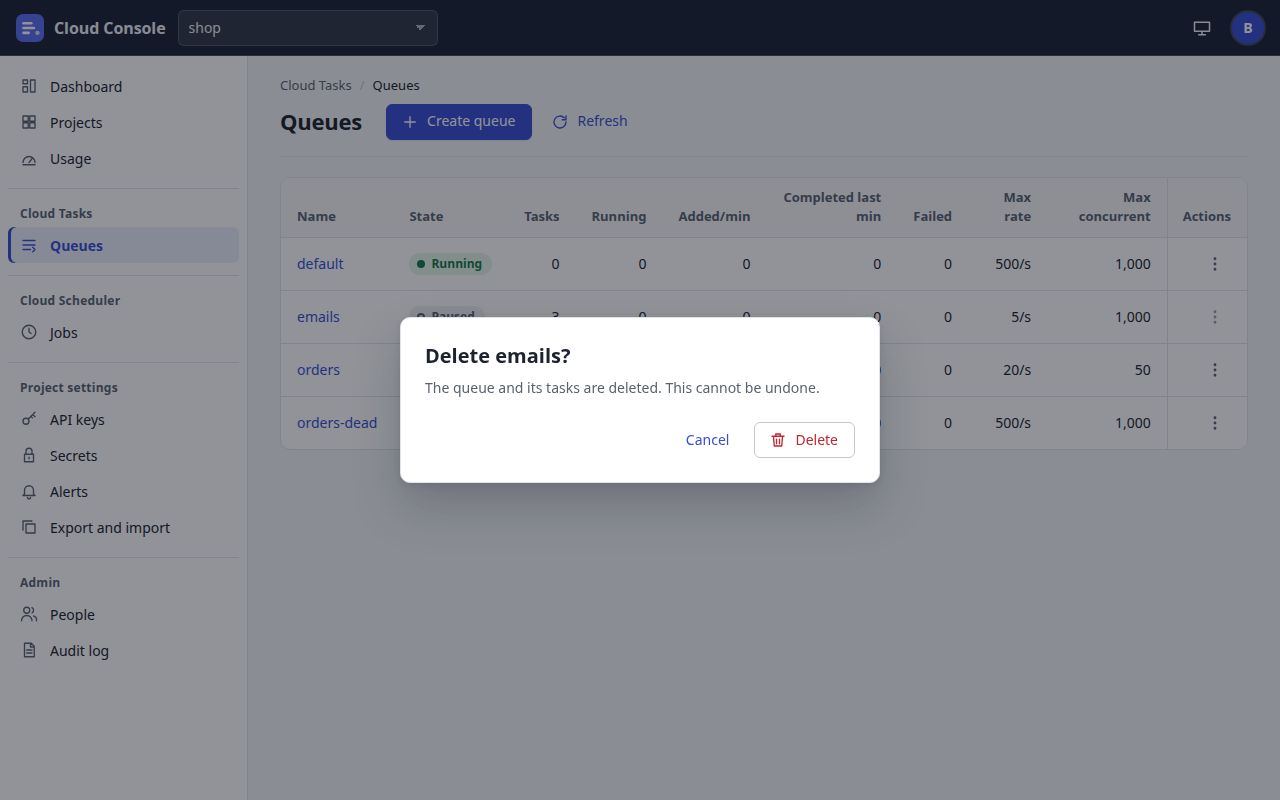
A destructive action asks first: the confirm dialog (cancelled after the picture).
The questions the console asks
Action
Question
Button
What it says
Purge a queue
“Purge orders?”
Purge
“Every queued task is deleted. Running tasks finish.”
Delete a queue
“Delete emails?”
Delete
“The queue and its tasks are deleted. This cannot be undone.”
Delete a task, or the ticked tasks
“Delete order-1001?” or “Delete 3 tasks?”
Delete
The ticked tasks' names (none for one task from its menu)
Delete all failed tasks
“Delete every failed task?”
Delete all
“Their logs stay until they are pruned.”
Delete a job
“Delete nightly-report?”
Delete
“The job and its run history are deleted. This cannot be undone.”
Revoke an API key
“Revoke shop-app?”
Revoke
“Apps using this key are refused from now on. This cannot be undone.”
Delete a secret
“Delete the secret webhook-signing?”
Delete
“Calls that name it fail as auth from now on.”
Remove a person
“Remove” and their name
Remove
“They are signed out and lose every grant. The audit log keeps their name.”
Cancel an invitation
“Cancel the invitation to” and the address
Cancel invitation
“Its link stops working.”
Remove a passkey
“Remove” and its name
Remove
“It will no longer sign you in. Remove it from the device too.”
Hold a project's dispatch
“Hold dispatch for shop?”
Hold dispatch
“No task is sent and no job runs until it is resumed; new tasks are still accepted and wait.”
4. Component states
Each picture is a detail of the real console at its own size, cropped to the part that shows the state. The pictures are in the light theme.
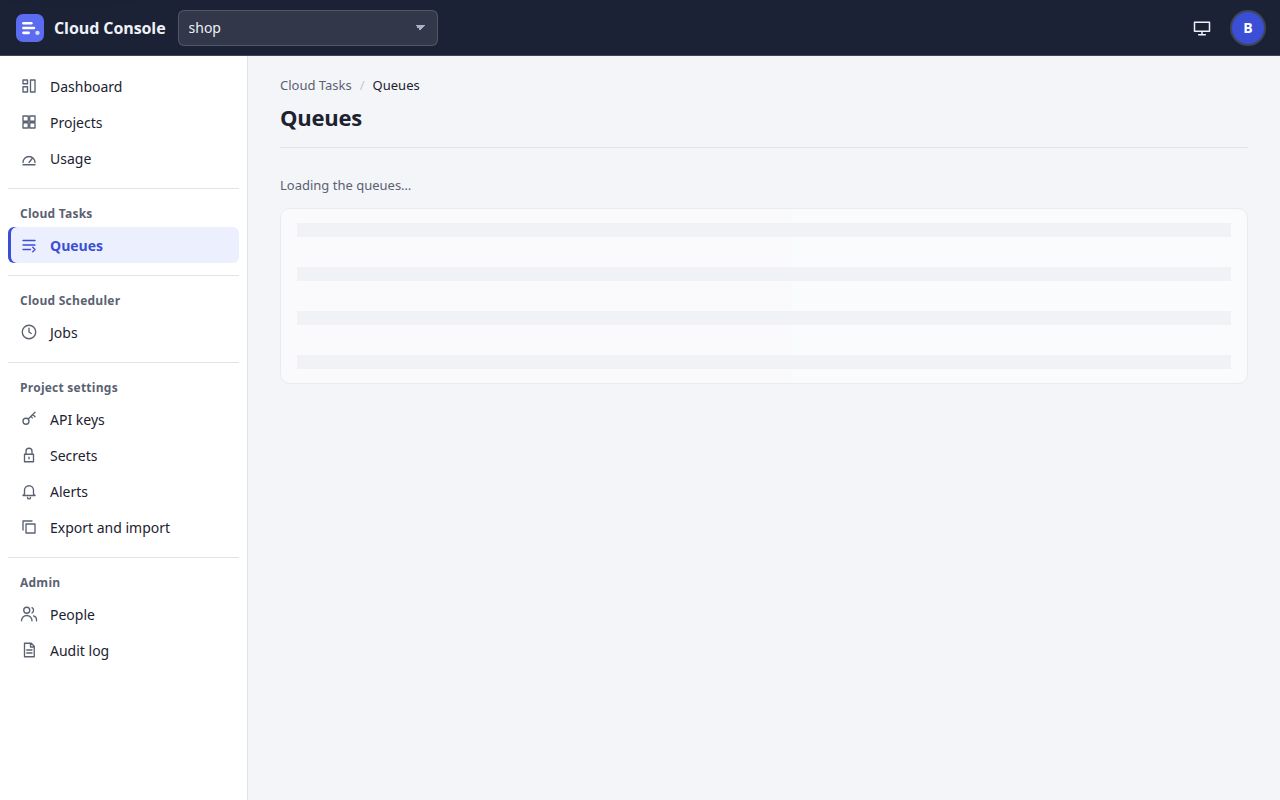
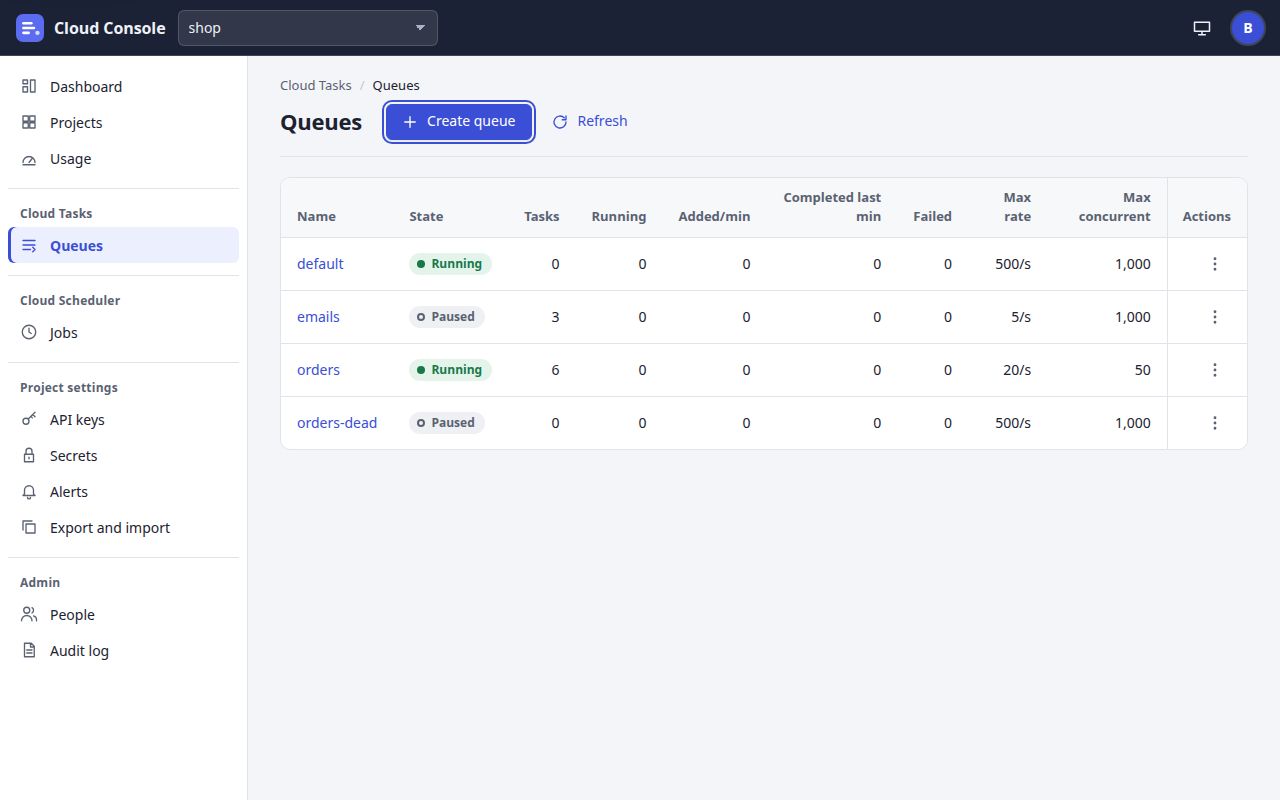
LoadingThe Queues page while its list loads: a skeleton of rows under the words "Loading".
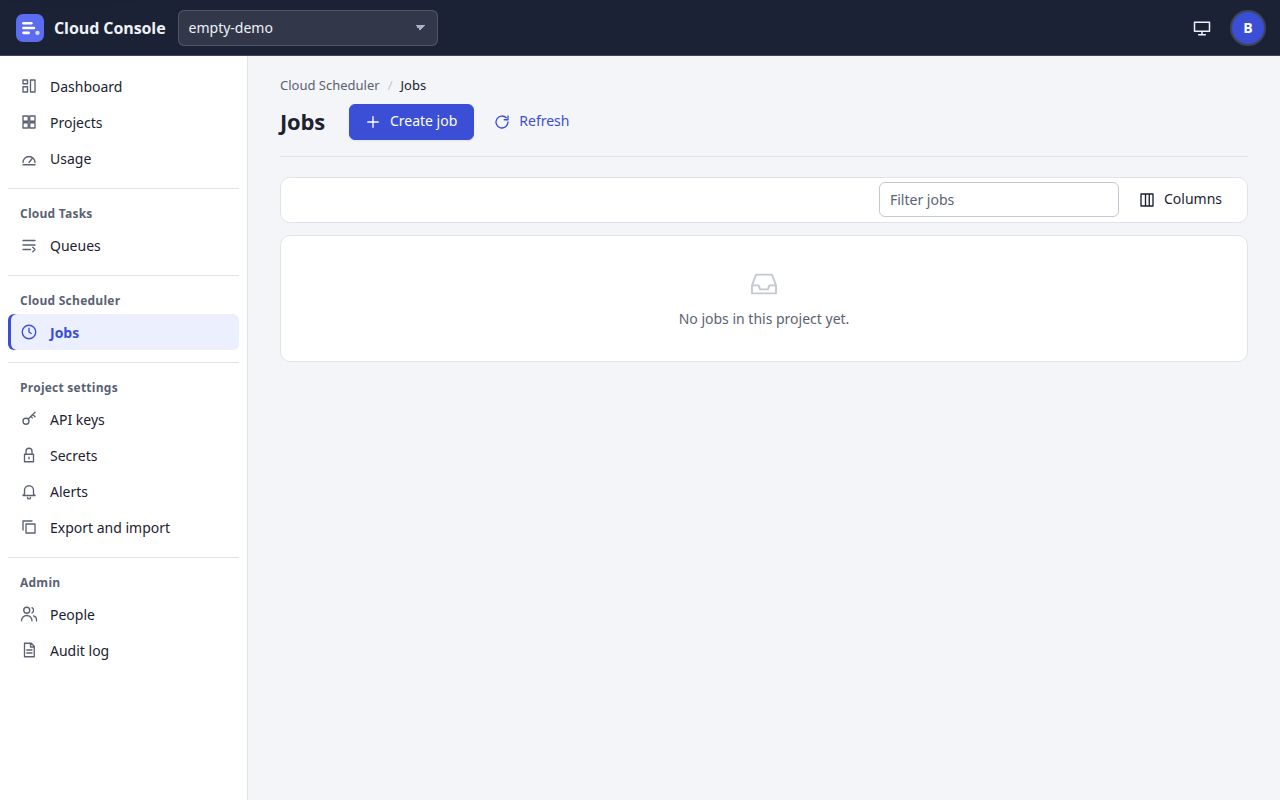
Empty: jobsA project with no jobs yet: the empty state, with Create job.
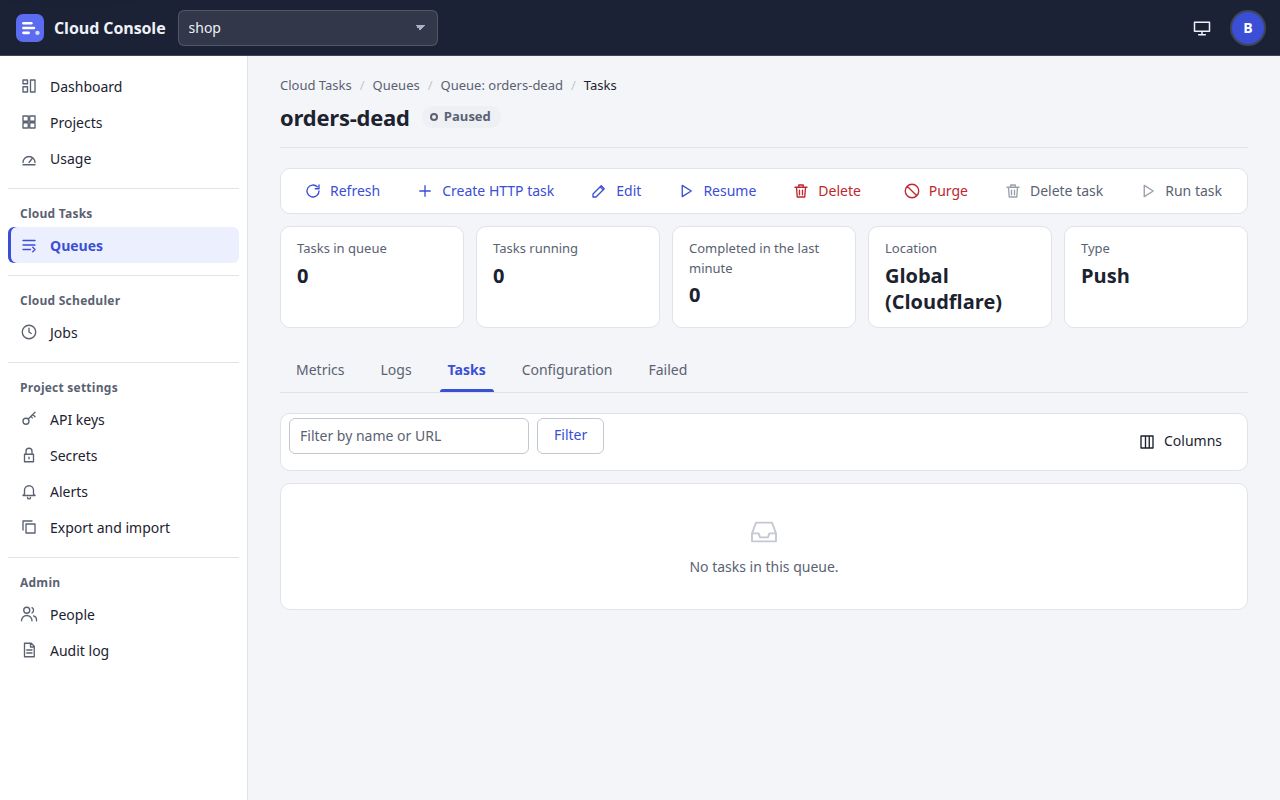
Empty: tasksA queue with no tasks: the Tasks tab's empty state.
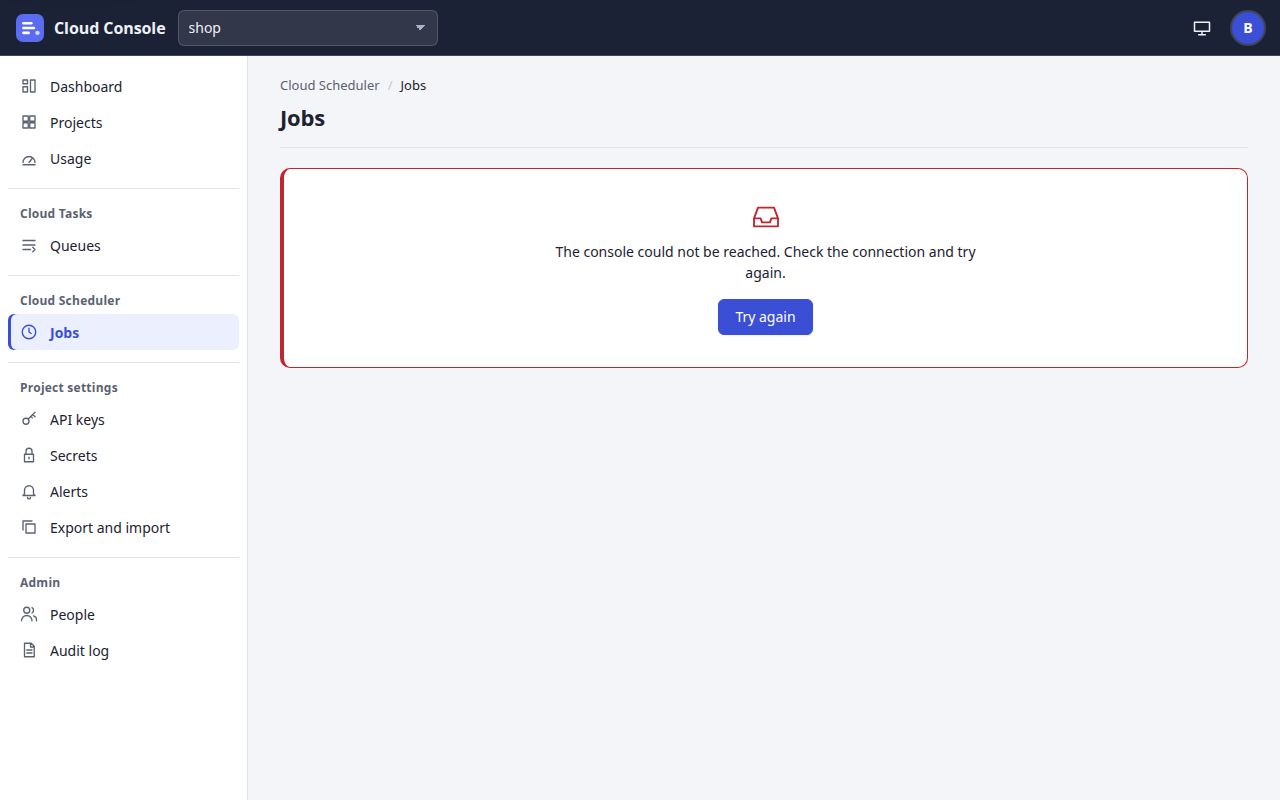
Load errorThe jobs list when the request fails: the error in place of the list, with Try again.
BusyResume clicked and its request still running: the button is disabled, with a turning ring, so a second click sends nothing.
HoverA toolbar button under the pointer: the soft accent background.
FocusReached with the keyboard: the focus ring.
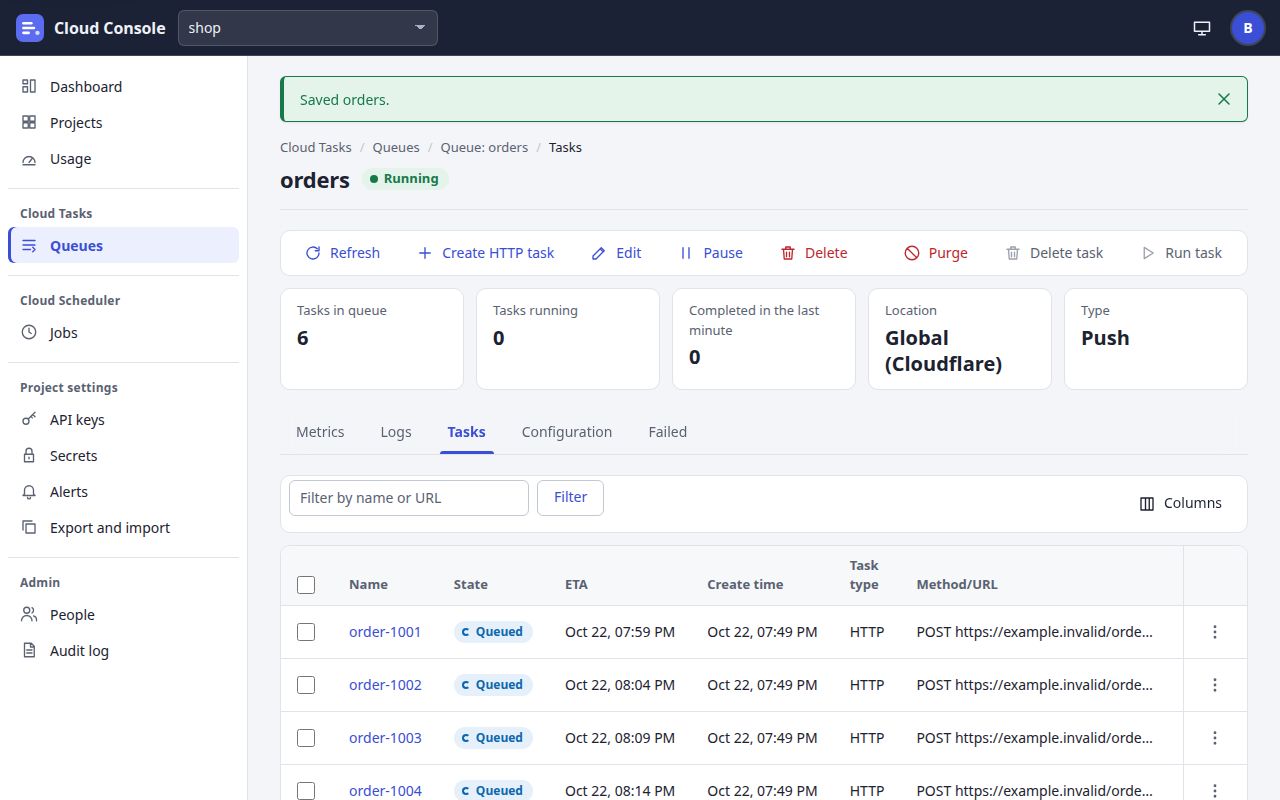
Notice: doneAfter a save that comes back to the page: the green notice, said once.
Notice: refusedA refusal from the API on a page action: the red notice with its message (here the person's hourly change budget, answered by a stand-in).
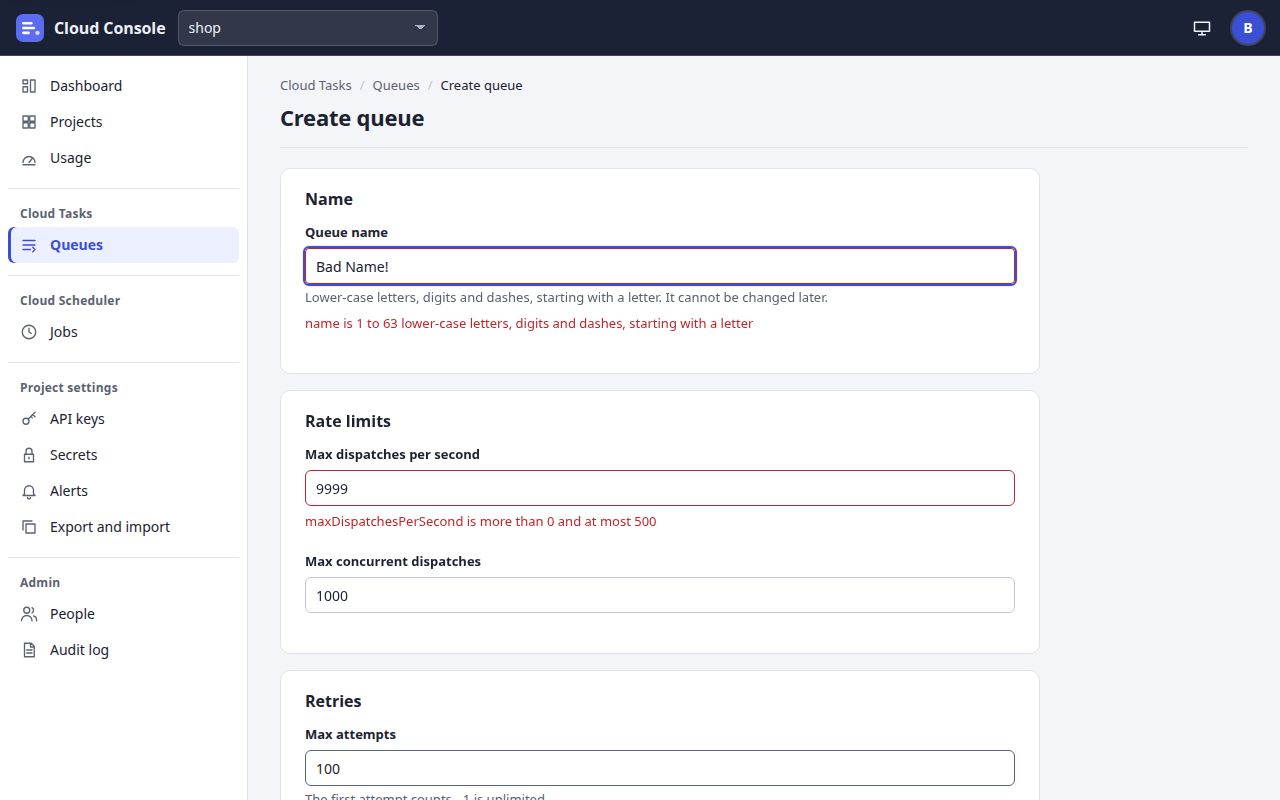
Field errorA form the API refuses: each field's message beside it, and the summary at the top.
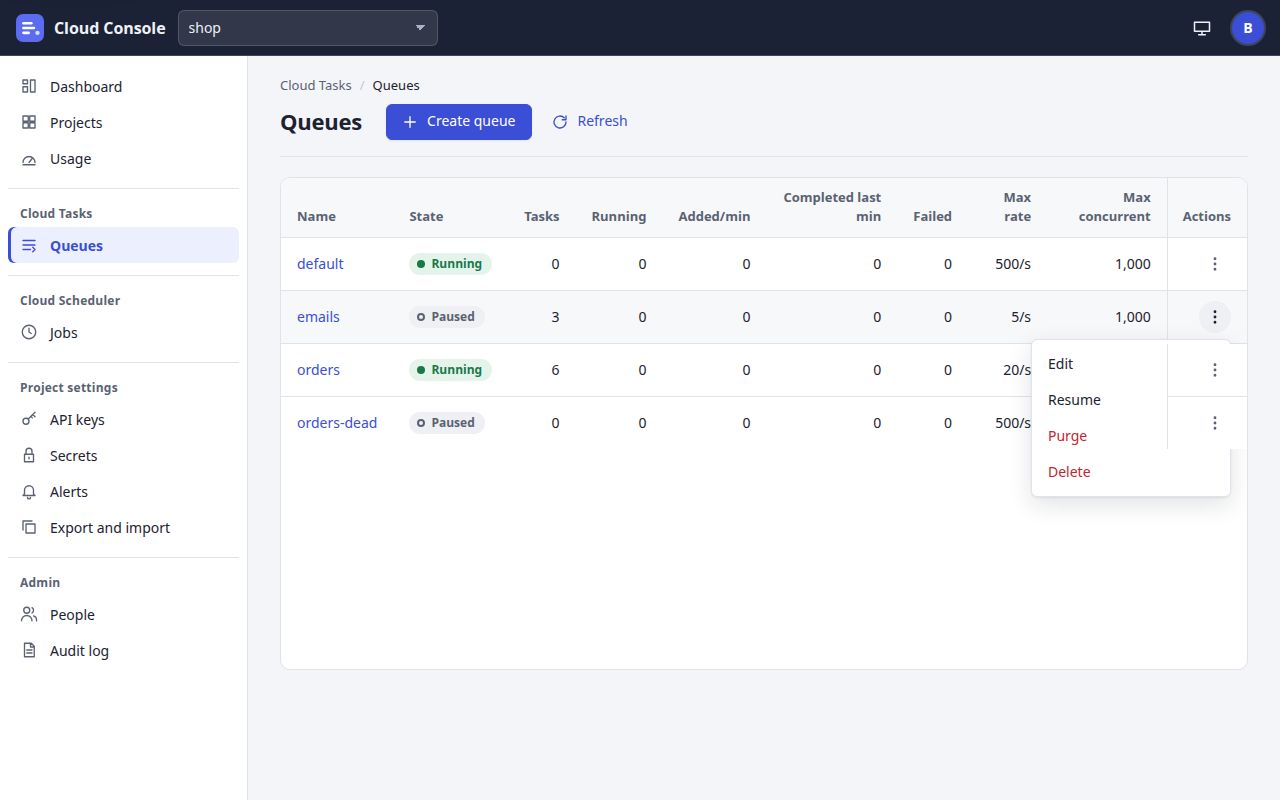
Row menuA row's actions menu (the three dots), open.
DialogA destructive action asks first: the confirm dialog (cancelled after the picture).
Create refusedCreate HTTP task with a name the queue remembers: 409. Its message is at the top of the form, out of this view: the page stays at Create.
Create doneCreate HTTP task accepted: the task's page, with the notice that it was created.
Sign-in refusedThe admin sign-in with a wrong password: one message for every reason, so it tells nothing away.
Phone menuOn a phone the navigation is a drawer behind the menu button.
Then each component, state by state: what the console does. A dash means the state does not arise for it.
Button
Default
Hover
Focus
Active or pressed
Disabled
Busy or loading
Empty
Error
Plain: the accent's words in a framed box. Primary: filled with the accent. Danger: red words. Quiet: no frame. In a toolbar it wears the icon of its words (Refresh, Edit, Delete).
A soft accent background; primary turns a darker accent; danger a soft red with a red frame. Picture
From the keyboard only: a 2px ring in the focus colour, 2px out. Picture
No pressed look of its own. A range button on Metrics shows the chosen range raised, with a shadow.
At 45% strength with a not-allowed pointer. In the bar over a table (Delete task, Run task until rows are ticked) muted words instead.
While its request runs: disabled and marked busy, a turning ring after its words, at full strength. A second click sends nothing. Picture
Not drawn at all when the API does not allow its action.
It comes back as it was. The refusal is a red notice at the top of the page, or on the form for a submit. Picture
Link button
Default
Hover
Focus
Active or pressed
Disabled
Busy or loading
Empty
Error
A link drawn as a button: Create queue, Create job, Create HTTP task, Create alerting policy, Cancel.
As a button: the soft accent background, no underline.
The focus ring.
No pressed look of its own.
Never disabled: left out when its action is not allowed (createQueue, createJob, createTask).
None: it opens the next page, which shows its own loading placeholder.
Left out, as when disabled.
The page it opens shows its heading, the error and Try again if it cannot load.
Row menu
Default
Hover
Focus
Active or pressed
Disabled
Busy or loading
Empty
Error
Three dots in a round button at the row's end, named “Actions for” the row; 44px on a phone. A details page puts its extra actions in one too, on a phone.
A soft grey circle behind the dots.
The focus ring. Escape closes an open menu and gives the focus back to the dots.
Open: the menu under the dots, kept inside the screen. Plain buttons in a fixed order; Tab moves through them; danger items in red. A click outside closes it. Picture
No menu at all when the row allows no action.
While the chosen item's request runs: the dots at 60% with a progress pointer, opening nothing. When the list is drawn again, the same row's dots get the focus back.
Left out, as when disabled.
A red notice at the top of the page.
Tab
Default
Hover
Focus
Active or pressed
Disabled
Busy or loading
Empty
Error
Grey words, 44px tall, in a strip that scrolls sideways when it is wider than the screen.
Ink words.
The ring, drawn inside the tab. Arrow keys, Home and End move to another tab.
Chosen: accent words in semibold over a 3px accent bar. Kept in the address (&tab=) and named at the end of the breadcrumb.
—
The tab's part loads in place (“Loading the metrics…”); the range buttons wait for it.
The tab's own words, such as “No tasks in this queue.” or “No failed tasks. Failed tasks are kept for 7 days.” Picture
The error and Try again in place of the tab's content.
Form field
Default
Hover
Focus
Active or pressed
Disabled
Busy or loading
Empty
Error
A label above the input, a hint under it, and a place for its message. Filled from the API's defaults, or from the queue or job being edited.
The frame turns muted grey.
A 2px ring on the frame.
No look of its own while typing. The page checks nothing as it is typed; the API does.
A raised grey background, muted words, a not-allowed pointer. A job's name on Edit: “A job's name cannot change.”
While the form sends: a progress pointer over it, and its submit disabled with the turning ring. Before it loads: “Loading the form…”.
An optional field left empty is left out; the API's default applies (an empty task name: the queue names it).
A red frame and the API's message under the hint; the input is marked invalid and the first one gets the focus. A message with no field of its own goes under “Check these:”. The job form opens the step that holds it. Picture
File chooser
Default
Hover
Focus
Active or pressed
Disabled
Busy or loading
Empty
Error
The text box's frame, its button drawn as the console's own in either theme. It takes a .json file: Tasks file, Settings file.
Its button gets the soft accent background.
The focus ring.
No look of its own.
Never disabled.
The button after it (Create tasks, Preview) is the busy one, and sends one request however often it is clicked.
No file: “Choose a file of tasks first.” or “Choose a settings file first.”, without a request.
Not JSON: the file's name and “is not a JSON file.”, without a request. A refusal lists each problem with its path in the file.
Table row
Default
Hover
Focus
Active or pressed
Disabled
Busy or loading
Empty
Error
A line between rows. The name is a link, cut to its column with the whole name on hover. On a phone each row is a card of labelled lines, and Show details opens the rest.
A raised background.
The ring on the name, the tick box or the dots.
Ticked (tasks, jobs): a soft accent background; the bar's buttons act on the ticked rows.
—
Before the first answer: the words (“Loading the queues…”) over a skeleton of rows. Picture
A framed empty state with an icon and a line, such as “No jobs in this project yet.” Picture
In place of the list: the error with a red bar at its left, and Try again. Never a blank page. Picture
Notice
Default
Hover
Focus
Active or pressed
Disabled
Busy or loading
Empty
Error
Done: green with a 4px bar, said once, with a close button. A create or save that moved to another page says it there, and drops &done= from the address. Picture
The close button gets a soft background.
The ring on “Dismiss this message”.
—
—
—; the control that sent the request is the busy one.
Nothing shown: one message area at the top of the page, read out when it changes.
Red, announced as an alert, with the API's own sentence, such as “Too many changes this hour; try again later”. Anything else: “Something went wrong on this page. Reload and try again.” Picture
Dialog
Default
Hover
Focus
Active or pressed
Disabled
Busy or loading
Empty
Error
A modal dialog over a dimmed page: the question as its title, a line on what happens, then Cancel and the action in red on the right. Picture
Its buttons as any button: Cancel the soft accent, the action a soft red.
The ring on its buttons. When it closes, the focus goes back to the control that opened it.
—
The page behind waits while it is open.
None of its own: after the action, the control that opened it is busy until the answer.
—
Escape is Cancel. A refusal after the action is a red notice on the page.