User journey map
Four kinds of people use Cloud Console. This page follows each one from the invitation to getting work done and handling a failure: what they do, the screen they use, what the console shows back in its own words, and how they feel.
It is built from the console's documents (the PRD, TECH and API) and its code. Names such as shop, order-1001 and shop-app are made-up examples, as in the screenshots.
The way in
By invitation only
Sign in with
Google, a passkey, or the break-glass account
A project's daily cap, by default
5,000 tasks and runs
A failed task is kept
7 days
Personas
Who comes in, and how: an admin invites each person by email, with a role and, for a member, permissions per project. The owner's break-glass account needs no invitation.
The app developer
- Role
- Builds an app such as FlowDeck, and wires it to the console with a project API key. A member with the
keyspermission in the app's project, or an admin. - Goal
- Hand the app's background work and timers to the console as HTTP tasks, and know each one ran.
| Pain point | How the console answers it |
|---|---|
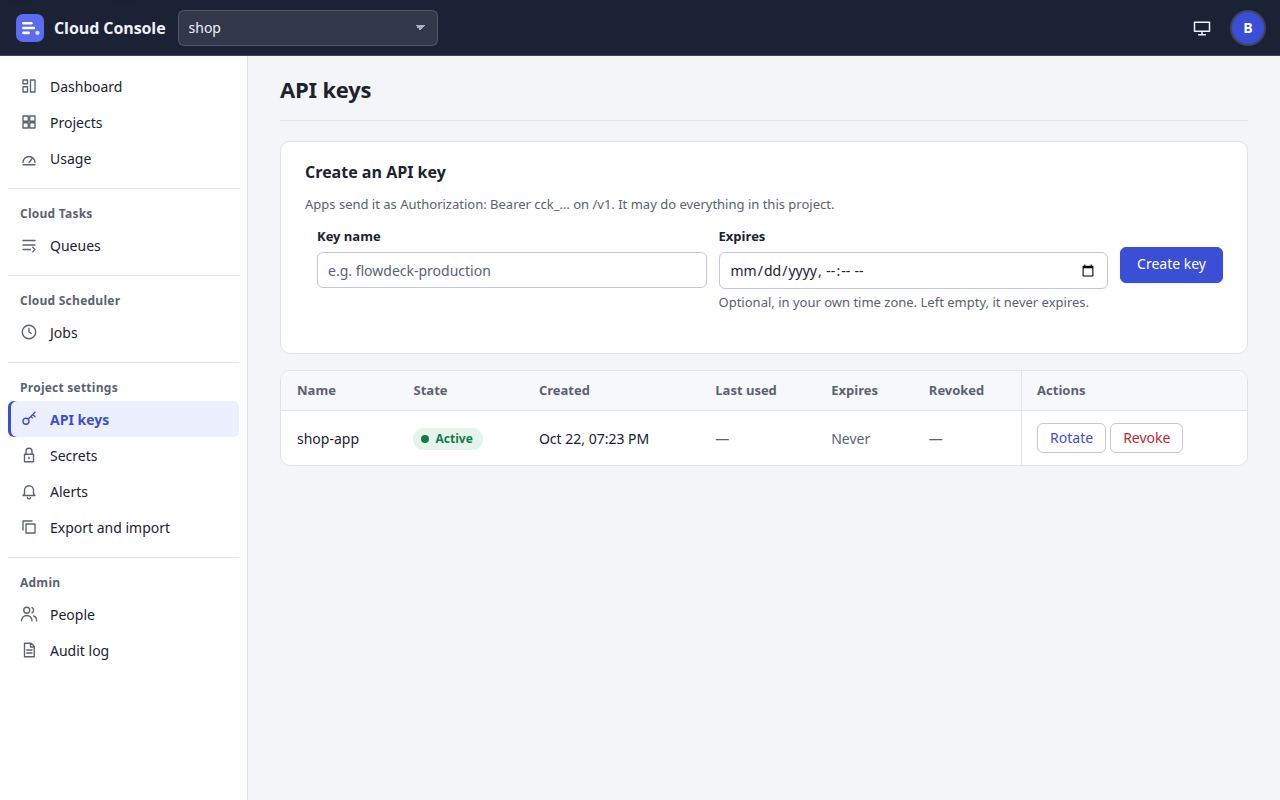
| A key that leaks, or that is read from the database | A key is shown once; the console keeps only its HMAC. It reaches its own project only: another project's key gets 403 This key belongs to another project. |
| The same work sent twice after a timeout | Task names are deduplicated per queue. A repeat answers 409 and nothing is added; FlowDeck treats 409 as done. |
| The console refusing, or over its quota | Over the cap the answer is 429 with code: "quota". FlowDeck runs the job itself on any refusal but 409; a task with a delay is logged and dropped instead. |
| A request refused with no clue why | Every refusal is one sentence for a person, plus each field's message at its path, such as auth.secret or headers.X-Foo. An unknown field gets Not a field of this request. |
| Credentials sent somewhere they should not go | A task names a secret; it never holds one. Basic, Bearer and OAuth secrets and service accounts go only to their allowed origins: anything else is refused when saved, and checked again before every call. |
| Not knowing whether the target took the call | Only a 2xx succeeds. The task page shows each attempt: its time, duration, status or error kind, and the first 1 KB of the answer. |
The operations admin
- Role
- An admin who runs the queues and jobs: every permission on every project, and the Usage page's caps.
- Goal
- Keep queues and jobs running, act on failures early, and stay within Cloudflare's free plan.
| Pain point | How the console answers it |
|---|---|
| A free-plan limit reached in the middle of the day | The Usage page shows each limit's share. Near a limit (80%) the admins get an alert and low-priority queues are held; at 100% every queue is held and new tasks and job runs are refused until the next UTC day. |
| One project using up everyone's budget | Each project has a daily cap: 5,000 task creations, job runs and retries by default, raised up to 1,000,000 or turned off by an admin. |
| Too many alerts | At most one alert of a kind about one queue or job every 10 minutes; the rest are counted in the next one (3 more held back). Quiet hours hold a project's alerts and send them together when the window ends. |
| A job starting while its last run still goes | By default that time is skipped and logged as Skipped (still running). Queue one run, or allow up to 5 at once, are the other choices. |
| A deploy breaking the work under way | The maintenance switch holds dispatch: tasks are still accepted and wait, scheduled runs are skipped and logged, and a banner shows on every page. |
| Hearing of trouble only when someone complains | The dashboard shows the last 24 hours: failing jobs, backlogs, the slowest jobs, and the console's own cron (Stale after 10 minutes without a run). A daily summary email is a choice on Your account. |
The read-only member
- Role
- A member with the Viewer preset (
readonly) on one project, such as someone in support or testing. - Goal
- See what failed and why, and pass it to someone who can fix it.
| Pain point | How the console answers it |
|---|---|
| Buttons that lead to "not allowed" | A page shows a button only when the API lists its action for this person. With read alone, there is no Run now, Retry or Delete to press. |
| Seeing a secret by accident | Secrets show by name, never by value. An attempt never keeps the request's auth headers, secrets or body, and every credential in an answer is replaced by [redacted] before it is kept. |
| Projects they should not see | A project they may not read does not exist for them: 404 No such project. |
| Queues held for no reason they can see | Every signed-in member sees the console-wide usage lines and the hold, which explain why their queues were held. |
| Checking every morning by hand | The daily summary email, at 08:00 in their own time zone, covers the projects they may read: failures, recoveries, backlogs and usage. |
The owner, as the break-glass admin
- Role
- The owner. Their
ADMIN_EMAILaccount is the console's one local account: a full admin who signs in with a password and a code, without Google. No admin may demote, disable or remove it. - Goal
- Get in when Google sign-in is not available, set the console up, and keep the account safe.
| Pain point | How the console answers it |
|---|---|
| Google sign-in not set up yet, or not working | The sign-in page says so, and links to the admin sign-in: Sign in with Google is not set up on this console. The break-glass admin can still sign in. |
| No password yet | ADMIN_PASS is optional. The first password is set through Forgot password: a link mailed to ADMIN_EMAIL, good for 30 minutes and once. |
| A stranger locking the owner out | Five wrong tries from one address lock out only that address, for 15 minutes. Fifty from all addresses lock the account for 15 minutes; then a second admin who signs in with Google, or the account's passkey, is the way in. |
| A lost phone with the authenticator | Ten backup codes, shown once at enrolment; each works once in place of a code. With both lost, the owner deletes the account (docs/TECH.md has the command) and starts again with a reset link. |
| Someone else using the account | Each break-glass password sign-in and each password reset is mailed to the admins as a security alert. A reset signs out every session and mails Your Cloud Console password was changed. |
The app developer's journey
Wiring FlowDeck to the console. A database migration makes FlowDeck's project, its queues (email, push, ai, timer), its service account and its jobs, so the developer adds only a key and four settings.
| Phase | What they do | Screen | What the console shows | Feeling or concern |
|---|---|---|---|---|
| Discovery and invitation | An admin invites them, as a member with the keys permission in the project, or as an admin. They open the mailed link within 7 days. |
The invitation page, /inviteNo screenshot; see Signing in |
|
Curious, a little wary: which Google account was it sent to? |
| Onboarding and first sign-in | Accept with Google, with the invited address. The first page is the dashboard. | 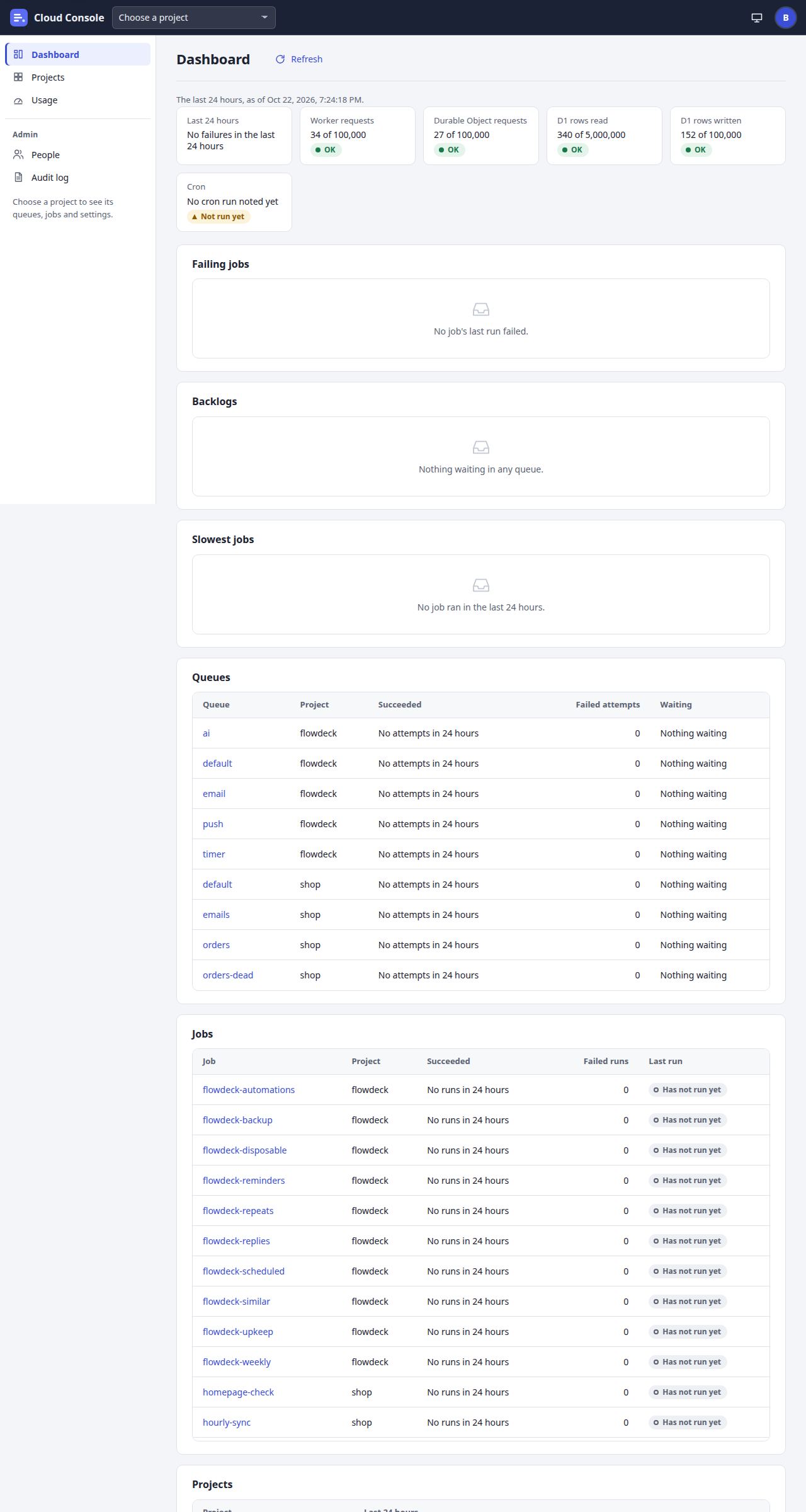 Dashboard Dashboard |
|
Relieved to be in; not yet sure where the keys live. |
| Setup | Choose the project, open API keys and create a key. Put it in the app's settings with the console's URL, the project's name and the service account (for FlowDeck: CONSOLE_URL, CONSOLE_PROJECT, CONSOLE_API_KEY, CONSOLE_SERVICE_ACCOUNT). Check the key with GET /v1/projects/{p}. |
 API keys API keys |
|
Careful: the key shows once, so it goes straight into the app's settings. |
| Doing the task | The app sends POST /v1/projects/{p}/queues/{q}/tasks with the key: a URL, a body, and OIDC auth as the project's service account. They watch the queue's Tasks tab, then a task's page. |
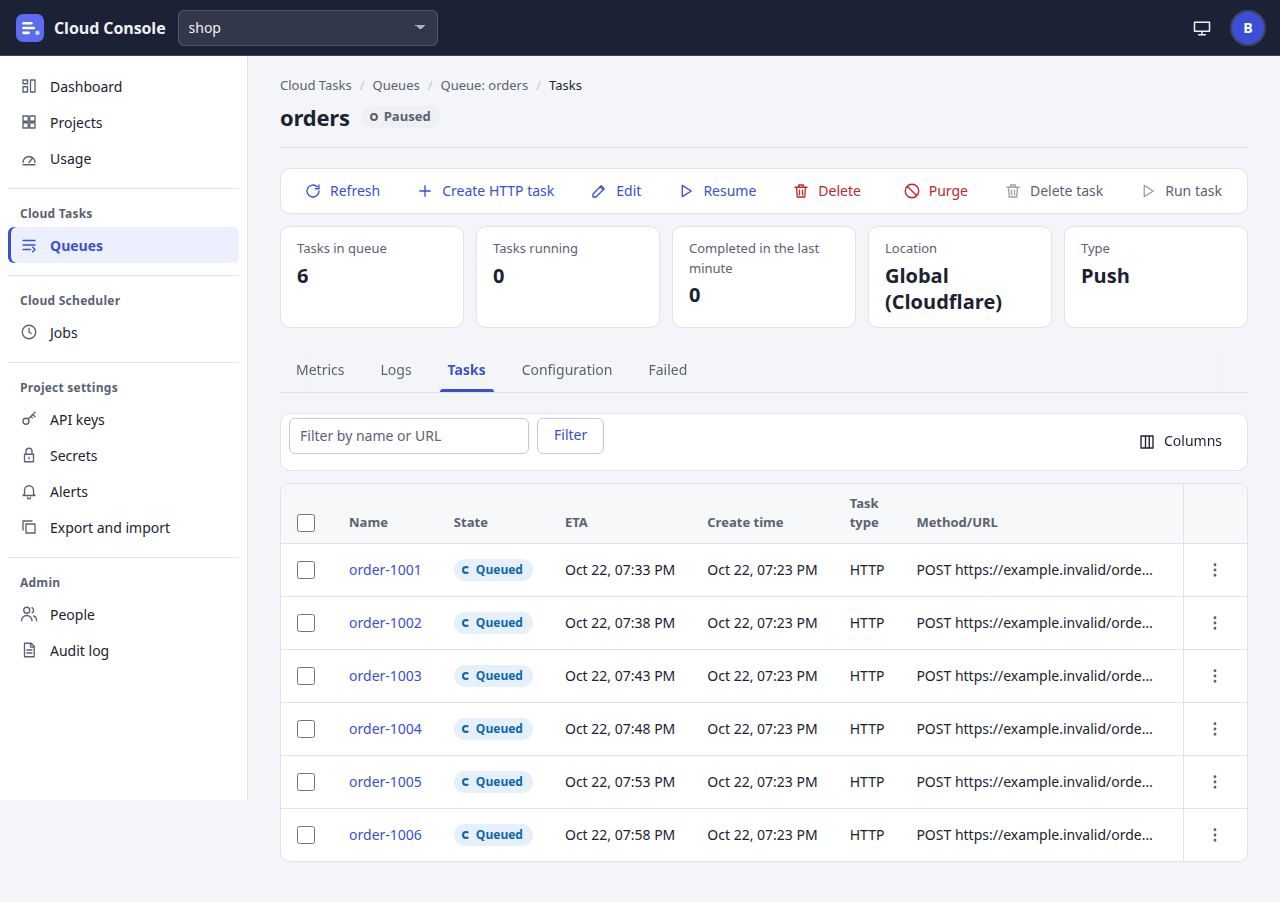 A queueThen a task A queueThen a task |
|
Confident once the first task shows Succeeded. |
| Something goes wrong | The console refuses a request, or the target refuses the call. | 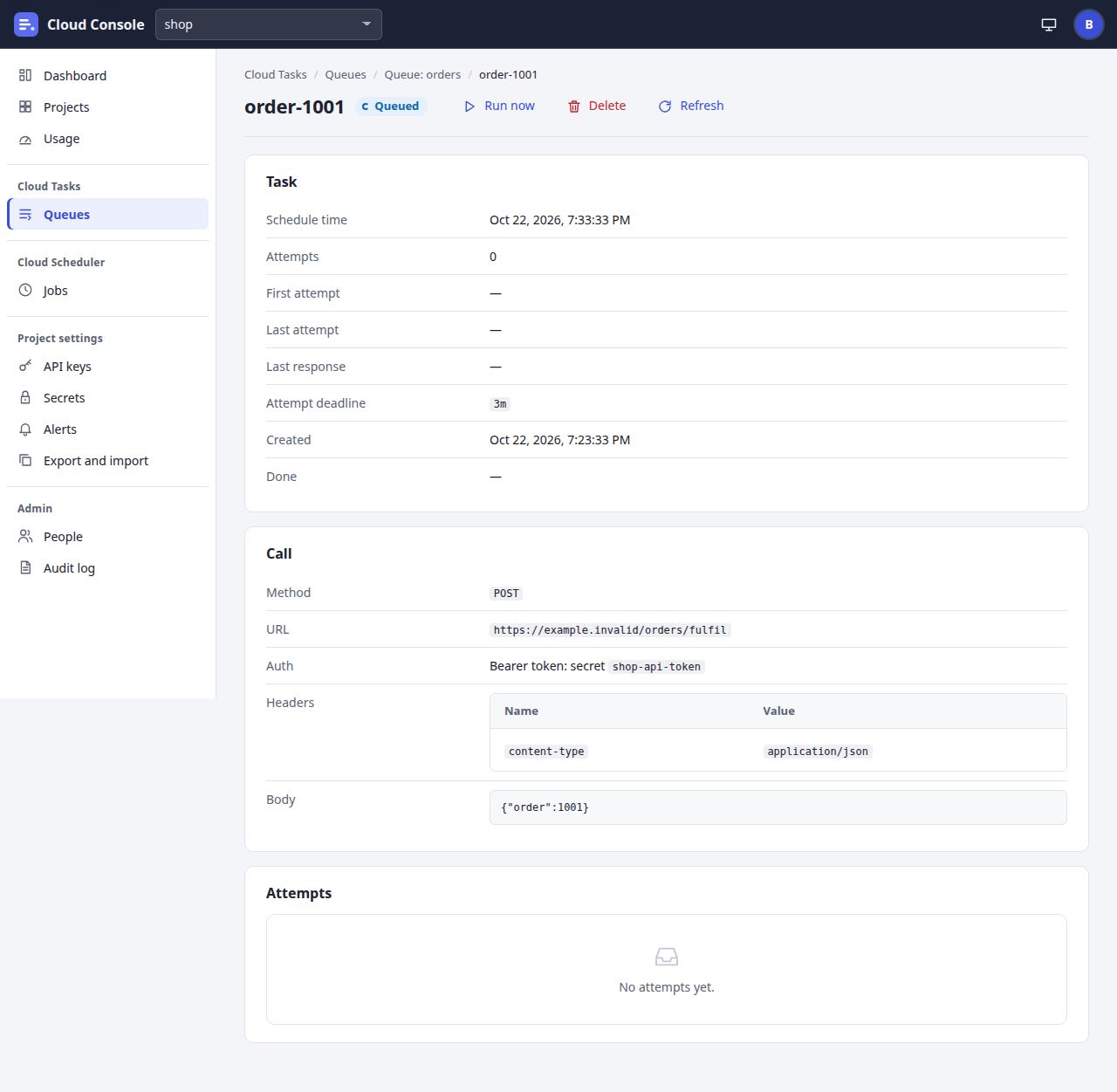 A task A task |
|
Worried at first: is it the app or the console? The message says which. |
| Done | Let the work run. Before a key's end, rotate it on API keys and move the app to the new one. | API keys |
|
Calm: the work runs without them, and the console warns before a key ends. |
The operations admin's journey
Running the queues and jobs of several projects, within one free Cloudflare account.
| Phase | What they do | Screen | What the console shows | Feeling or concern |
|---|---|---|---|---|
| Discovery and invitation | The owner invites them as an admin from People (or makes a member an admin). They open the mailed link. | 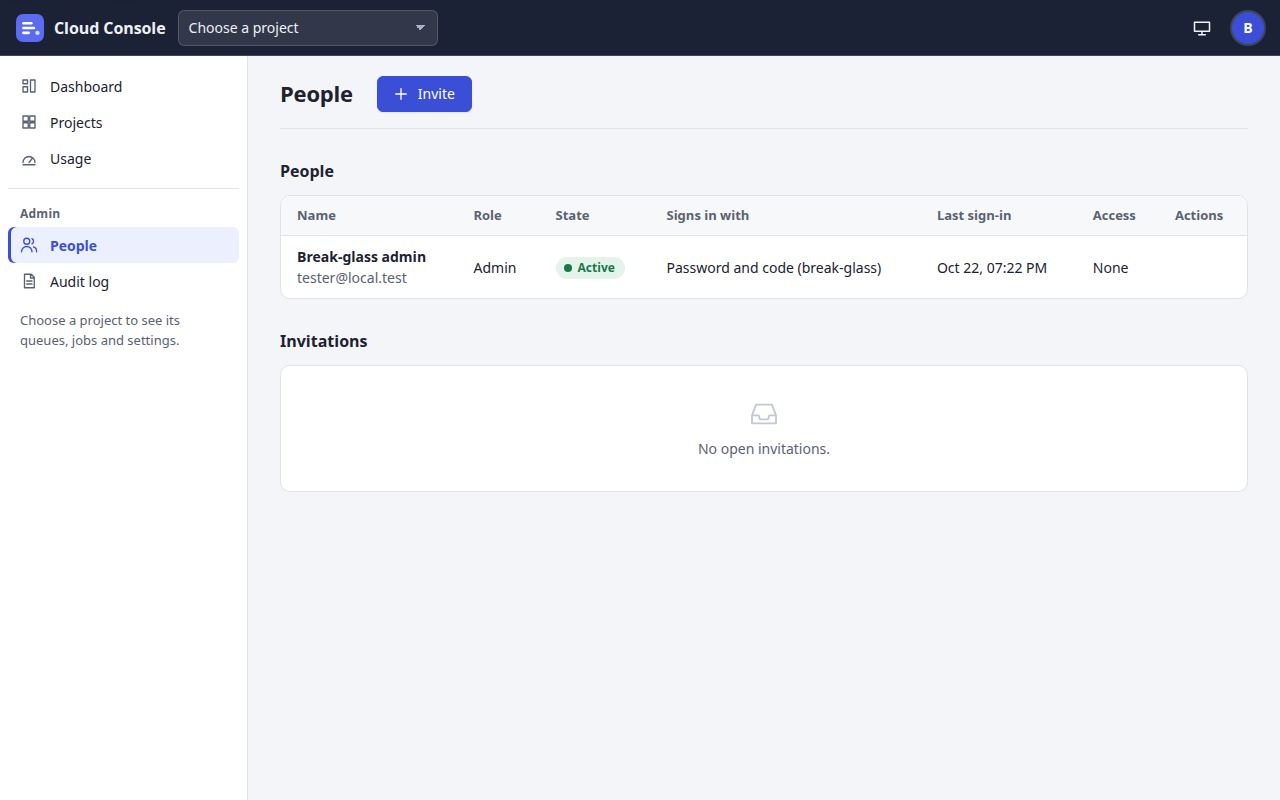 People People |
|
Ready to take over the day-to-day running. |
| Onboarding and first sign-in | Sign in with Google. The dashboard comes first. | Dashboard |
|
Wants the whole picture at a glance. |
| Setup | Create a queue with its rate, retries and priority; create a job in three steps; set the project's alerts; set a project's daily cap on Usage. | 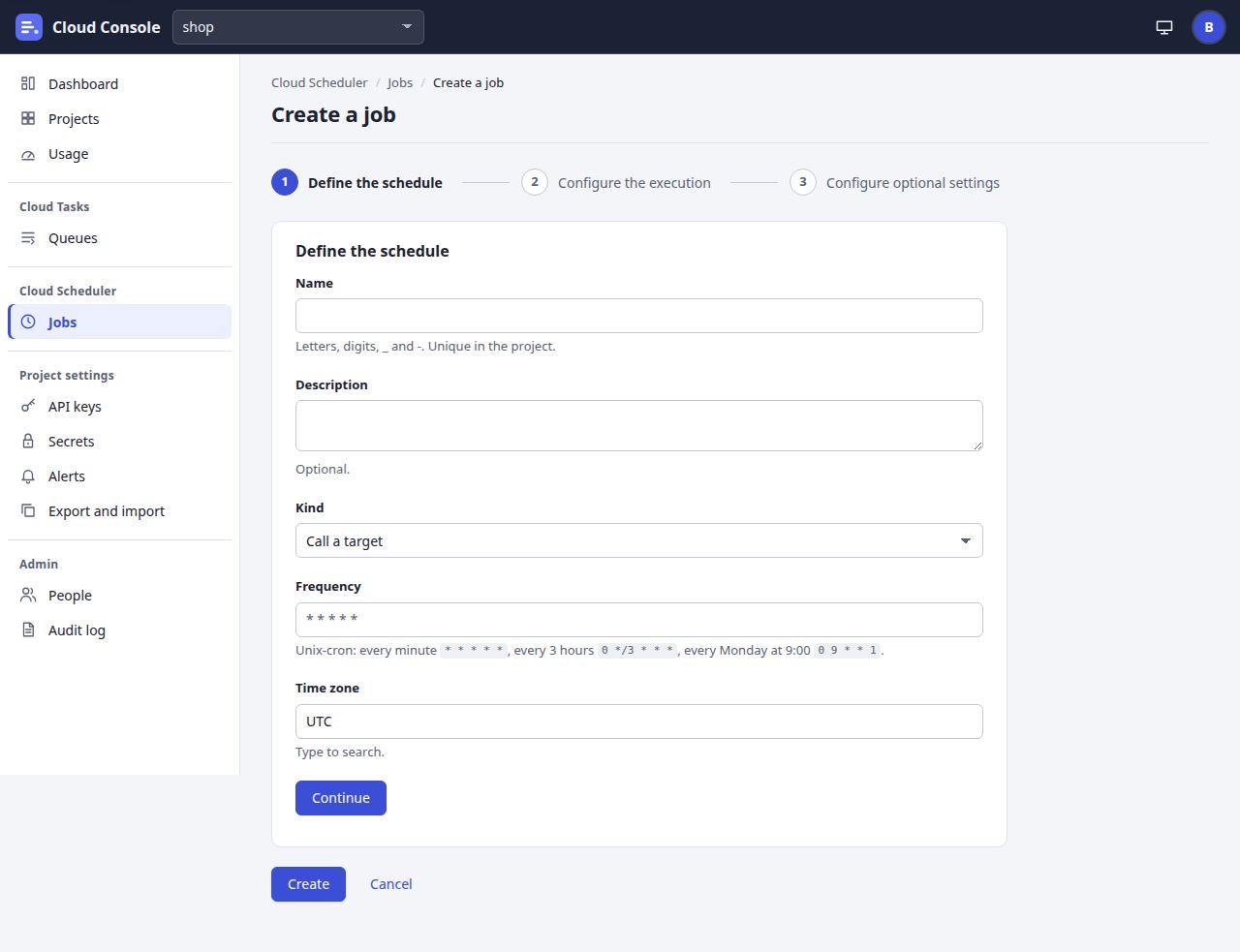 Create a jobAlso Create a queue, Alerts Create a jobAlso Create a queue, Alerts |
|
Careful with every number that costs the free plan. |
| Doing the task | Watch the queues' metrics and the jobs list; force run, pause and resume jobs; turn on the daily summary. | 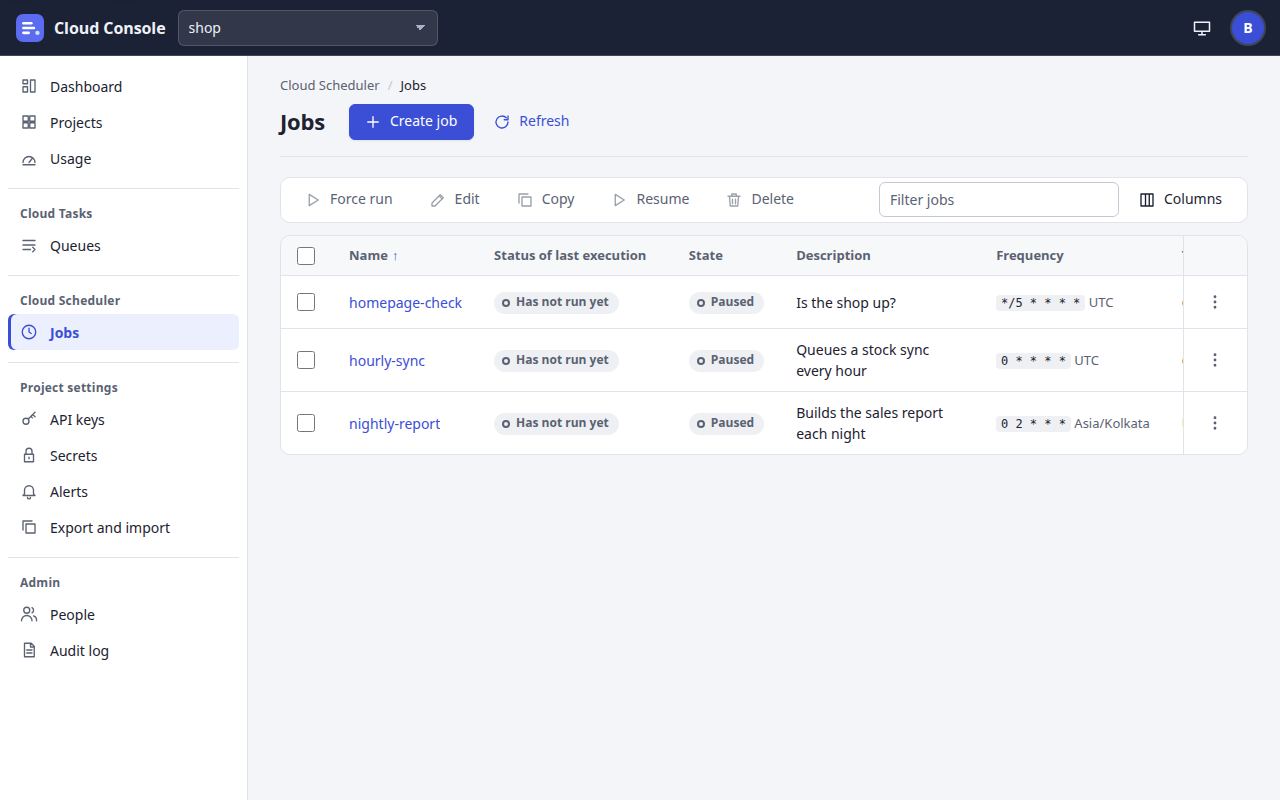 JobsAlso a queue's metrics JobsAlso a queue's metrics |
|
In control, as long as the numbers stay green. |
| Something goes wrong | An alert comes: a job failing twice in a row, or the console near a free-plan limit. They open Usage. | 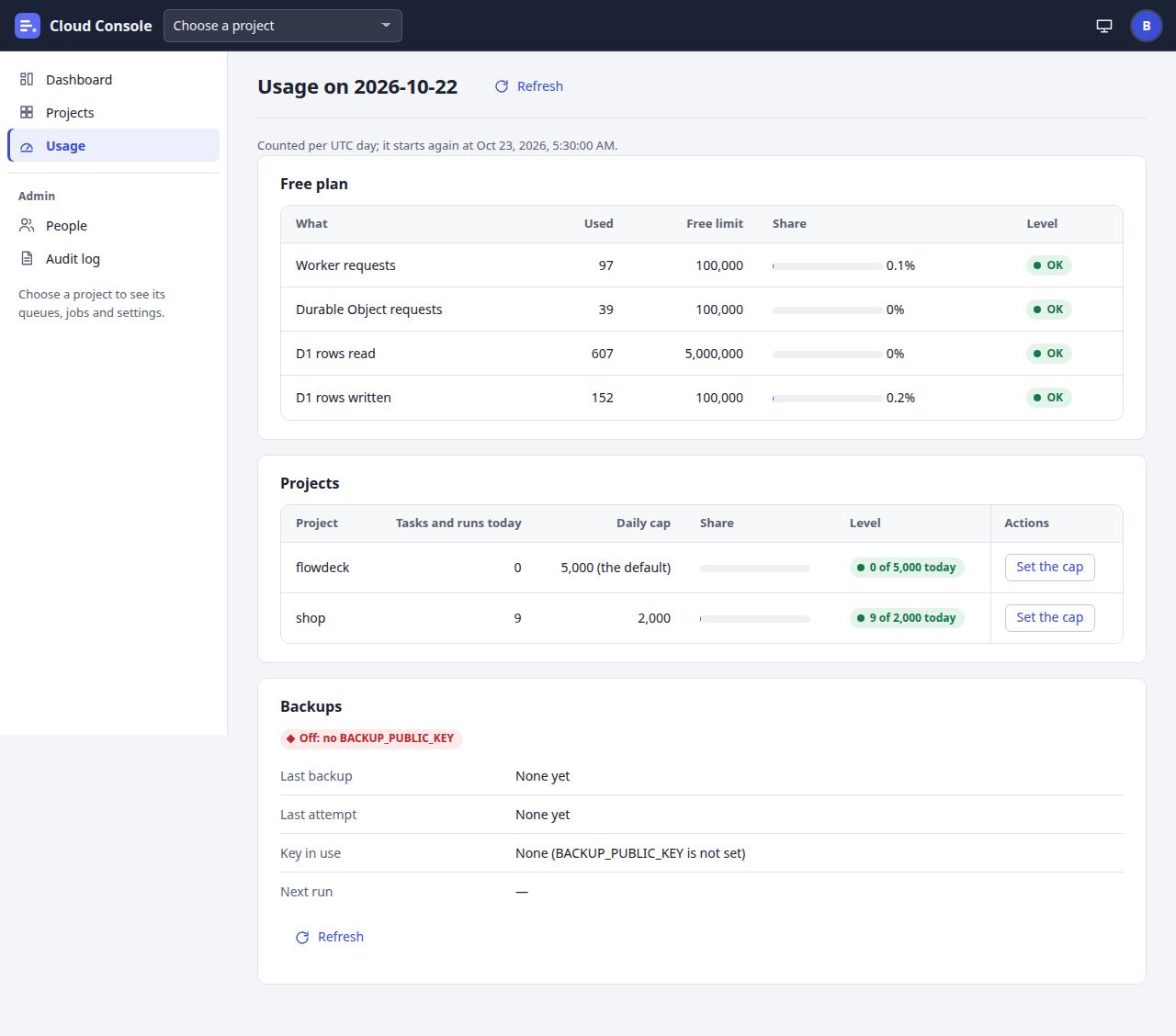 Usage Usage |
|
Under pressure: which project, and how long until it clears? |
| Done | Raise a project's cap if it needs more. Once the target is back, retry the queue's failed tasks. | A queue, Failed tab |
|
Relieved; tomorrow's summary will show the recovery. |
The read-only member's journey
Checking on failures in one project, with the Viewer preset: read and nothing else.
| Phase | What they do | Screen | What the console shows | Feeling or concern |
|---|---|---|---|---|
| Discovery and invitation | An admin invites them with the Viewer preset on one project. They open the mailed link. | The invitation page, /inviteNo screenshot; see Signing in |
|
Hopes it is quick: they only need to look. |
| Onboarding and first sign-in | Accept with Google and land on the dashboard. | Dashboard |
|
Reassured: a small view, and nothing to break. |
| Setup | On Your account, turn on the daily summary in their time zone; add a passkey for quicker sign-in. | 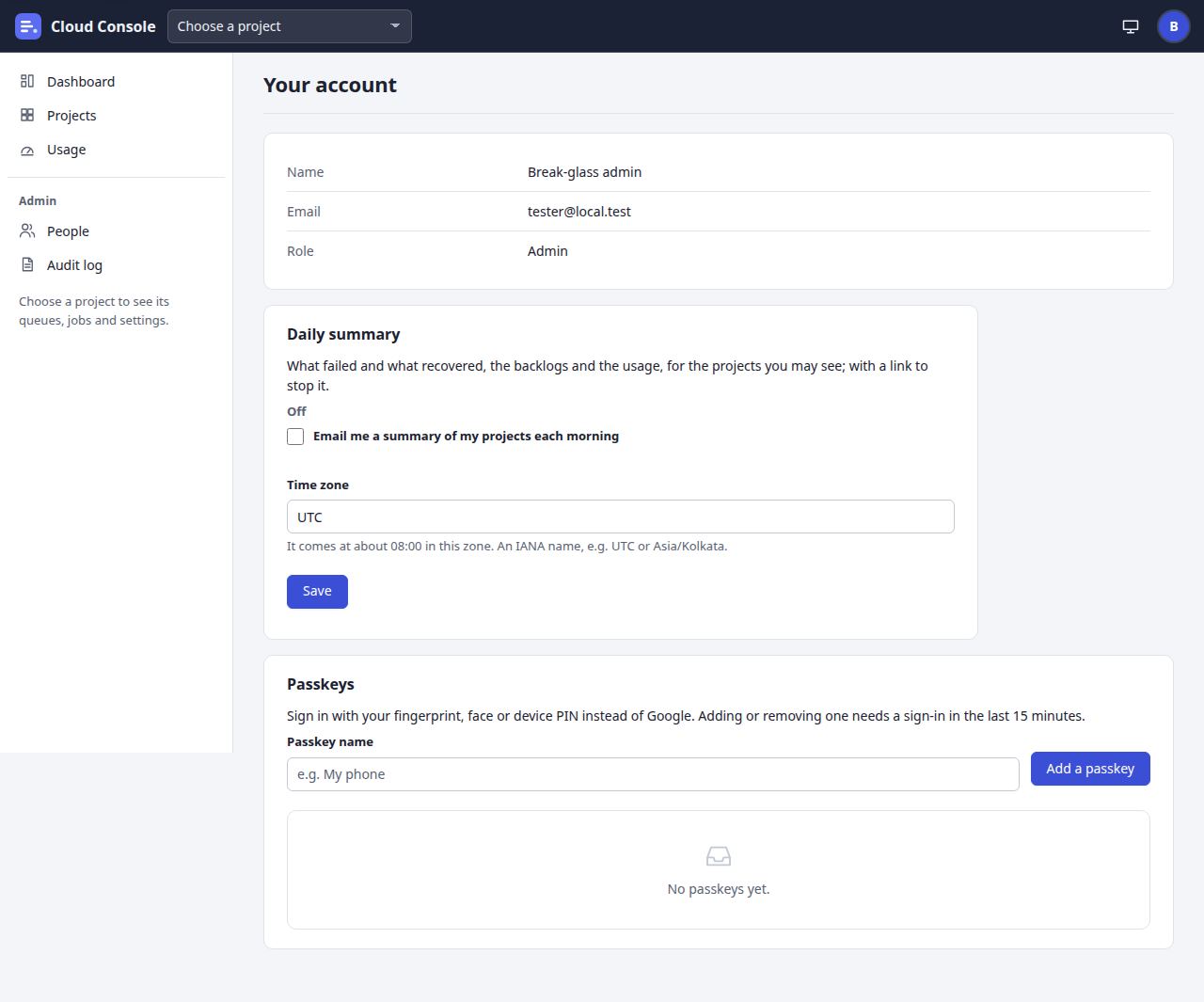 Your account Your account |
|
Glad not to check by hand each morning. |
| Doing the task | Follow a failing job or a failed task from the dashboard: the job's Logs, or the queue's Failed tab, then the task's page. | A taskAlso a job |
|
Focused: wants the cause, in words. |
| Something goes wrong | They want the task retried, but have no button for it. They filter a long task list again and again. | A queue |
|
A little stuck, but clear about what to hand over. |
| Done | Send the task's name and error to someone with the run permission, who retries it. |
A task |
|
Done in minutes, without changing anything themselves. |
The owner's journey, as the break-glass admin
Getting in without Google: on the first day, and on any day Google sign-in is not available.
| Phase | What they do | Screen | What the console shows | Feeling or concern |
|---|---|---|---|---|
| Discovery | Deploy the console with ADMIN_EMAIL set. There is no invitation: the console makes the account at the first sign-in or forgot-password attempt. |
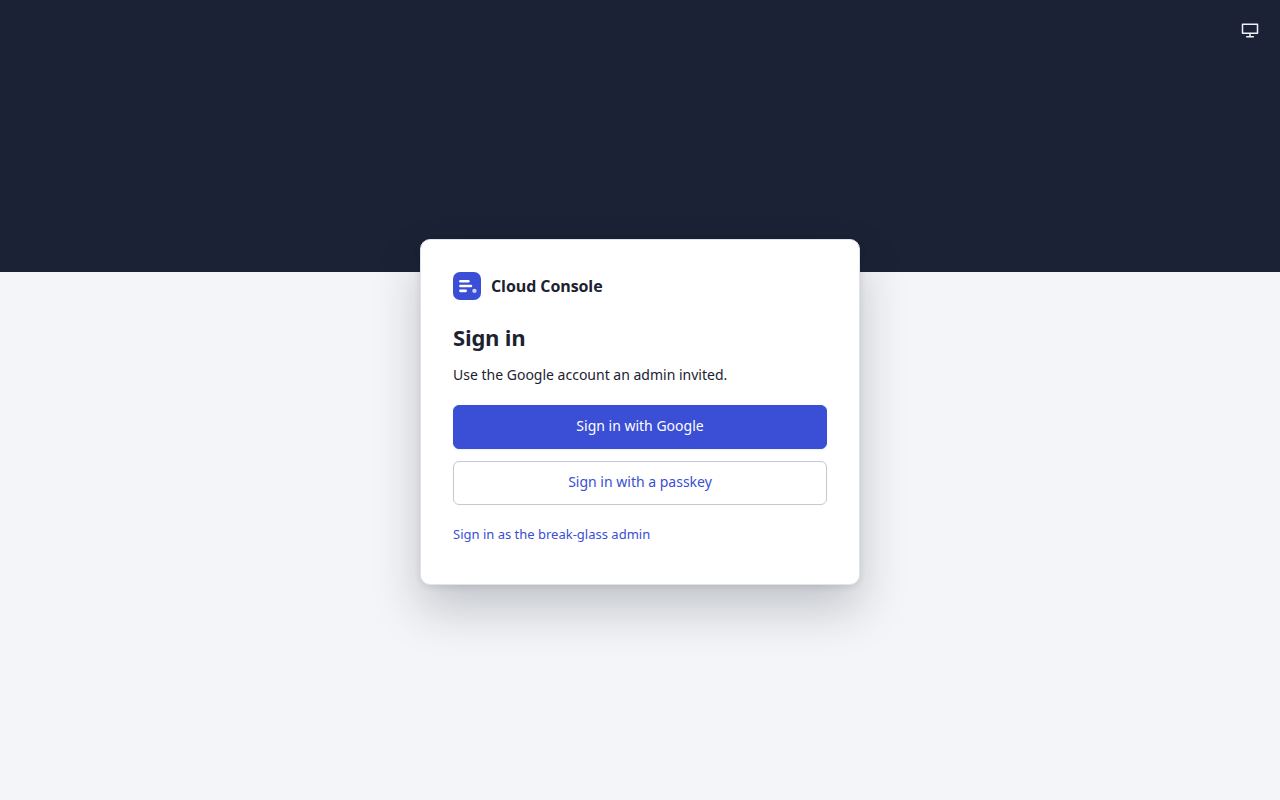 Sign in Sign in |
|
Needs a way in before anything else works. |
| Onboarding and first sign-in | Choose Forgot password?, send the link to ADMIN_EMAIL, open it within 30 minutes and set a password of 16 characters or more. Sign in with the code left empty, enrol an authenticator, and keep the backup codes. |
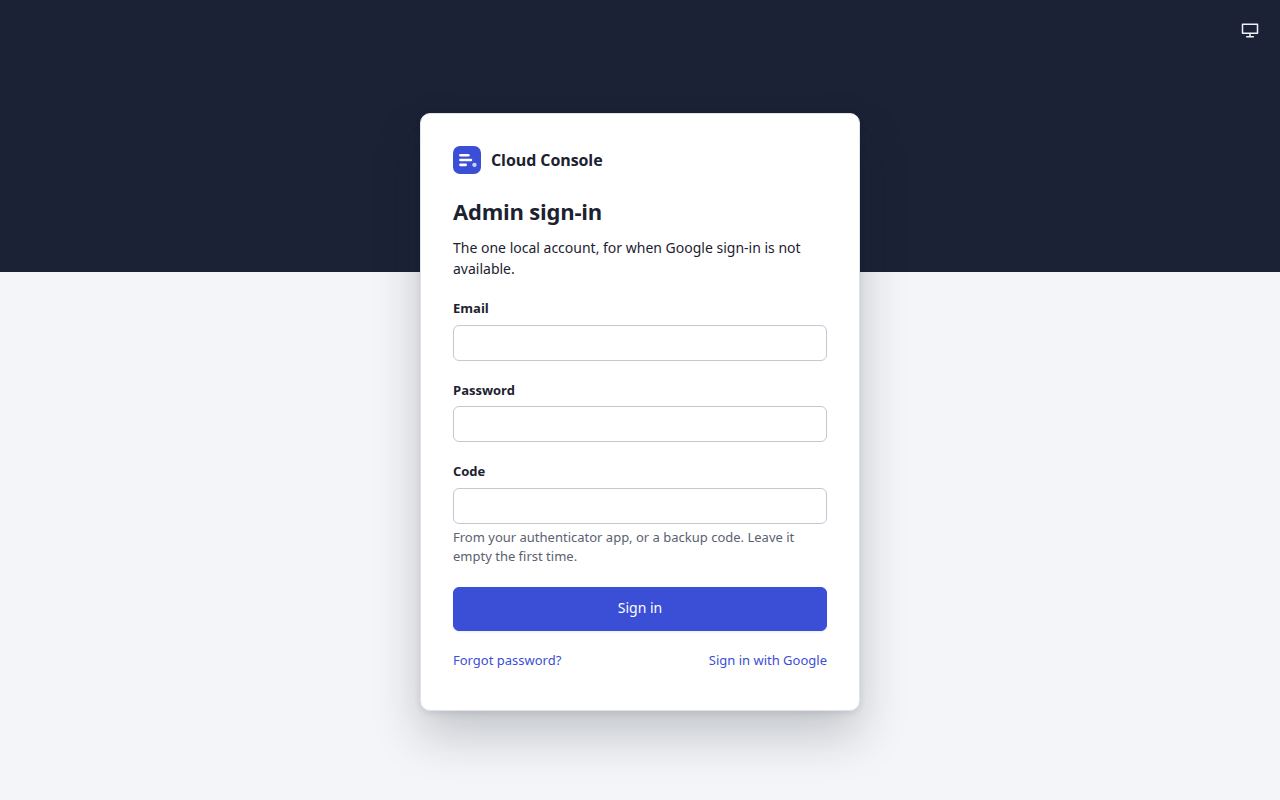 Admin sign-in Admin sign-in |
|
Methodical: the backup codes must go somewhere safe. |
| Setup | Invite the others from People. Add a passkey to the account, as a second way in. | PeopleAlso Your account |
|
Building the team, and a spare way in. |
| Doing the task | On a day Google is not available, sign in with the email, the password and the code from the authenticator, or a backup code. | Admin sign-in |
|
Uses it rarely, and needs it to just work. |
| Something goes wrong | They type a wrong code, or someone else keeps trying the account. | Admin sign-in |
|
Anxious: shut out of their own console. During a lock, a second admin with Google, or the passkey, gets in. |
| Done | Get in another way, and read the audit log for the lock and the tries. | 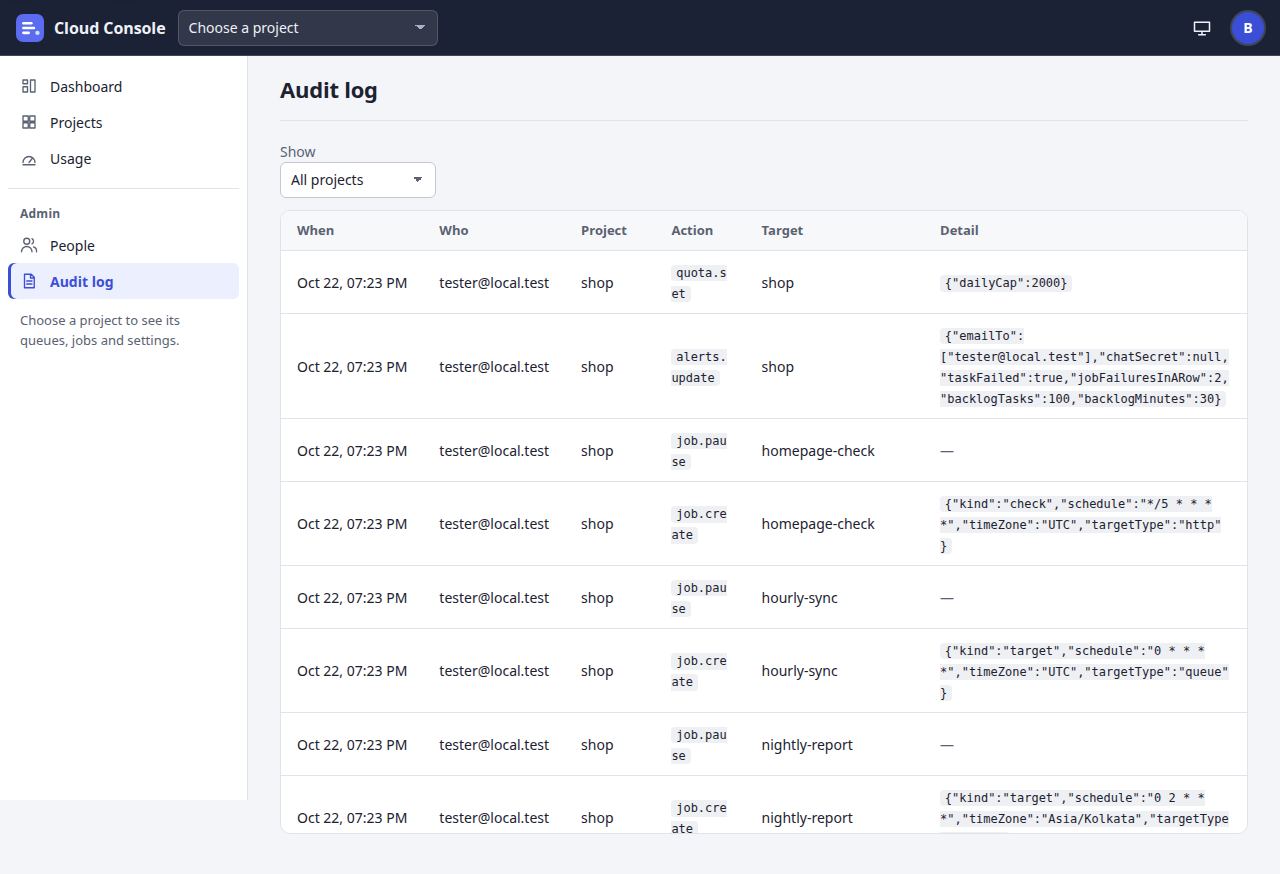 Audit log Audit log |
|
Back in control, with a record of what happened. |
Moments that matter
Where the console has to be clearest, and what it shows there.
The quota is used up
A task from an app or a page, a file of tasks, a job's run, the Usage page.
- 429 with
code: "quota", and nothing is added. FlowDeck then runs the job itself. - A file:
The project's daily quota of 5000 tasks and job runs has room for 12 more today; the file has 30 tasks
, and none is made. - A forced run:
The daily quota of shop is used up
. A scheduled run: Skipped (daily quota). - The whole console at a limit: the Usage page says every queue is held until the next UTC day.
A file is refused
Create a task, From a file. The whole file is checked before anything is made.
- Not JSON: said on the page, and nothing is sent.
- A mistake: 400, each message at its place in the file (
tasks.3.url;tasks.2.name:x is in the file twice
), and no task is made. - Names the queue remembers:
Created 3 tasks; 1 could not be
, with each refused task and why.
A task fails for good
The queue's Failed tab, the task's page, the project's alerts.
- The task shows Failed with its last error, and stays 7 days.
- Each attempt is in the inspector: status or error kind, duration, the first 1 KB of the answer.
- A task-failed alert goes to the project's alert channels: email, Google Chat, or both.
- Retry one or all:
Retried failed tasks: 3.
With a dead-letter queue set, a copy is added there.
Locked out
The sign-in, invitation and admin sign-in pages.
- Not invited:
Not invited: ask an admin to invite you
. Disabled:This account is disabled
. - The break-glass account answers a locked account exactly as a wrong try; too many from one address:
Too many sign-in attempts from this address; try again later
. - A passkey after 30 days without Google:
Sign in with Google (or your password) first: a passkey works for 30 days after one
. - Google off: the sign-in page says the break-glass admin can still sign in.
A key shown once, or ended
API keys, and every app call with the key.
- A new key:
Copy it now and keep it in the app's settings. You won't see it again: the console keeps only a hash of it.
- Warnings 7 days and 1 day before the end, to the project's alert channels.
- After the end: 401 on every call, until the app has the new key.
The other documents: UI and screen flow, annotated screens, the clickable prototype, the style guide and the user manual.
Built from Cloud Console's main branch (CAP-162), 22 Oct 2026. Example values only: no real keys, emails or ids.