For admins
Admins may do everything on every project. Only they invite people and set what each may do, read the audit log, create projects, set a project's daily cap and hold the whole console. The Admin group of the sidebar shows only to them.
Invite a person and set their permissions
Needs admin
- 1
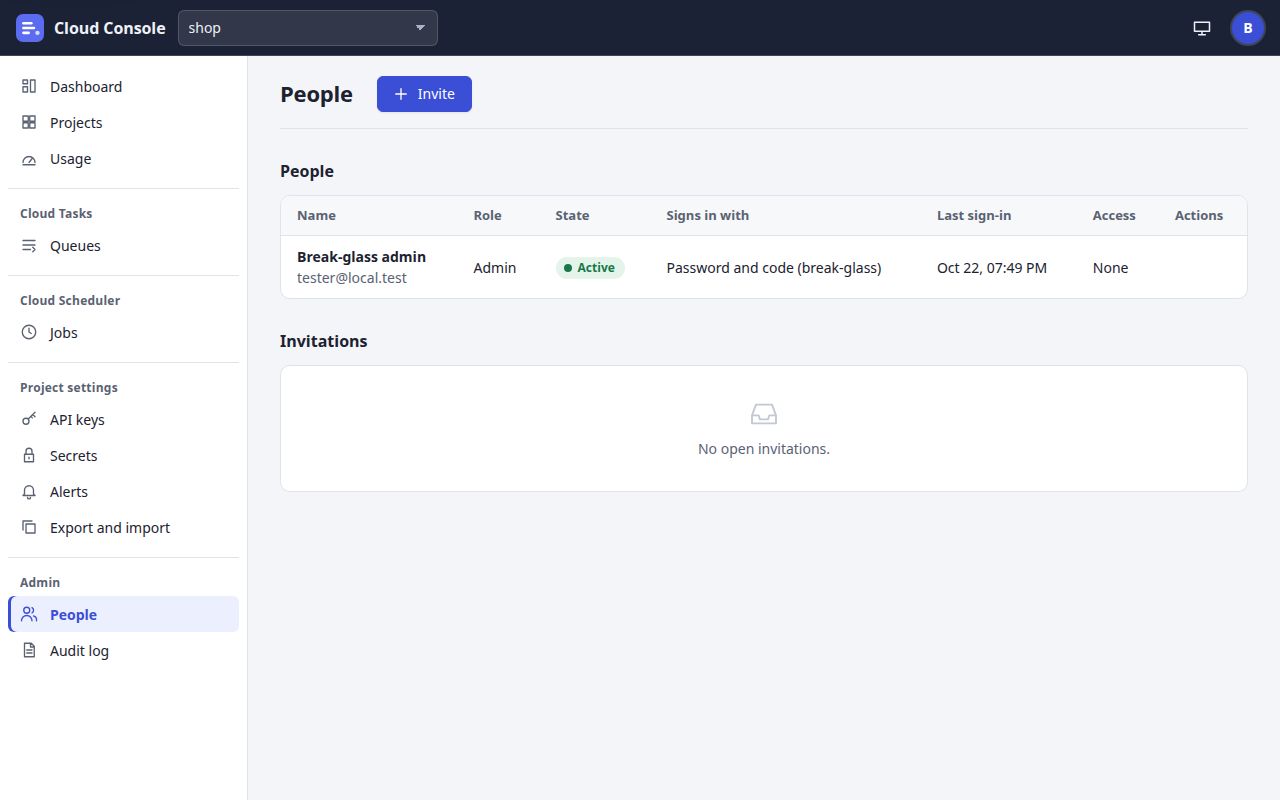
Click Invite. The panel Invite someone opens:
- Email:
The Google account they will sign in with.
- Role: Member or Admin.
An admin may do everything; a member only what the boxes below give.
- Permissions per project: a row All projects, those made later too, then a row per project. Tick the permissions (read, create, update, delete, pause, run, keys, secrets), or pick a Preset…: viewer, editor or manager.
- Click Send the invitation.
- Email:
- 2
People: each person's Role, State, Signs in with, Last sign-in and Access. Their row menu has Edit access, Make admin or Make member, Disable or Enable, and Remove.
- 3
Invitations: the open ones, with who sent them and when they expire. Their row menu has Resend and Cancel.
What you see when it worked
Invited …
and the invitation under Invitations. The person gets a mail with a link that works once, for 7 days (what they do). Once they accept, they are under People, signing in with Google.
Change what someone may do
- On People, open the person's row menu and choose Edit access.
- In Access of …, tick or untick the boxes per project, or pick a preset. For an admin:
An admin may do everything; these grants matter once they are a member.
- Click Save access:
Saved the access of ….
- Make admin and Make member change the role (
… is an admin now.
). A person made a member is signed out. - Disable and Remove sign the person out everywhere. Remove asks first:
They are signed out and lose every grant. The audit log keeps their name.
- Resend mails a new link and the old one stops working (
Sent the invitation to … again.
). Cancel:Its link stops working.
- Give each person only the permissions they need; the table in Finding your way says what each allows.
If it is refused
That address is invited already; resend the invitation instead
That is the break-glass admin
: that account needs no invitation.Mail is off: set the MAIL_* settings to send invitations
: without the console's mail there are no invitations.You cannot change your own role, disable or remove yourself
, andThe break-glass admin cannot be demoted, disabled or removed
.
Read the audit log
Needs admin
- 1
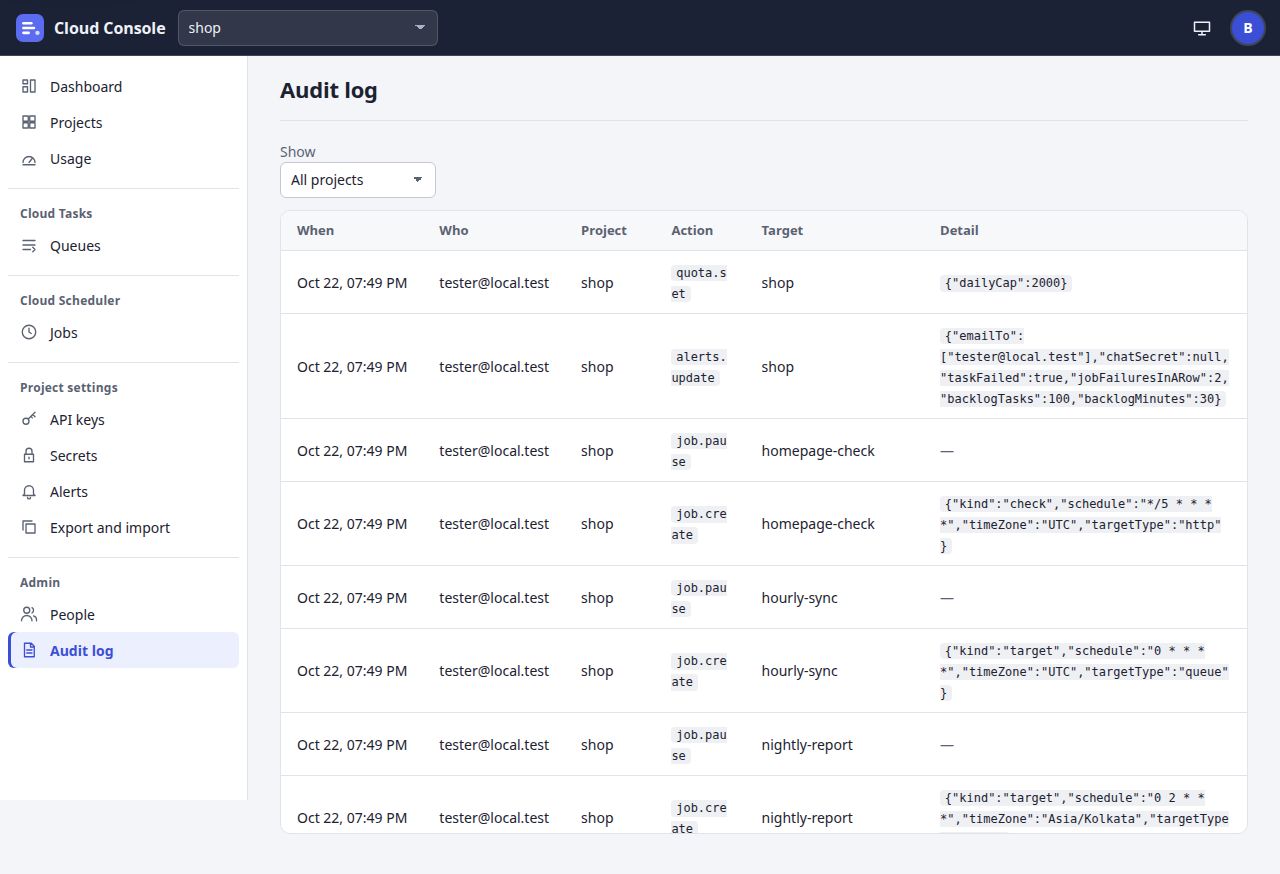
Click Audit log under Admin.
- 2
Show: All projects, or one project.
- 3
Who: the person's email, or
key:and a key's name when a project's app turned its maintenance switch. - 4
Action: what was done, such as
queue.create,job.pause,quota.set,alerts.update,maintenance.on,settings.importorpasskey.add. Target is what it was done to. - 5
Detail: the settings or counts of the change.
What you see when it worked
Every change anyone made, newest first, a page at a time (Load more). The project you chose stays in the page's address. With nothing yet: Nothing in the audit log yet.
- Lines are kept 400 days.
- Tasks that apps make or delete with their API key are not in it; their run logs and the quota count keep them.
- Use it to check who changed a queue, a job, a person's access or a cap, and when.
Set a project's daily cap
Needs admin
- 1
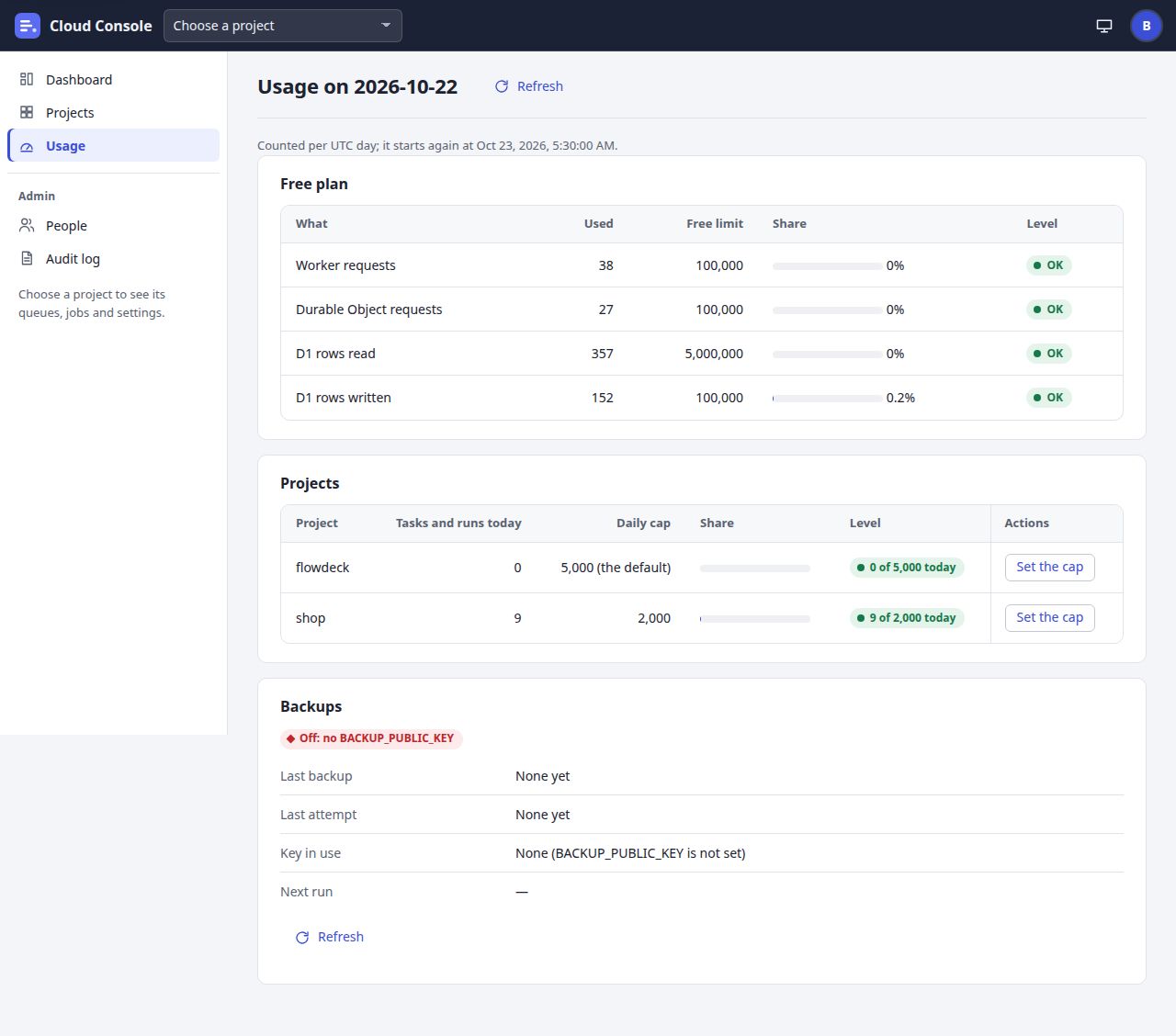
Open Usage. The Daily cap column says each project's cap: its own, (the default), or None.
- 2
Click Set the cap in the project's row. The panel Daily cap of … opens with the field Daily cap:
Empty for the default (5,000); 0 for no cap.
Type the cap, from 1 to 1,000,000, and click Set the cap (or Cancel).
What you see when it worked
A notice with the project and its new level, such as shop: 9 of 2,000 today
, and the new cap in the Daily cap column. The cap counts the project's task creations, job runs and task retries per UTC day.
A cap cannot lift the console-wide hold of a free-plan limit; only the next UTC day does.
Other admin controls
- Create project on Projects: Project name,
Lower-case letters, digits and dashes, e.g. flowdeck.
Then Create:Created the project ….
- Hold every project on Projects: the console-wide maintenance switch (how). Members see its banner without who switched it on.
- Backups on Usage: the state of the daily backup, and Back up now (
A backup has started; it finishes within a few minutes.
), at most 3 an hour.
Cloud Console user manual, from the console as it is on main. The pictures are of a local copy with a made-up project, shop, and a made-up admin. 22 Oct 2026.