Getting started and signing in
There is no public sign-up. People come in only by an admin's invitation and then sign in with Google. One local account, the break-glass admin, signs in with an email, a password and a code from an authenticator app. Anyone may add passkeys to sign in faster.
Your console's address
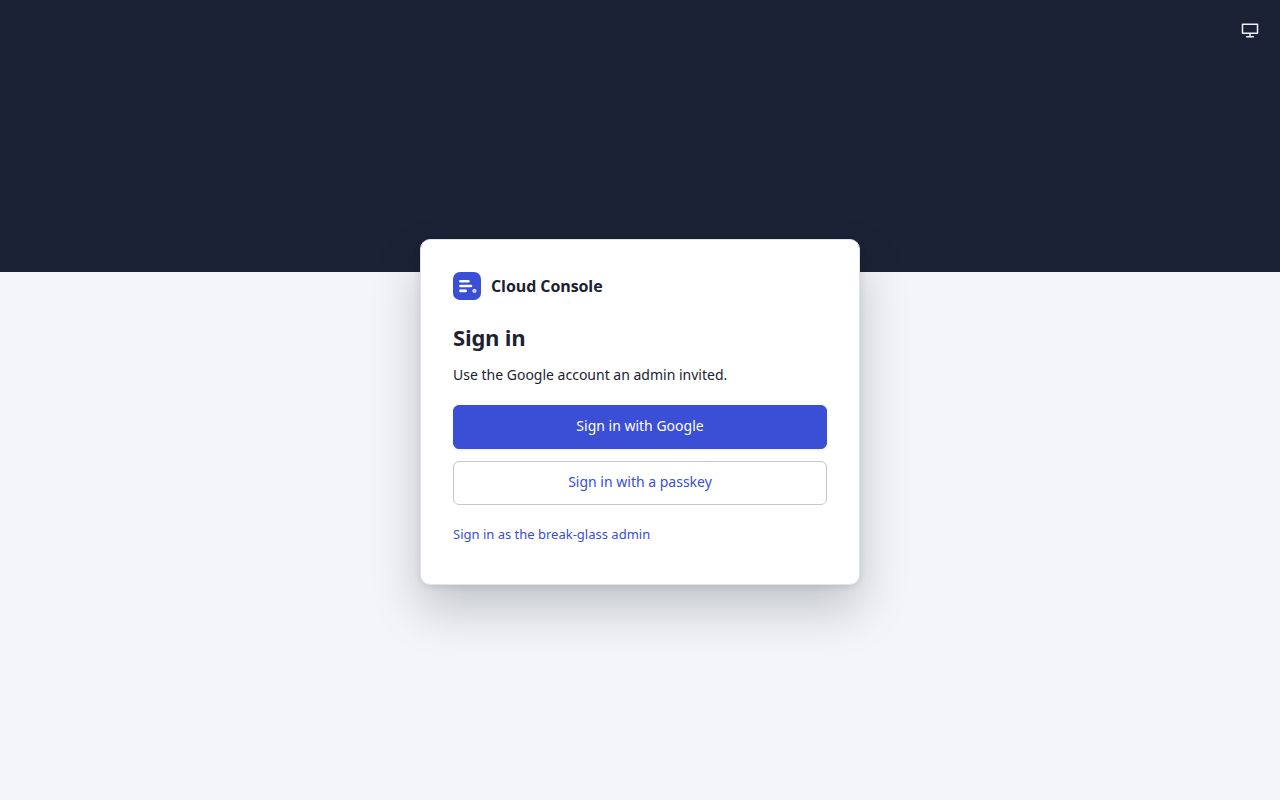
Cloud Console runs at one web address, your console's address. The owner or the admin who invites you gives it to you. Open it in a browser on a computer or a phone. It opens on Sign in; if you are signed in already, it goes on to the Dashboard.
- 1
Sign in with Google: for everyone an admin invited.
Use the Google account an admin invited.
- 2
Sign in with a passkey: shows only when the browser can use passkeys, and works only for a passkey you added (see Passkeys).
- 3
Sign in as the break-glass admin: the one local account (see The break-glass admin).
| Way in | For | What it needs |
|---|---|---|
| Sign in with Google | Everyone an admin invited | Your invitation accepted once, with the Google account it was sent to |
| Sign in with a passkey | Anyone who added a passkey on Your account | A sign-in with Google (or the break-glass password) in the last 30 days |
| Break-glass admin | The one local account, a full admin | Its email, its password and a code from its authenticator app |
If Google sign-in is not set up
The page says Sign in with Google is not set up on this console. The break-glass admin can still sign in.
Only the break-glass admin can sign in until the owner sets it up.
Accept an invitation
An admin invites you by email. The invitation gives you a role and your permissions in each project.
- Open the email
You are invited to Cloud Console
. It says to open its link within 7 days and sign in with Google as the invited address. - Open the link. The page Accept your invitation says:
Sign in with the Google account the invitation was sent to. Another account is turned away, and the invitation stays open for the right one.
- Click Accept with Google, and choose that Google account on Google's page.
- You are signed in, with the role and the permissions the admin chose. From now on, use Sign in with Google on the sign-in page: the link works only once.
What you see when it worked
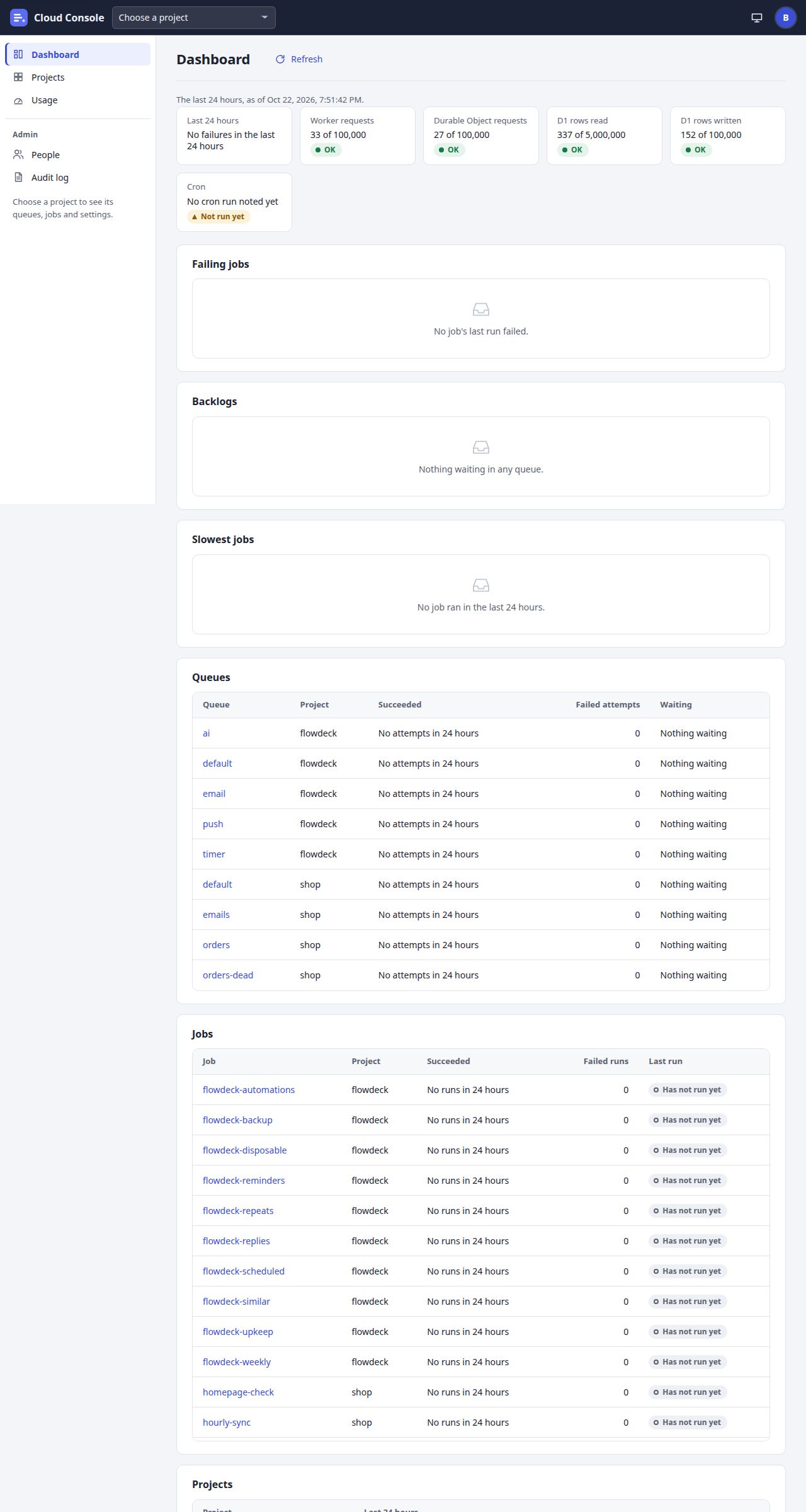
The Dashboard opens, and your projects are in the project picker. A project you have no permission on does not show at all.
If it is refused
This invitation is for another address: sign in with the Google account it was sent to
: choose the invited Google account and open the link again.This invitation has expired or was used; ask an admin to send it again
: an admin resends it from People; the old link stops working.This Google account is here already; sign in without the invitation
: use Sign in with Google.- The page without its link says
Open this page from the link in the invitation email. Ask the admin who invited you to send it again if it has expired.
Sign in with Google
- Open your console's address.
- Click Sign in with Google and choose the Google account you were invited with.
What you see when it worked
The Dashboard opens. Your session lasts until 12 hours without use, and at most 7 days; then you sign in again.
Google's own two-step sign-in protects your Google account. Only invited, enabled people get in: anyone else is answered Not invited: ask an admin to invite you
, and a disabled person This account is disabled
.
The break-glass admin
The one account that signs in without Google: a full admin, for when Google sign-in is not available. Its sign-in is behind the link Sign in as the break-glass admin. No admin may demote, disable or remove it.
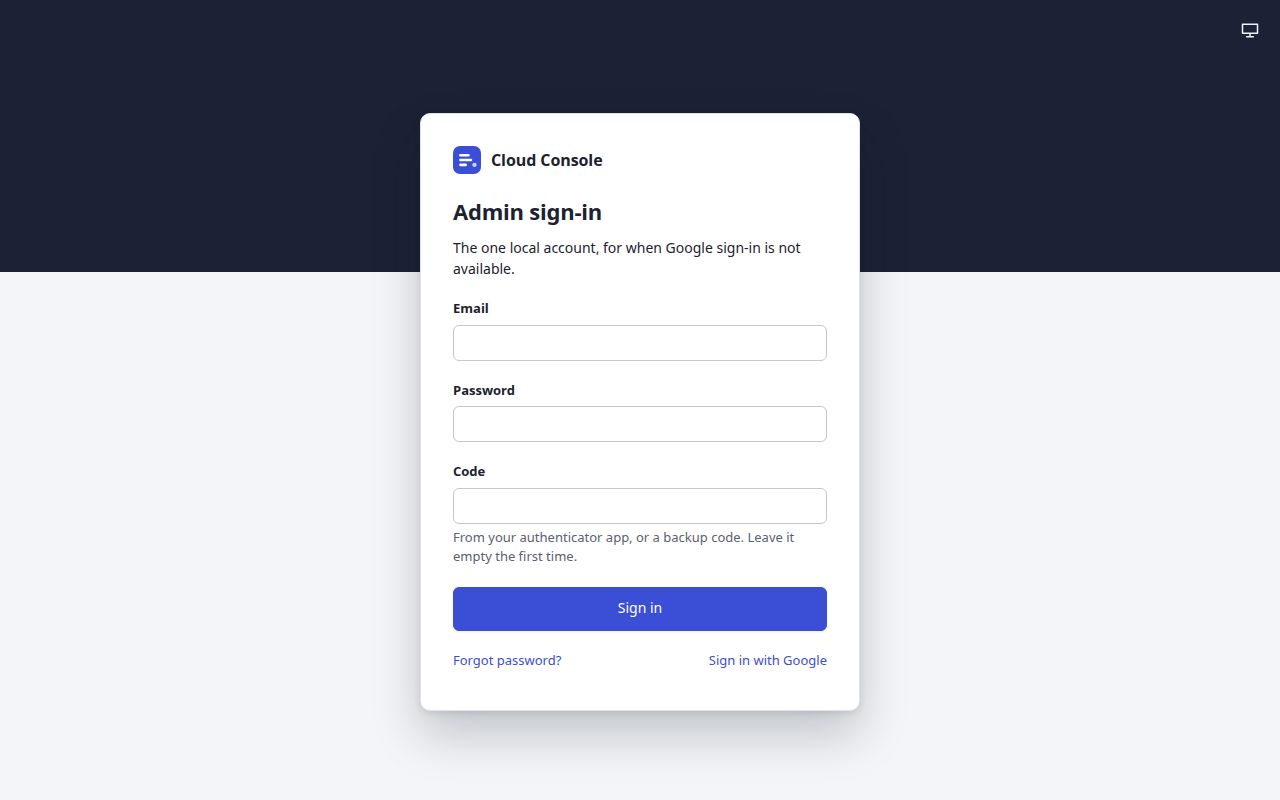
The one local account, for when Google sign-in is not available.
- 1
Type the break-glass admin's Email.
- 2
Type the Password.
- 3
Type the Code:
From your authenticator app, or a backup code. Leave it empty the first time.
Each code works once. - 4
Click Sign in. The first time, the authenticator set-up opens (below). After that, the Dashboard opens.
- 5
Forgot password? sets a new password through a mailed link (below).
The first time: set up the authenticator
Two-step sign-in is required. Until an authenticator app is set up, the right password opens the set-up instead of the console.
- On Admin sign-in, type the email and the password, leave Code empty, and click Sign in.
- The card Set up two-step sign-in opens.
Scan with your authenticator app
the QR code. If you cannot scan it, enter the Setup key in the app, or open the Setup link on this device (Open in authenticator app). Each has Copy. - Type the code the app shows in Code from the authenticator (
Enter the 6-digit code from the app.
) and click Turn on two-step sign-in. - Two-step sign-in is on shows ten Backup codes, once:
Keep these somewhere safe. Each one works once, in place of a code, and you will not see them again.
Click Copy all or Download .txt and keep them somewhere safe. - Tick I have saved these codes, then click Continue to the console.
What you see when it worked
The Dashboard opens. From now on, sign in with the email, the password and a code from the app, or one unused backup code.
Do not leave the page during the set-up
Leaving it closes the set-up: Sign in again
, The two-step setup was closed when you left the page.
A wrong code is answered Wrong code: enter the code your authenticator shows now
; a set-up left too long, The enrolment has expired; sign in again
.
Forgot password
For the break-glass admin only, and only while the console's mail is set up. People who sign in with Google manage their password with Google.
- On Admin sign-in, click Forgot password?
- Type the Admin email and click Send the link. The page says
Check the mailbox
andIf that is the break-glass admin's address, a link to set a new password is on its way. It works once and expires soon.
It says the same for any address. - Open the link from the mail within 30 minutes. The page Set a new password opens.
- Type the New password, at least 16 characters (Show the password shows it). Once an authenticator is set up, also type a Code:
Needed once an authenticator is set up: a code from it, or a backup code.
- Click Set the password.
What you see when it worked
Password set
and Every session was signed out. Sign in with the new password.
with a Sign in button. The reset also removes the account's passkeys and clears a lockout, and a mail says the password was changed.
A link works for one try. While a link is unused and not expired, asking again mails nothing new: use the first mail. At most 5 new links an hour are sent. The page without a link says Open this page from the link in the email. Links work once; ask for a new one if it was used.
Locked out
- Five wrong tries from one address lock the break-glass account for that address for 15 minutes. Fifty wrong tries from all addresses together lock it for everyone for 15 minutes.
- A locked account answers exactly like a wrong try:
Wrong email, password or code
. The message is the same for every reason, so it tells nothing away. - The lock ends by itself after 15 minutes. A password reset clears it too.
- During a lock, the break-glass account's passkey still signs in (within 30 days of its last password sign-in), and any other admin can sign in with Google.
- Too many tries from one address in 15 minutes are also refused:
Too many sign-in attempts from this address; try again later
. - If both the authenticator and every backup code are lost, the console's owner starts the account again, as the console's runbook says under Someone locked out.
Passkeys
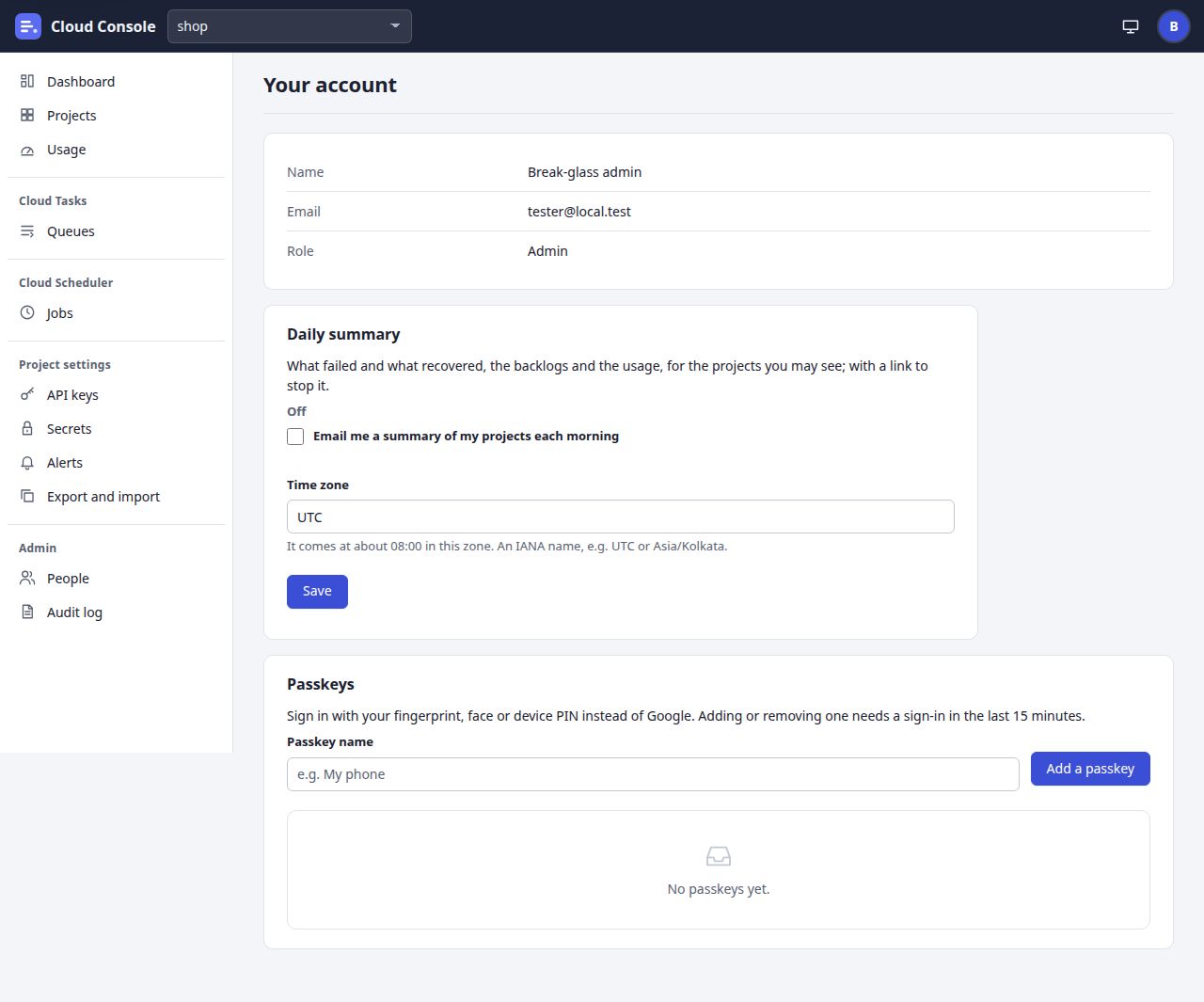
Sign in with your fingerprint, face or device PIN instead of Google.
Add them on
Your account (the person menu). A passkey works only within 30 days of a sign-in with Google or with the
break-glass password; after that, sign in that way once more.
Needs any signed-in person
Start from: the person menu, then Your account.
- 1
Type a Passkey name you will know it by, such as the device:
e.g. My phone
. - 2
Click Add a passkey. Your browser or phone asks for your fingerprint, face or device PIN.
What you see when it worked
The notice Added …
with the name, and the passkey in the list with Added, Last used, Rename and Remove. A mail tells you a passkey was added. On the sign-in page, click Sign in with a passkey and choose it.
If it is refused
Sign in again to add or remove a passkey
: adding or removing one needs a sign-in in the last 15 minutes. Sign out, sign in, and try again.No passkey was used: it was cancelled, timed out, or this device has none for the console.
This passkey is added already
, orAt most 10 passkeys a person
: remove one first.This browser cannot make passkeys.
shows instead of the form.
Remove asks Remove …?
: It will no longer sign you in. Remove it from the device too.
Each add and remove is mailed to you. Sign out on every device keeps your passkeys.
Signing out, and signing out everywhere
- 1
Click the round button with your initial. The menu shows your name, your email, your role (Admin or Member) and the console's version, then:
- Your account: your details, the daily summary and your passkeys.
- Sign out: ends this session.
- Sign out on every device:
Ends every session; your passkeys stay (remove them under Your account)
.
What you see when it worked
The sign-in page opens. Sign out on every device ends every session you have, on every browser. A session also ends by itself after 12 hours without use, or 7 days at most.
Cloud Console user manual, from the console as it is on main. The pictures are of a local copy with a made-up project, shop, and a made-up admin. 22 Oct 2026.