Finding your way
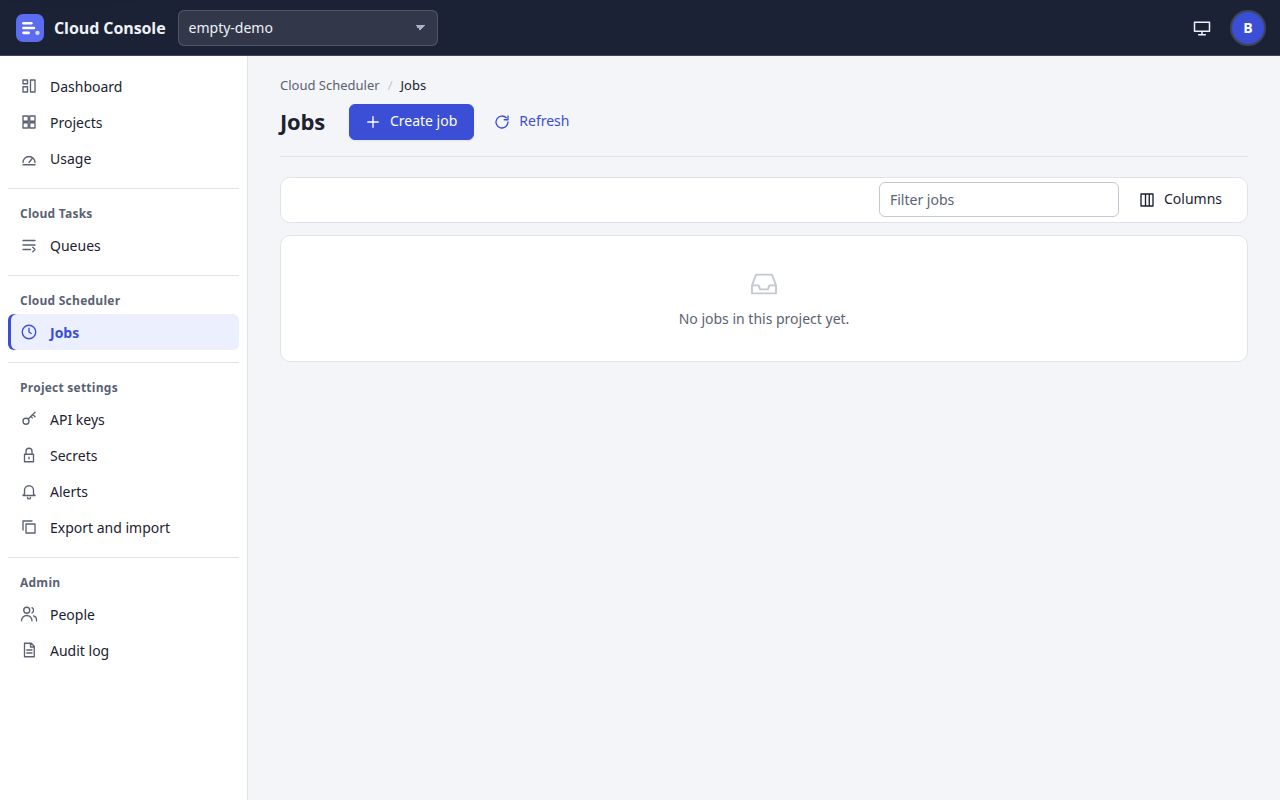
Every signed-in page has the same frame: the top bar, the sidebar on the left (a drawer on a phone), and the page itself with its breadcrumbs, its header and its toolbar. What the sidebar and the toolbars offer follows your permissions: a button you may not use is not there.
The top bar and the sidebar
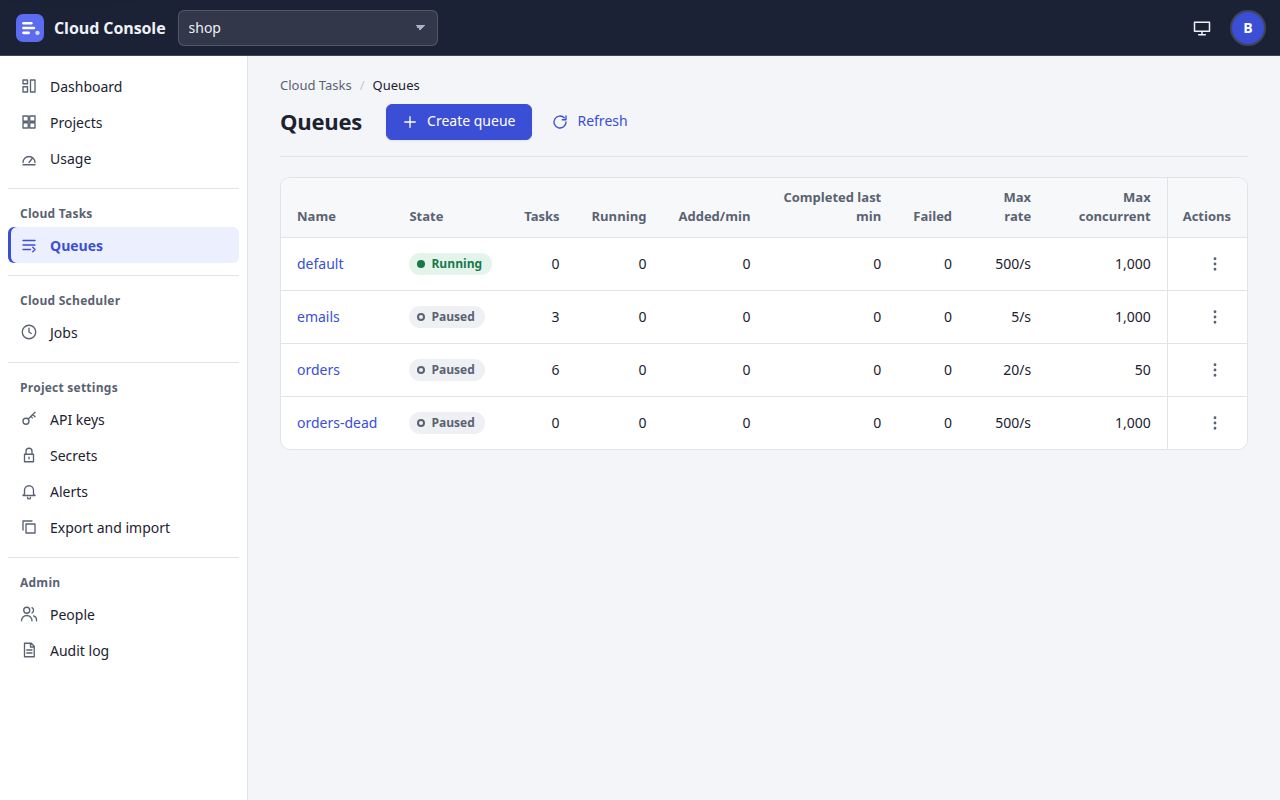
shop chosen.- 1
The project picker. Choose the project to work in. On a project page (Queues, Jobs, API keys, Secrets, Alerts, Export and import) it opens the same page of the new project; elsewhere it opens its Queues. This browser remembers the last project. With none chosen it says Choose a project.
- 2
The theme menu. System (your device's setting), Light or Dark. The choice is kept in this browser only.
- 3
The person menu, the round button with your initial: your name, email, role and the console's version; Your account, Sign out and Sign out on every device.
- 4
Dashboard, Projects, Usage: always there, for every project you may see.
- 5
Cloud Tasks: Queues of the chosen project.
- 6
Cloud Scheduler: Jobs of the chosen project.
- 7
Project settings: API keys (with the keys permission), Secrets, Alerts (with the update permission) and Export and import.
- 8
Admin: People and Audit log, for admins only.
The project groups (Cloud Tasks, Cloud Scheduler, Project settings) show only once a project is chosen. Until then
the sidebar says Choose a project to see its queues, jobs and settings.
A link at the very top,
Skip to the page, appears when you move with the keyboard.
| Sidebar group | Pages | Shows when |
|---|---|---|
| (no title) | Dashboard, Projects, Usage | Always |
| Cloud Tasks | Queues | A project is chosen |
| Cloud Scheduler | Jobs | A project is chosen |
| Project settings | API keys, Secrets, Alerts, Export and import | A project is chosen; API keys with the keys permission, Alerts with the update permission |
| Admin | People, Audit log | You are an admin |
On a page
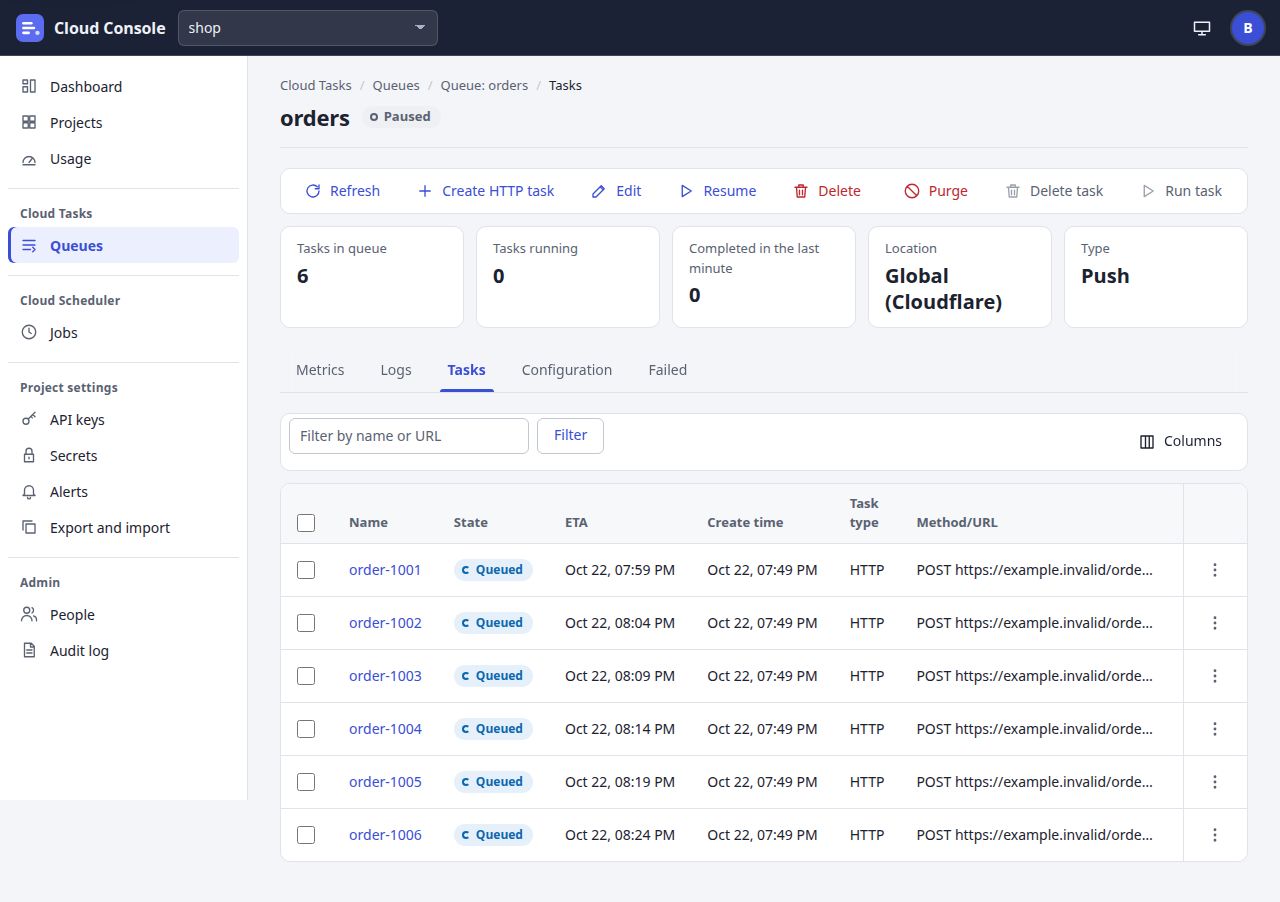
orders.- 1
Breadcrumbs: where you are, such as Cloud Tasks / Queues / Queue: orders / Tasks. Each part but the last is a link back.
- 2
The page header: the name, and a chip with its state (Running, Paused, Queued, Failed …).
- 3
The toolbar: the actions on this queue, each only when you may take it, in a fixed order: Refresh, Create HTTP task, Edit, Pause or Resume, Delete, then Purge.
- 4
Delete task and Run task act on the rows you tick on the Tasks tab. They stay grey until a row is ticked.
- 5
Tabs: Metrics, Logs, Tasks, Configuration and Failed on a queue; Logs, Results (an uptime check only) and Configuration on a job.
- 6
The row menu, three dots at the end of a row: that row's actions, such as Run now and Delete. It lists only what that row allows now.
Lists come a page at a time: Load more, or Next page and Previous page, under the list. Refresh asks the console again. Times show in your browser's time zone.
Notices and banners
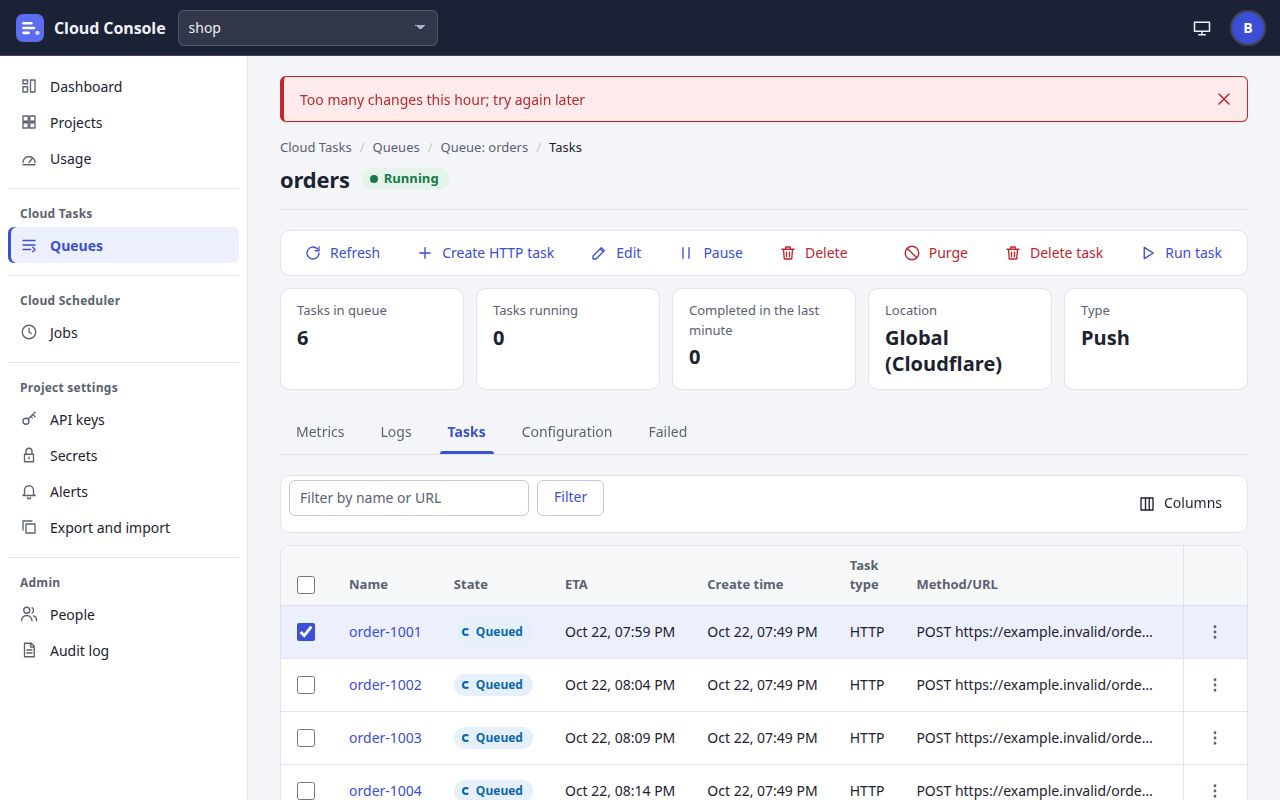
- 1
The notice. Green after a change that worked (
Saved orders.
), said once. Red when the console refused, with its message word for word. - 2
Dismiss this message: the cross closes the notice.
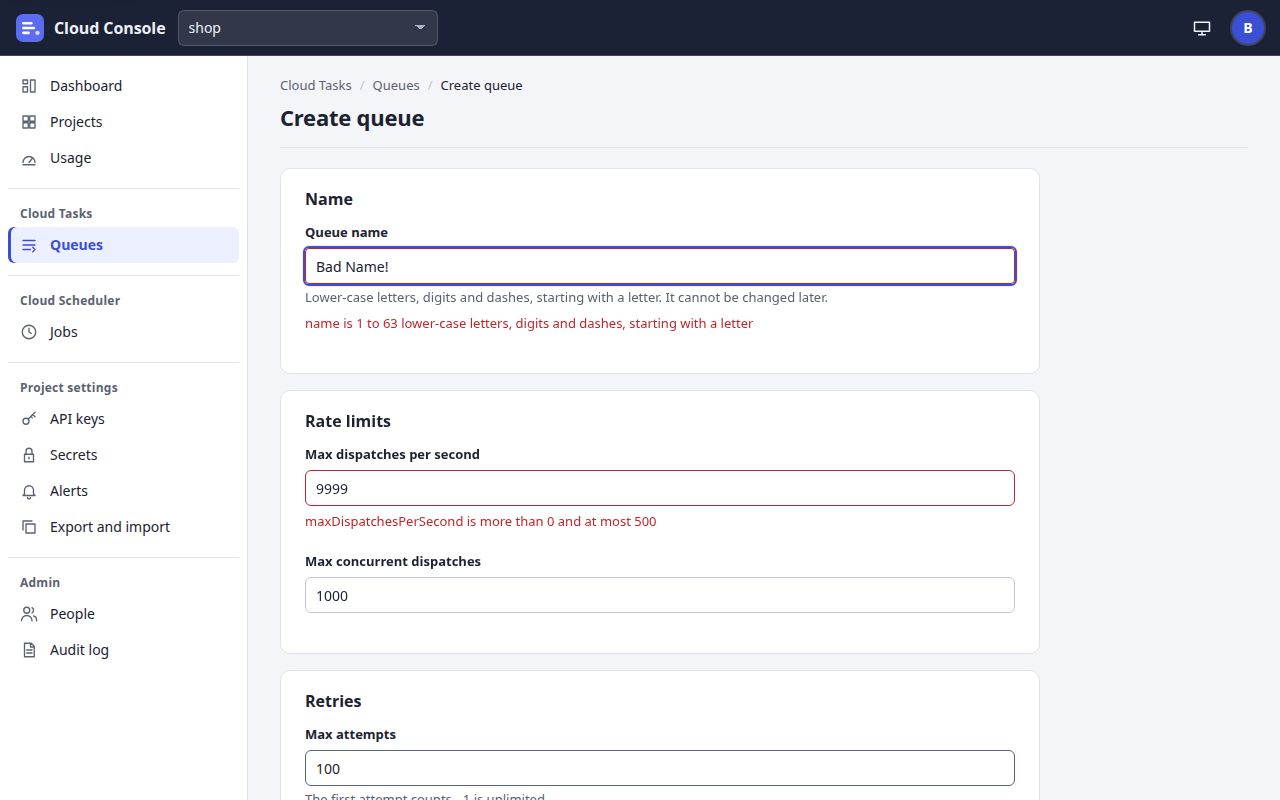
- A field's message shows beside the field the console refused, in red. A refusal about the whole form, such as a name already taken or the daily quota, shows in red at the top of the form; on a long form you are at its foot, so scroll up to read it.
- The maintenance banner sits above every page while a project's (or the whole console's) maintenance switch is on:
Maintenance is on for shop: its queues and jobs are held
and who switched it on and when. - A new version:
A new version of Cloud Console (…) is ready.
with Reload and Later. The person menu then offers Reload for the new version too. - The held line on the Dashboard and Usage while the console is over a free-plan limit:
A free-plan limit is used up: every queue is held, and new tasks and job runs are refused, until …
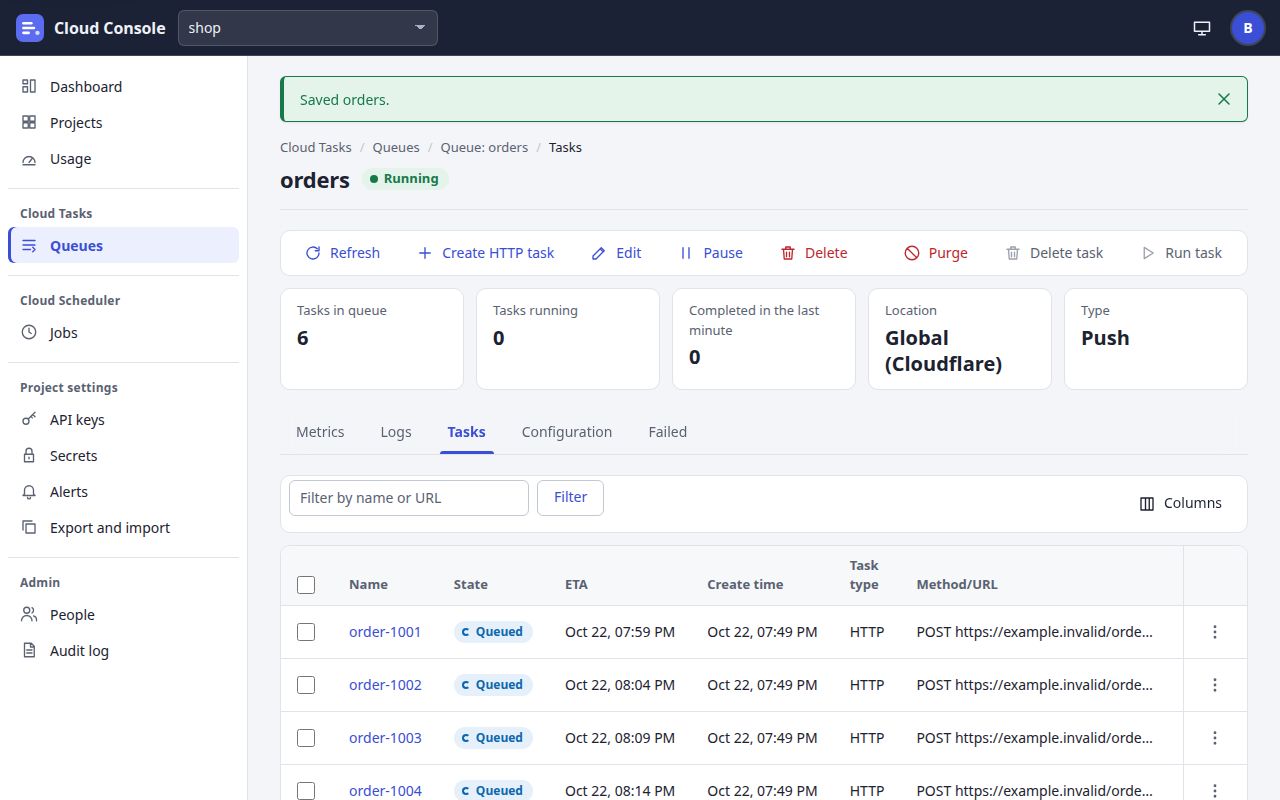
Row menus and dialogs
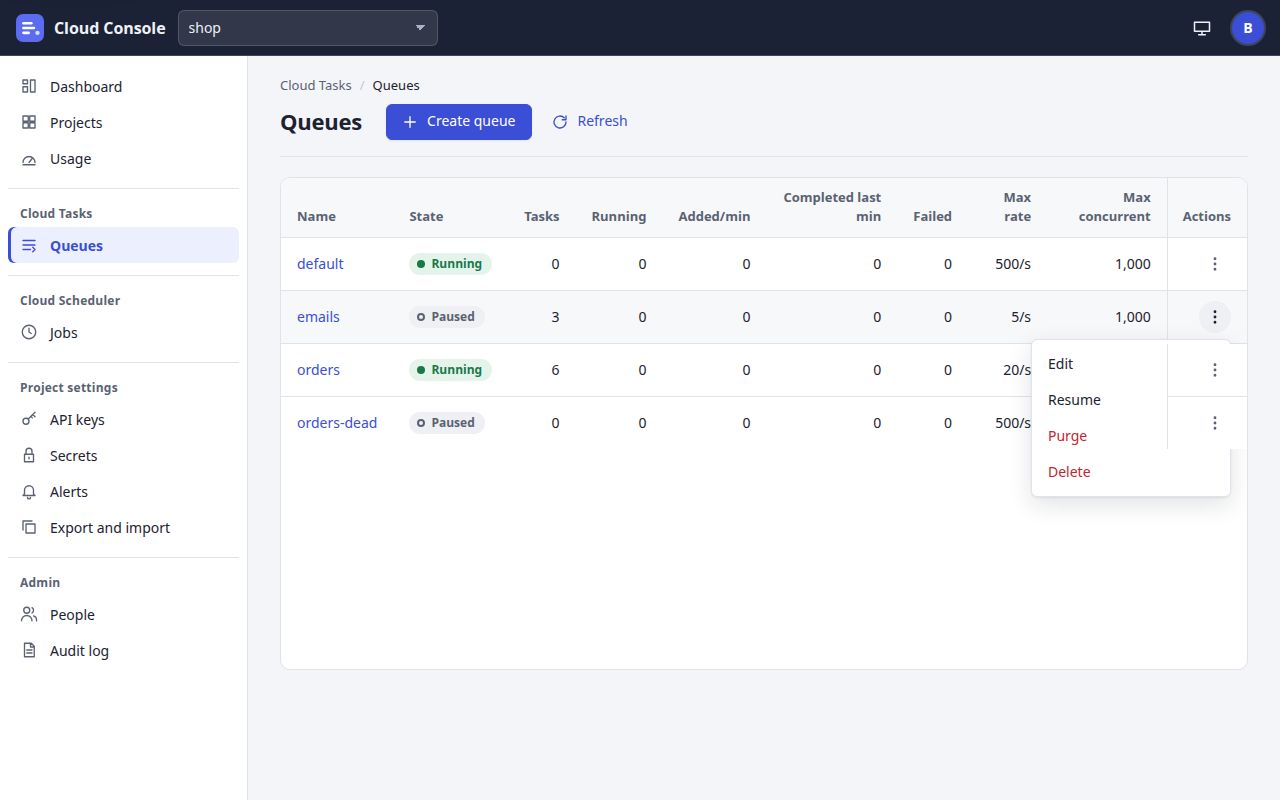
- 1
Click the three dots of the row (Actions for …).
- 2
Choose the action. Red ones (Purge, Delete) ask first.
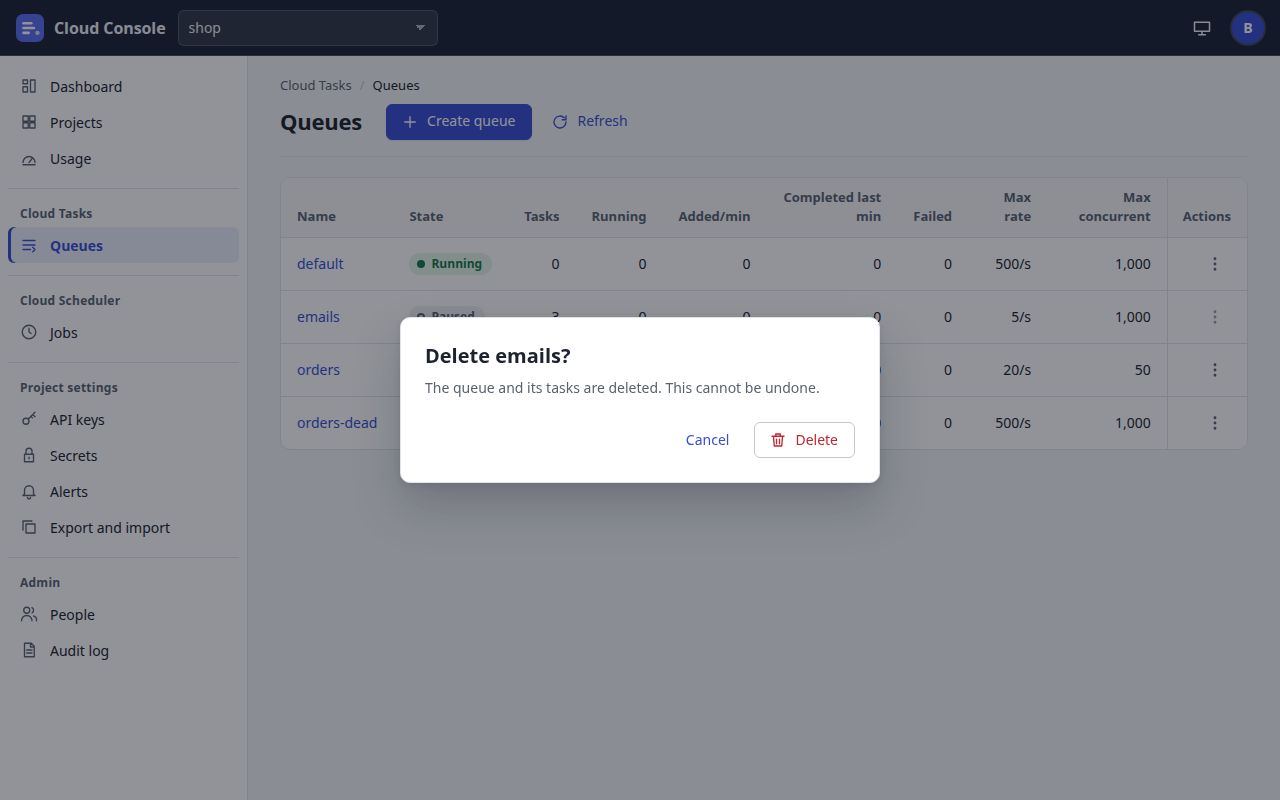
- 1
Cancel closes the dialog and changes nothing. So does the Escape key.
- 2
The red button, named for the action (Delete, Purge, Revoke, Remove), does it. The line above it says what will happen:
The queue and its tasks are deleted. This cannot be undone.
Loading, empty and busy
- While a page waits for its first answer it shows grey bars and a line such as
Loading the queues…
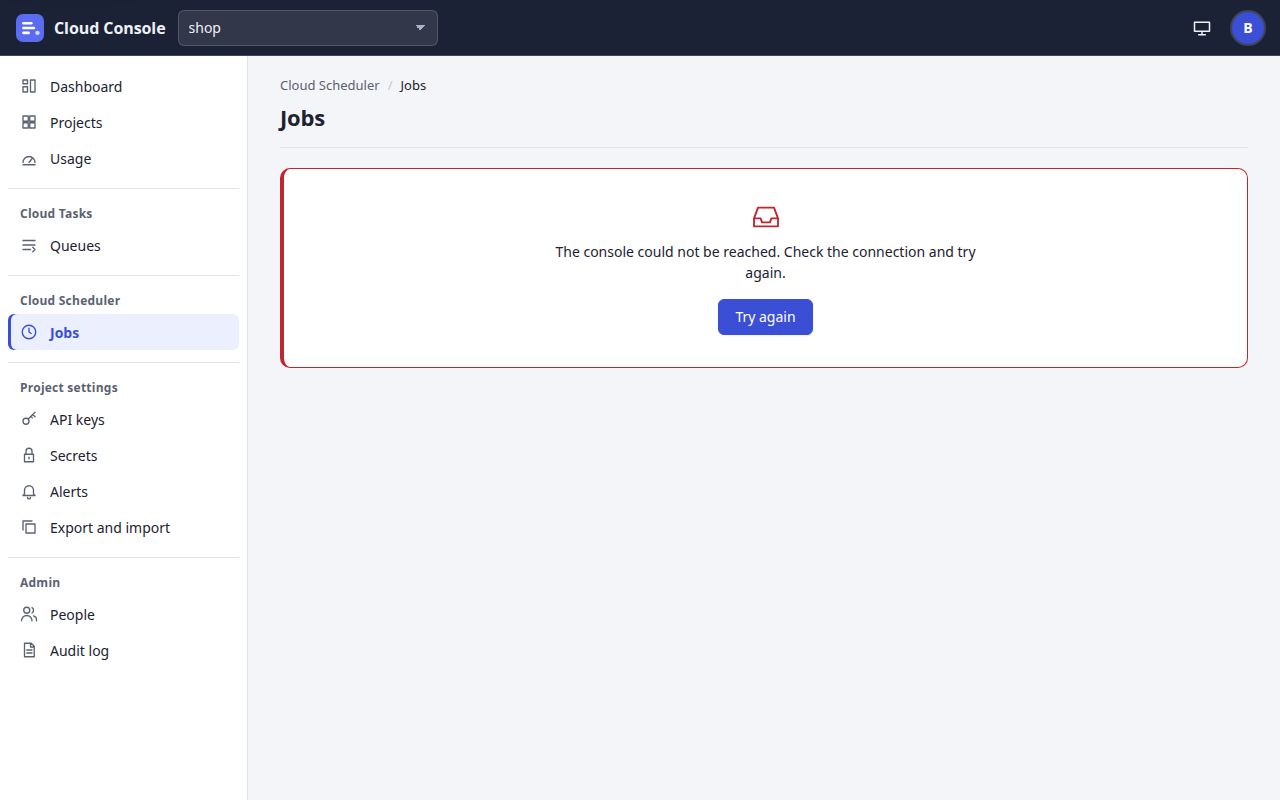
- If that fails, the page keeps its heading and shows the error with Try again. If the whole console cannot load: The console could not load, with Try again and Back to sign-in.
- An empty list says so, such as
No queues in this project yet.
- A button you clicked is grey with a turning ring until the answer comes, so a second click sends nothing.

On a phone
- 1
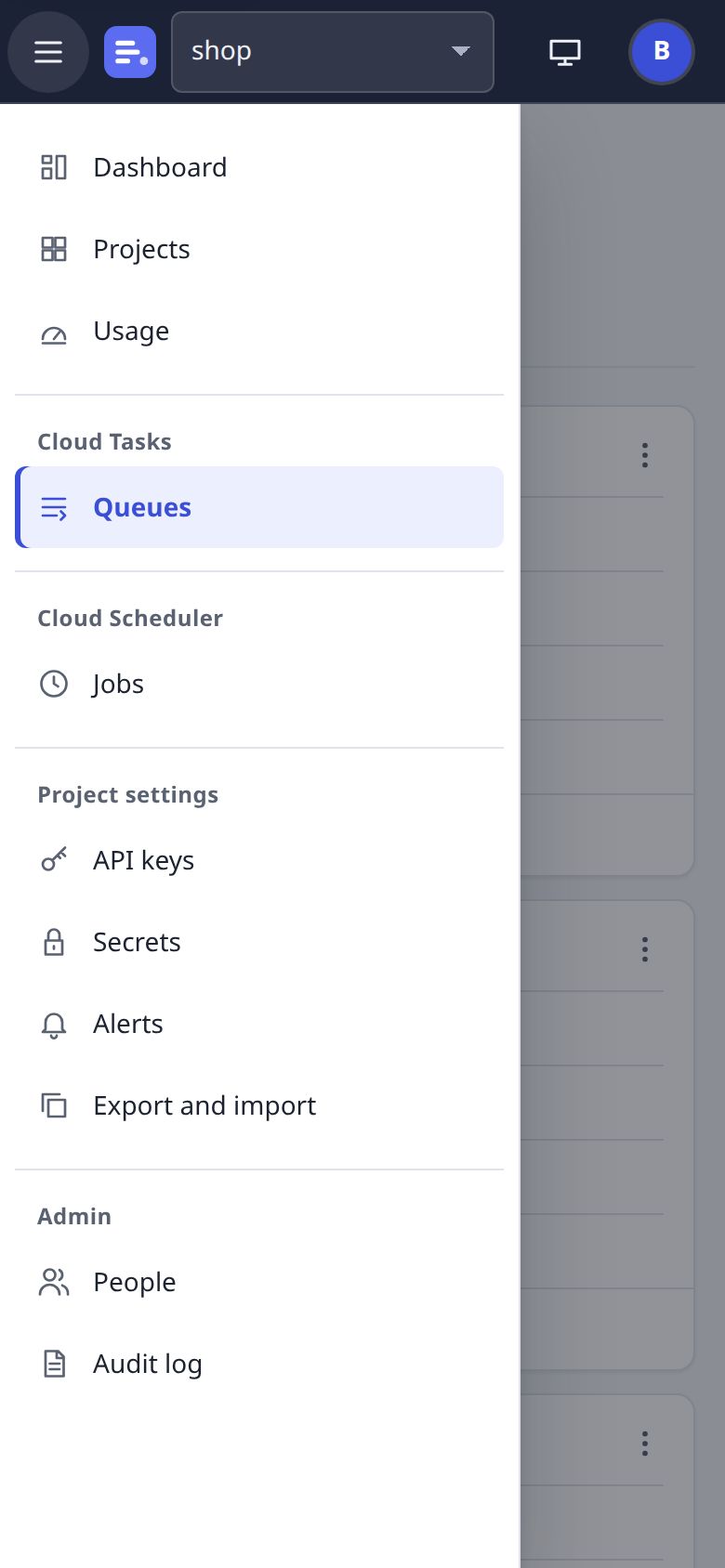
Menu opens the sidebar as a drawer over the page. A link in it, the Escape key, or a tap outside closes it.
The drawer is used up to 960 px wide; wider, the sidebar is a column again.
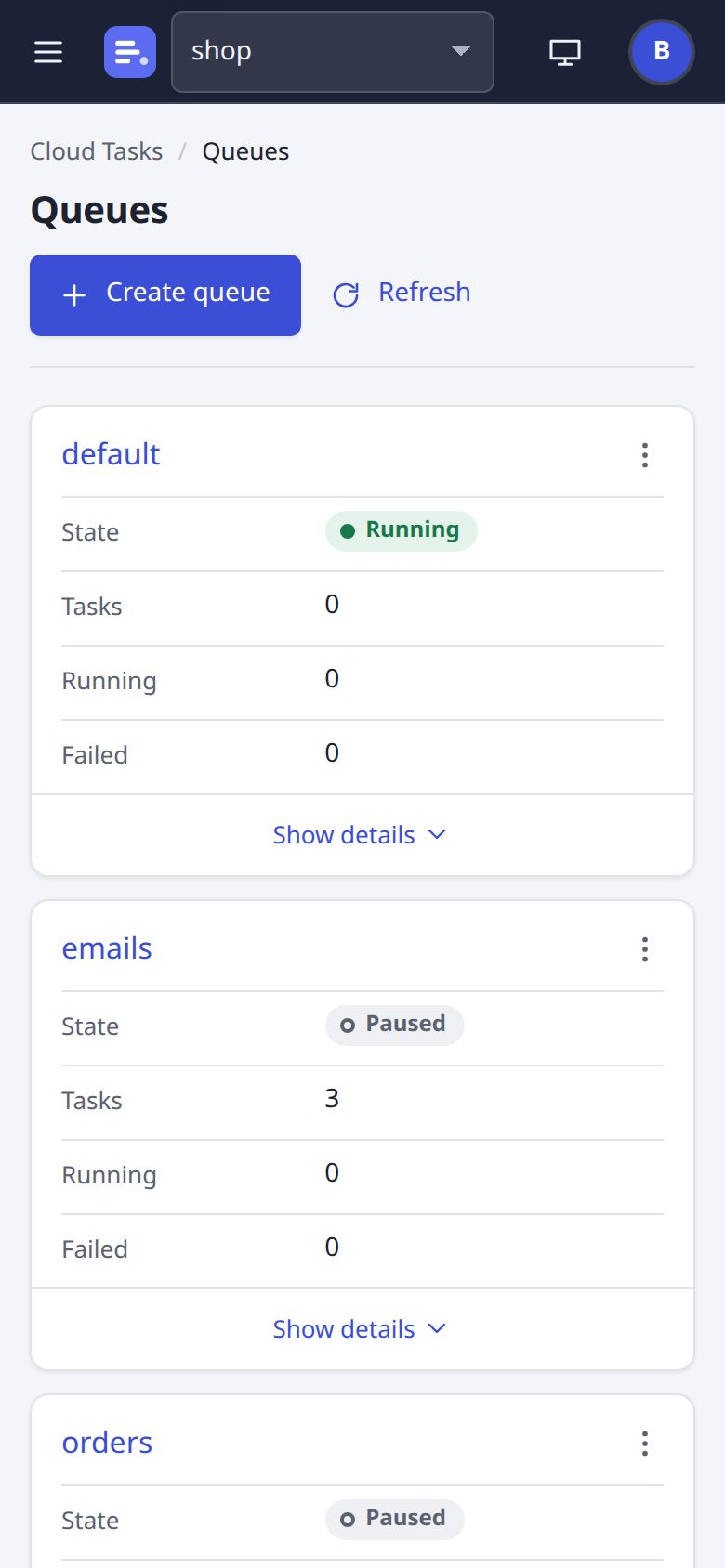
- Each table row is a card. Its first columns show; Show details opens the rest, Hide details closes it.
- Buttons and fields are larger, for a finger.
- Everything else works as on a computer.
What you see depends on your permissions
An admin may do everything on every project, and alone may invite people, manage them,
create projects, set daily caps and read the audit log. A member has permissions per project, ticked one by
one by an admin, or one grant for every project. Any permission includes read. A project you have no permission on
does not exist for you: its links answer No such project
.
| Permission | Lets you | So you see |
|---|---|---|
| read | See the project, its queues, tasks, jobs, logs, secret names and service accounts | The lists and details pages, Export |
| create | Create queues, tasks and jobs | Create queue, Create HTTP task, Create job, Copy |
| update | Edit queues and jobs; the project's alerts and quiet hours; imports | Edit, the Alerts page, Import |
| delete | Delete queues, tasks and jobs; purge a queue | Delete, Delete task, Purge, Delete all |
| pause | Pause and resume queues and jobs; the project's maintenance switch | Pause, Resume, Hold dispatch |
| run | Force run a job, run a task now, retry a failed task | Force run, Run now, Run task, Retry, Retry all |
| keys | Manage the project's API keys | The API keys page |
| secrets | Manage the project's secrets and service accounts | The forms and buttons on Secrets |
Presets only fill the boxes: viewer is read; editor is read, create, update, pause and run;
manager is all eight. A button also depends on the state of the thing: a running queue offers Pause,
a paused one Resume; Run now is for a queued task, Retry for a failed one; the
default queue has no Delete.
Pages that say why
A page you may open but not use says so, for example Managing API keys needs the keys permission in this project. Ask an admin.
, Alert settings need the update permission in this project. Ask an admin.
, Adding or changing these needs the secrets permission in this project.
, Importing needs the update permission in this project.
, Managing people is for admins.
and The audit log is for admins.
Cloud Console user manual, from the console as it is on main. The pictures are of a local copy with a made-up project, shop, and a made-up admin. 22 Oct 2026.