Project settings
Each project has its own API keys for its apps, its secrets and service accounts for the calls its tasks and jobs make, its alert settings, and a settings file to export and import. They are under Project settings in the sidebar once a project is chosen.
Create an API key (shown once)
Needs keys
Start from: API keys under Project settings. Apps send it as Authorization: Bearer cck_… on /v1. It may do everything in this project.
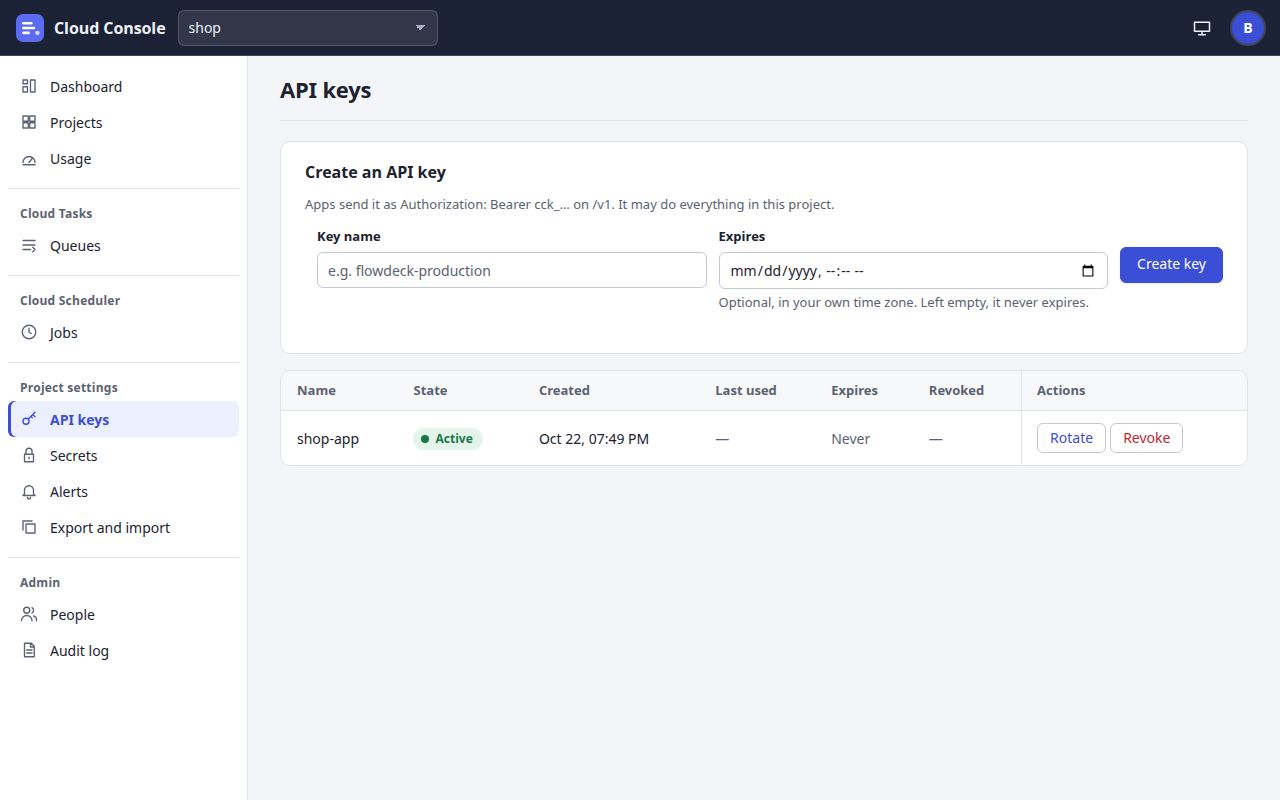
- 1
Type a Key name that says which app uses it, such as
e.g. flowdeck-production
. - 2
Expires:
Optional, in your own time zone. Left empty, it never expires.
More than an hour and at most 3 years ahead. - 3
Click Create key. The key shows once (below).
- 4
Later, Rotate makes a new key for the same app:
Rotating …: the new key is made now; the old one keeps working until the end below, or until you revoke it.
Old key ends is optional:Left empty: 7 days from now, or its own end if that is sooner.
Click Create key, or Cancel the rotation. - 5
Revoke asks
Revoke …?
:Apps using this key are refused from now on. This cannot be undone.
What you see when it worked
A panel The key … shows the key, starting cck_, with Copy: Copy it now and keep it in the app's settings. You won't see it again: the console keeps only a hash of it.
Copy it into the app, then click I have copied it. The list shows the key as Active, with Last used and Expires.
Keep the key secret
Anyone with the key can add, read and delete the project's tasks and switch its maintenance. If it may have leaked, rotate it and revoke the old one. A project has at most 20 keys that are not revoked. Before a key's end, the project's alert channels are warned 7 days and 1 day ahead; after it, apps get This API key has expired
. How apps call the console: For apps.
Add a secret and its allowed origins
Needs secrets
Start from: Secrets under Project settings. Values are sealed when saved and never shown again. Calls and alerts name a secret.
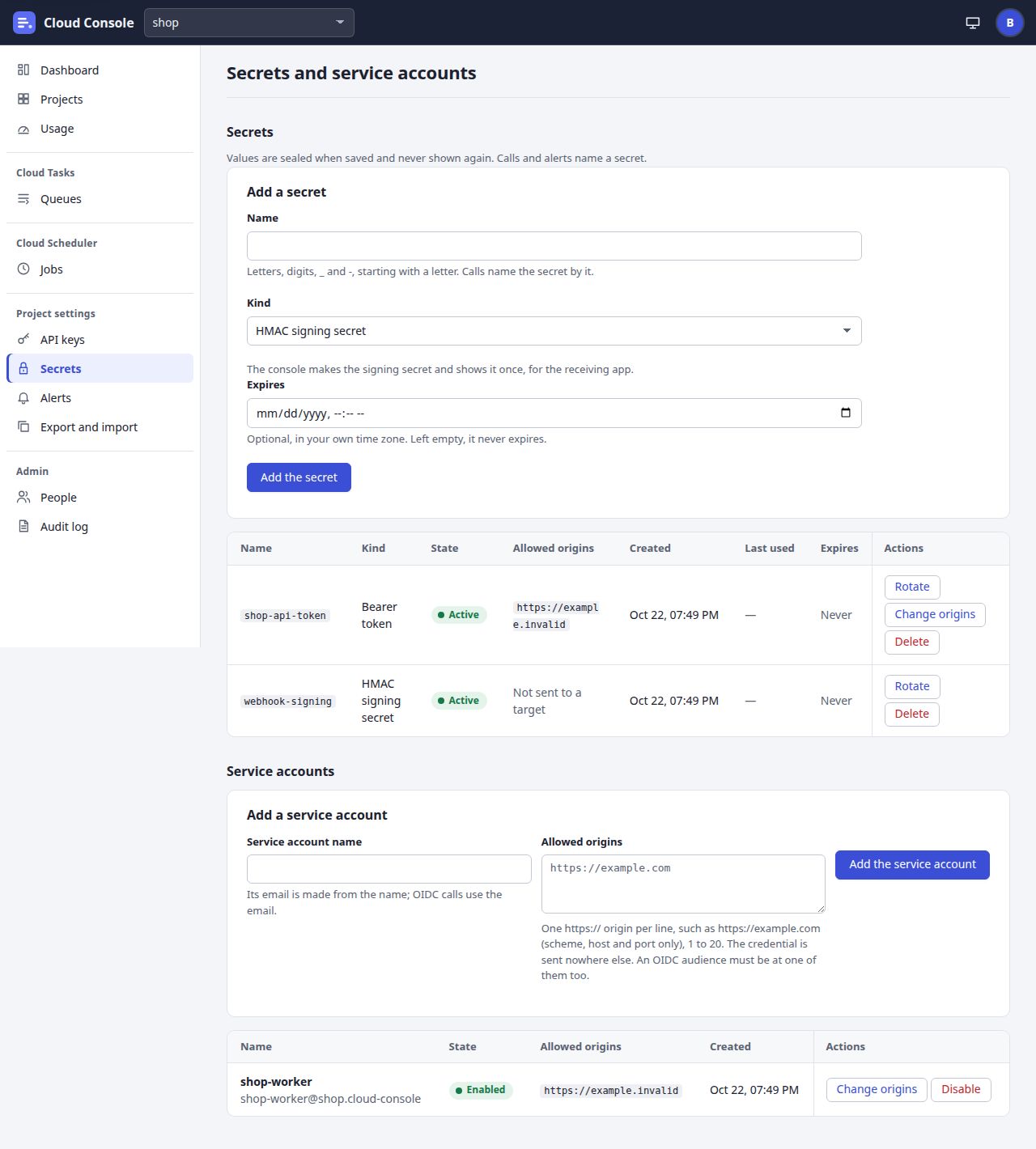
- 1
Name:
Letters, digits, _ and -, starting with a letter. Calls name the secret by it.
- 2
Kind, and the fields it brings:
- HMAC signing secret: nothing to type.
The console makes the signing secret and shows it once, for the receiving app.
- Basic auth: Username and Password.
- Bearer token: Token.
- OAuth client: Token URL, Client ID, Client secret, and optional Scope and Audience.
- Google Chat webhook: Webhook URL,
The Google Chat space's incoming webhook URL. Kept sealed, never shown again.
For Basic auth, Bearer token and OAuth client, also Allowed origins:
One https:// origin per line, such as https://example.com (scheme, host and port only), 1 to 20. The credential is sent nowhere else.
- HMAC signing secret: nothing to type.
- 3
Expires: optional, as for a key.
- 4
Click Add the secret. The value fields empty at once.
- 5
Later, Change origins opens Change where … may be sent: one origin per line, then Save the origins.
What you see when it worked
Added the secret …
, and the secret in the list with its Kind, State, Allowed origins (Not sent to a target for an HMAC secret), Last used and Expires. For an HMAC signing secret, a panel shows the signing secret once: Give it to the app that checks the signature. You won't see it again.
Then I have copied it. A change of origins says Changed where … may be sent.
- A task or job names the secret in its Auth option. A call to a URL outside the secret's allowed origins is refused when you save it.
- Rotate fills the form for a new secret of the same kind:
The old one keeps working until its own end, or until you delete it; move the jobs, tasks and alerts that name it to the new name.
- Delete asks
Delete the secret …?
:Calls that name it fail as auth from now on.
- Only someone with the secrets permission sees the forms:
Adding or changing these needs the secrets permission in this project.
Add a service account
Needs secrets
A service account signs the OIDC tokens a task or job sends (Auth: OIDC token). Start from: Secrets, then down to Service accounts.
- 1
Service account name:
Its email is made from the name; OIDC calls use the email.
- 2
Allowed origins: the https origins its tokens may be sent to, one per line.
An OIDC audience must be at one of them too.
- 3
Click Add the service account.
- 4
Later, Change origins changes where its tokens may go.
- 5
Disable stops its tokens; Enable starts them again.
What you see when it worked
Added …
with its email, which is the name, then @, the project and .cloud-console, as in the picture. It is Enabled, with its allowed origins. Changes say Changed where the tokens of … may be sent.
, Disabled …
or Enabled …
.
A call signed by a disabled account is refused: The service account … is disabled
. A project has at most 100 service accounts.
Set alerts and quiet hours
Needs update
Start from: Alerts under Project settings. Without the update permission the page says Alert settings need the update permission in this project. Ask an admin.
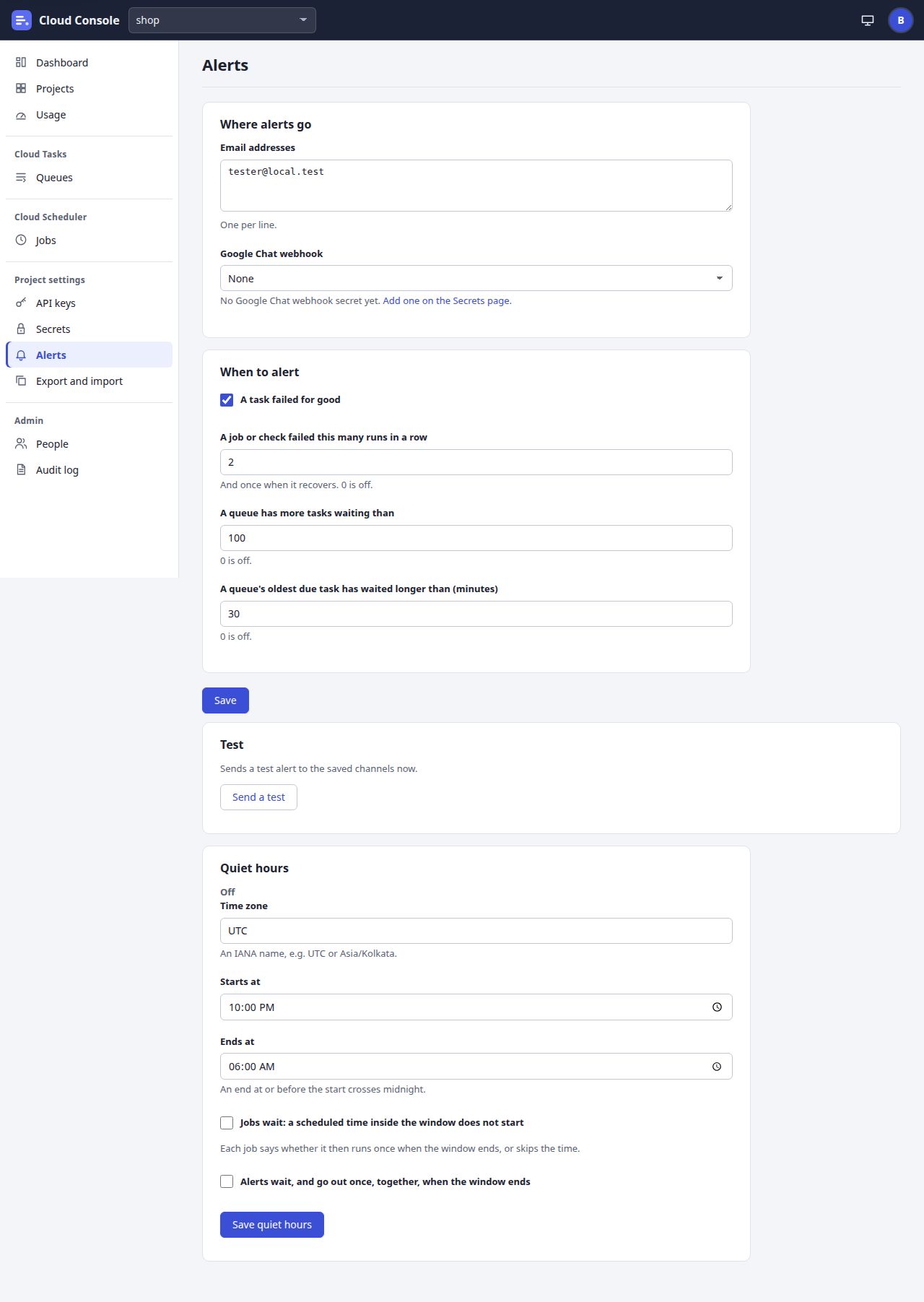
- 1
Email addresses:
One per line.
Up to 10. Each must be a console user who may read the project; an admin may add any address. - 2
Google Chat webhook: None, or a secret of the Google Chat webhook kind. With none yet:
No Google Chat webhook secret yet.
Add one on the Secrets page. - 3
A task failed for good: tick to be told when a task runs out of attempts.
- 4
A job or check failed this many runs in a row:
And once when it recovers. 0 is off.
- 5
A queue has more tasks waiting than:
0 is off.
- 6
A queue's oldest due task has waited longer than (minutes):
0 is off.
- 7
Click Save.
- 8
Send a test:
Sends a test alert to the saved channels now.
Each channel answers Sent or Not sent, with the reason. - 9
Quiet hours: Time zone,
An IANA name, e.g. UTC or Asia/Kolkata.
- 10
Starts at: when the quiet window starts each day.
- 11
Ends at:
An end at or before the start crosses midnight.
- 12
Jobs wait: a scheduled time inside the window does not start.
Each job says whether it then runs once when the window ends, or skips the time.
- 13
Alerts wait, and go out once, together, when the window ends.
- 14
Click Save quiet hours.
What you see when it worked
Saved the alert settings.
and Saved the quiet hours.
The quiet hours panel says what is set, such as 22:00 to 06:00 (Asia/Kolkata): jobs wait, alerts wait, and while a window is on, Quiet now, until …
.
- Alerts go to the emails and the chat: a task failed for good, a job or check failing and recovering, a backlog, maintenance switched on or off, and an API key or secret about to end.
- At most one alert of a kind about one queue or job every 10 minutes; the next one says how many were held back.
- A project sends at most 10 test alerts an hour. With no channel saved:
No alert channel is set
. - During quiet hours, a run already going and a forced run go on, and the test never waits. The maintenance switch holds everything, quiet hours or not.
Export a project's settings, and import one (Preview, then Apply)
Needs read (export) update (import)
Start from: Export and import under Project settings.
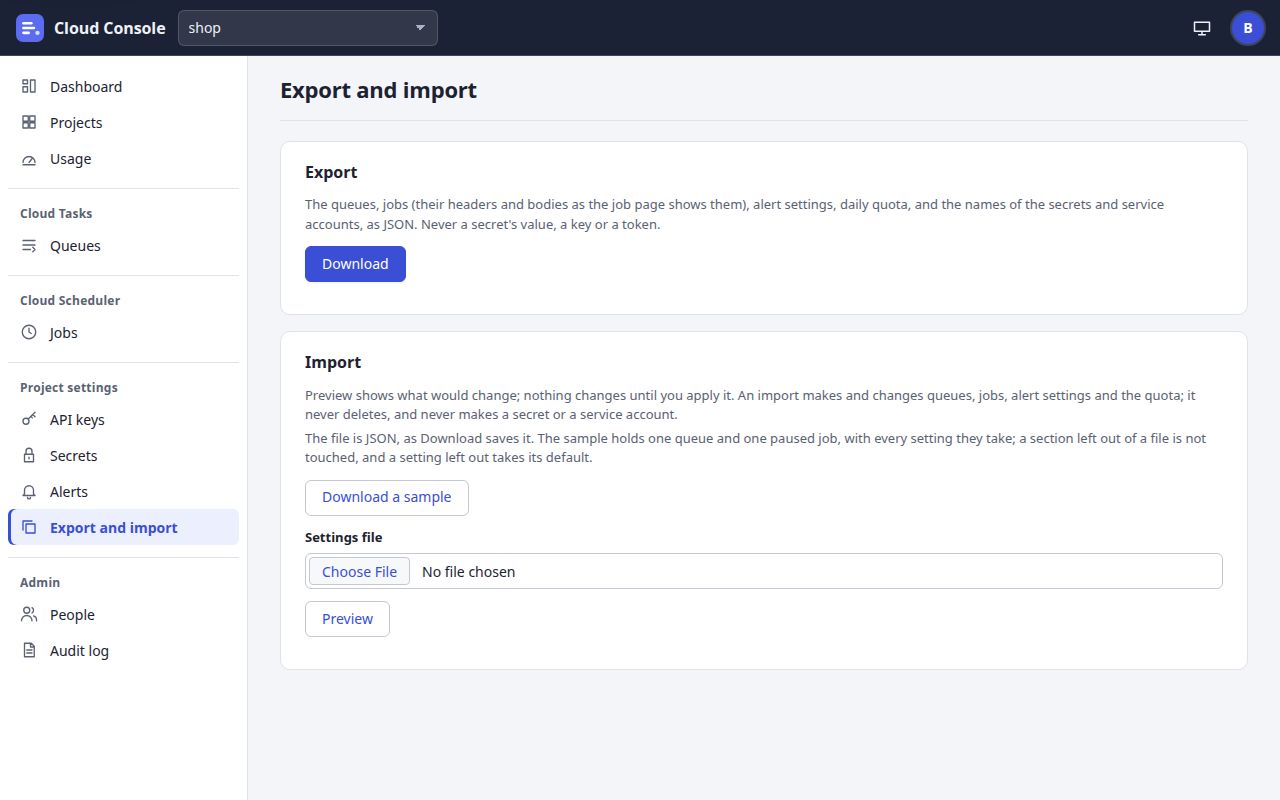
- 1
Download saves the project's settings as
<project>-settings.json:The queues, jobs (their headers and bodies as the job page shows them), alert settings, daily quota, and the names of the secrets and service accounts, as JSON. Never a secret's value, a key or a token.
- 2
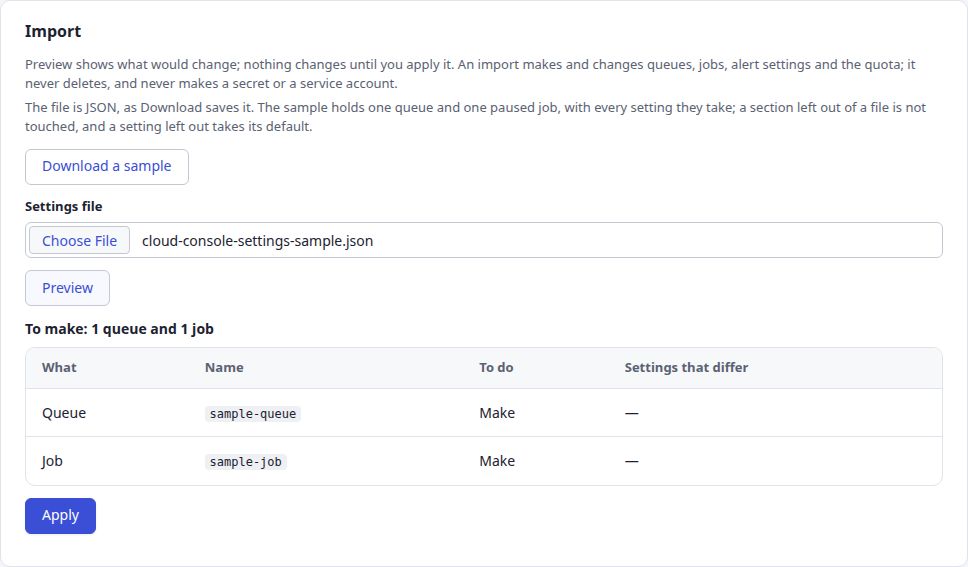
To import, start from a file Download made (from this project or another), or Download a sample:
cloud-console-settings-sample.json, with one queue and one paused job. - 3
At Settings file, choose the file.
- 4
Click Preview.
Preview shows what would change; nothing changes until you apply it.
- 5
Read the preview: its summary (
To make: 1 queue and 1 job
), each change with What, Name, To do and Settings that differ, what was Skipped and why, and the secrets and service accountsNot in this project (an import never makes them)
. Then click Apply.
What you see when it worked
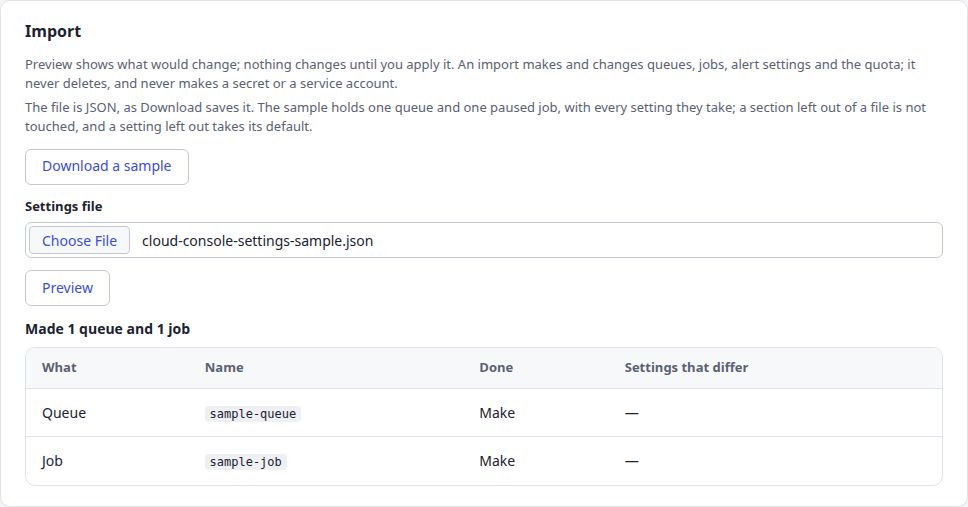
The summary turns to what was done, such as Made 1 queue and 1 job
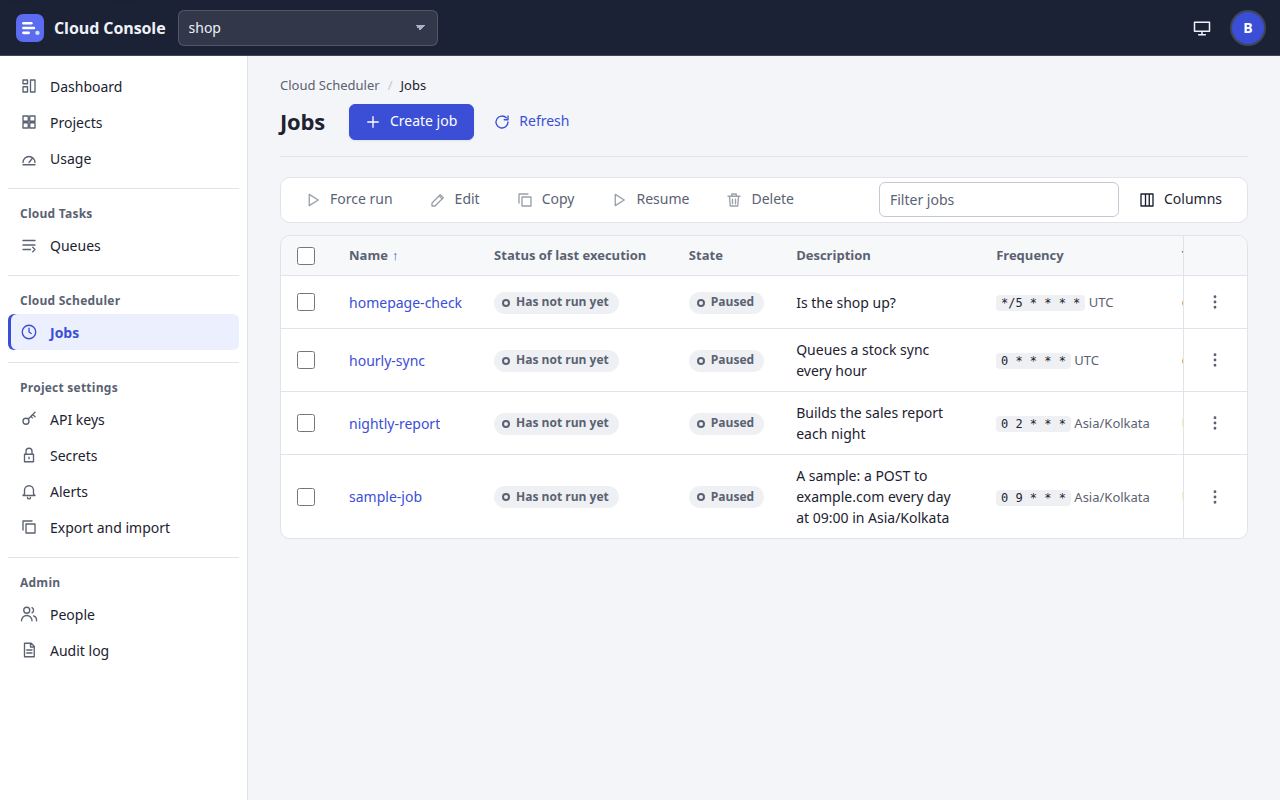
, and the table says Done. The new queue and job are on their pages; the sample's job is paused, so it calls nothing until someone resumes it.
An import makes and changes queues, jobs, alert settings and the quota; it never deletes, and never makes a secret or a service account.
a section left out of a file is not touched, and a setting left out takes its default.
- Making a queue or job also needs the create permission, pausing one the pause permission, and the quota an admin. Without them the preview says why and has no Apply.
- Apply works the changes out again from the project as it is then, and makes them all at once or none.
- At most 20 exports and imports an hour per person, previews included. A file is at most 256 KB; one import makes or changes at most 40 queues and jobs.
- A file that is not JSON:
… is not a JSON file.
No file:Choose a settings file first.
A mistake names its place, such assettings.queues.2.maxAttempts. - Keep a downloaded file as carefully as the job pages: it holds the jobs' headers and bodies.
Cloud Console user manual, from the console as it is on main. The pictures are of a local copy with a made-up project, shop, and a made-up admin. 22 Oct 2026.