Cloud Tasks
A queue sends HTTP tasks for one project, at the rate and with the retries you set. A task is one call: a method, a URL, headers, a body and an auth option. Apps add tasks with the project's API key; here you make queues, add tasks by hand or from a file, and look after the ones that failed.
Create a queue
Needs create
- 1
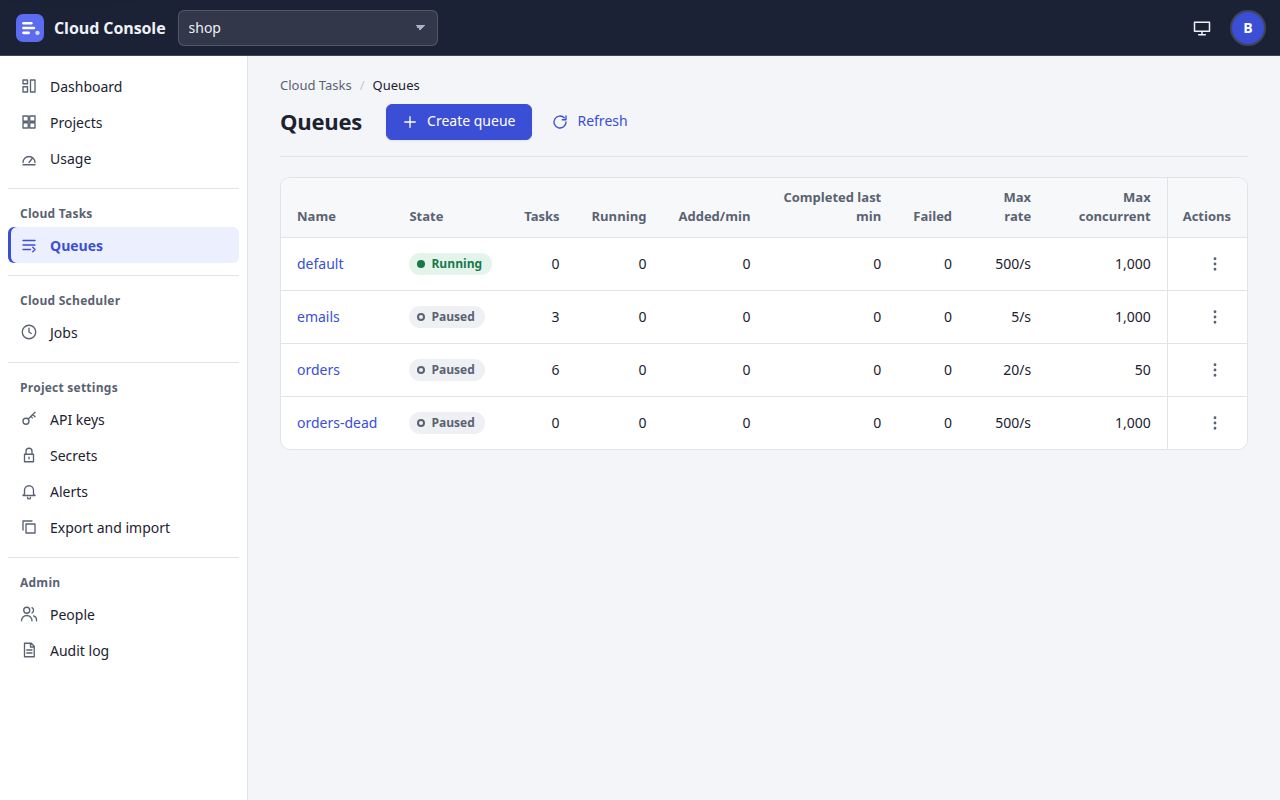
Choose the project in the picker.
- 2
Click Queues under Cloud Tasks.
- 3
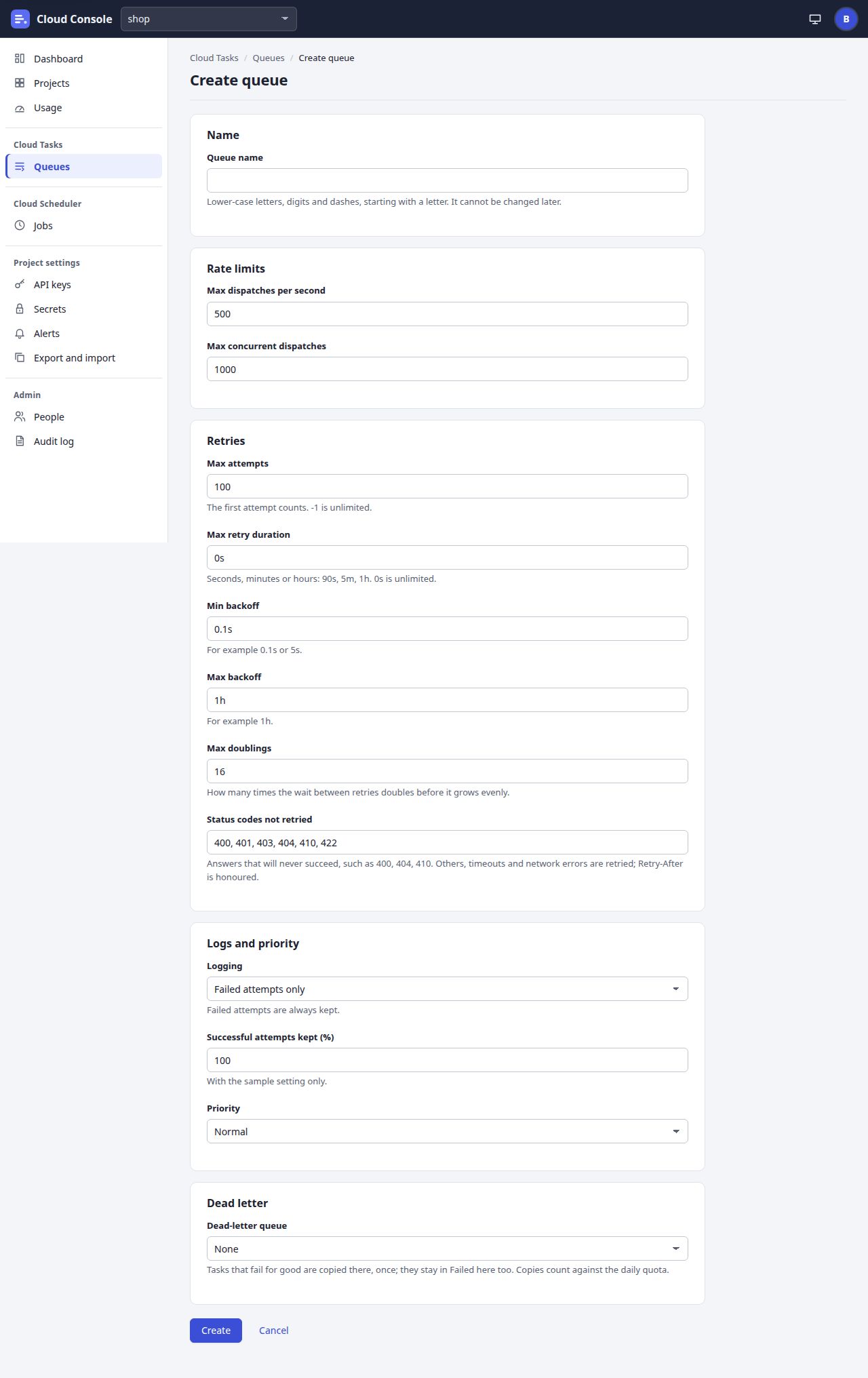
Click Create queue. The form Create queue opens, filled with the defaults.
- 4
Type the Queue name:
Lower-case letters, digits and dashes, starting with a letter. It cannot be changed later.
- 5
Max dispatches per second: how many tasks may start each second, more than 0 and at most 500.
- 6
Max concurrent dispatches: how many may run at once, 1 to 5000.
- 7
Max attempts:
The first attempt counts. -1 is unlimited.
- 8
Max retry duration:
Seconds, minutes or hours: 90s, 5m, 1h. 0s is unlimited.
A task stops after its attempts or this time, whichever comes first, and is Failed. - 9
Min backoff: the first wait before a retry,
For example 0.1s or 5s.
- 10
Max backoff: the longest wait,
For example 1h.
It may not be less than the min backoff. - 11
Max doublings:
How many times the wait between retries doubles before it grows evenly.
- 12
Status codes not retried:
Answers that will never succeed, such as 400, 404, 410. Others, timeouts and network errors are retried; Retry-After is honoured.
- 13
Logging: Failed attempts only, or Failed attempts and a sample of successful ones.
Failed attempts are always kept.
- 14
Successful attempts kept (%):
With the sample setting only.
- 15
Priority: Normal, or Low (held first near a free limit).
- 16
Dead-letter queue: None, or another queue of the project.
Tasks that fail for good are copied there, once; they stay in Failed here too. Copies count against the daily quota.
- 17
Click Create. Cancel goes back and makes nothing.
What you see when it worked
The queue's page opens with the notice Created the queue …
, and the queue is in the Queues list. To change it later, click Edit on its page (the update permission), change the settings and click Save: Saved …
. Its name cannot change.
If it is refused
The form stays, with each field's message beside it, such as name is 1 to 63 lower-case letters, digits and dashes, starting with a letter
or maxDispatchesPerSecond is more than 0 and at most 500
. Fix the field and click Create again. A refusal about the whole queue, such as a name already taken or a project at its 100 queues, shows in red at the top of the form: scroll up to read it.
Add a task
Needs create
Start from: Queues, then the queue's name.
- 1
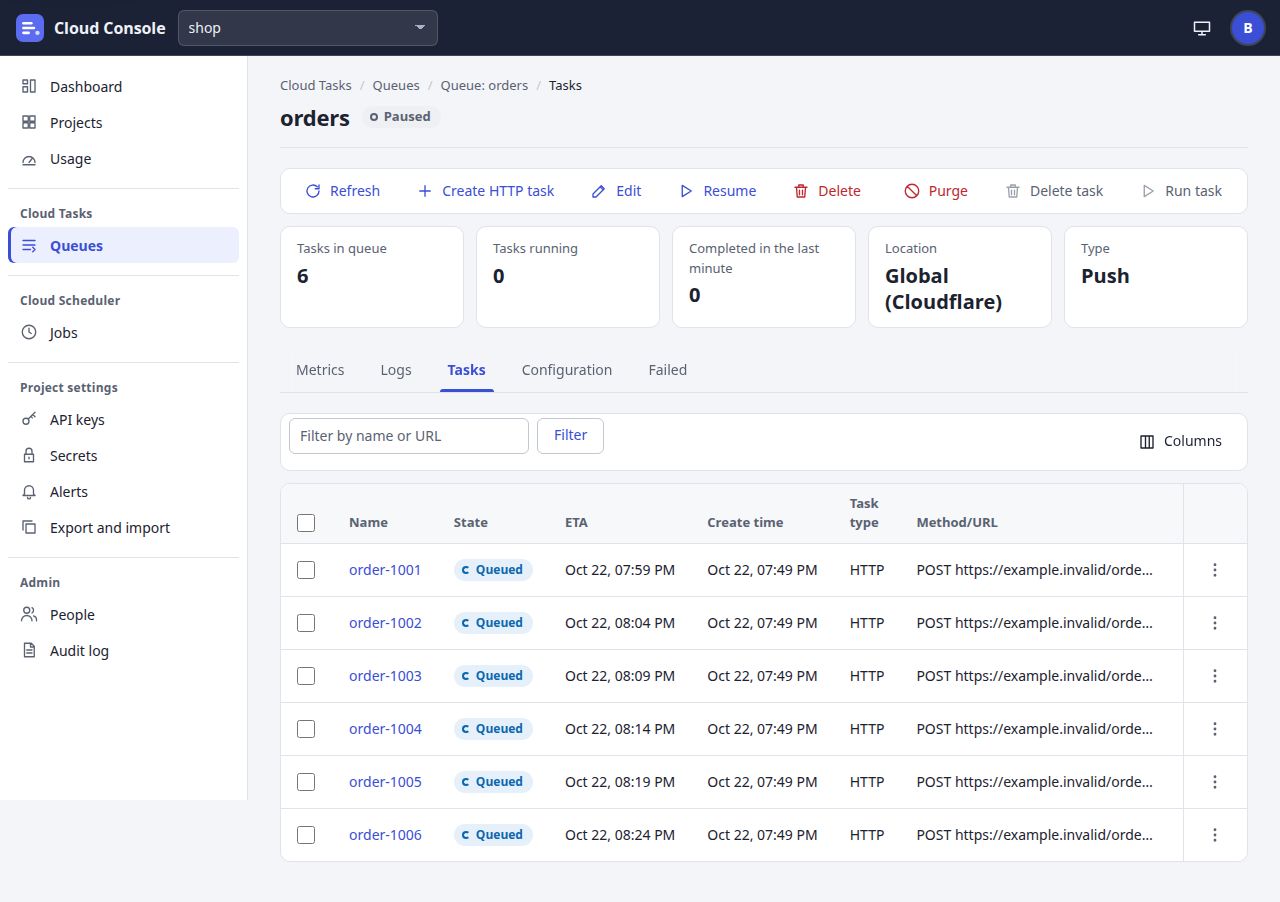
On the queue's page, click Create HTTP task. The page Create a task opens.
- 2
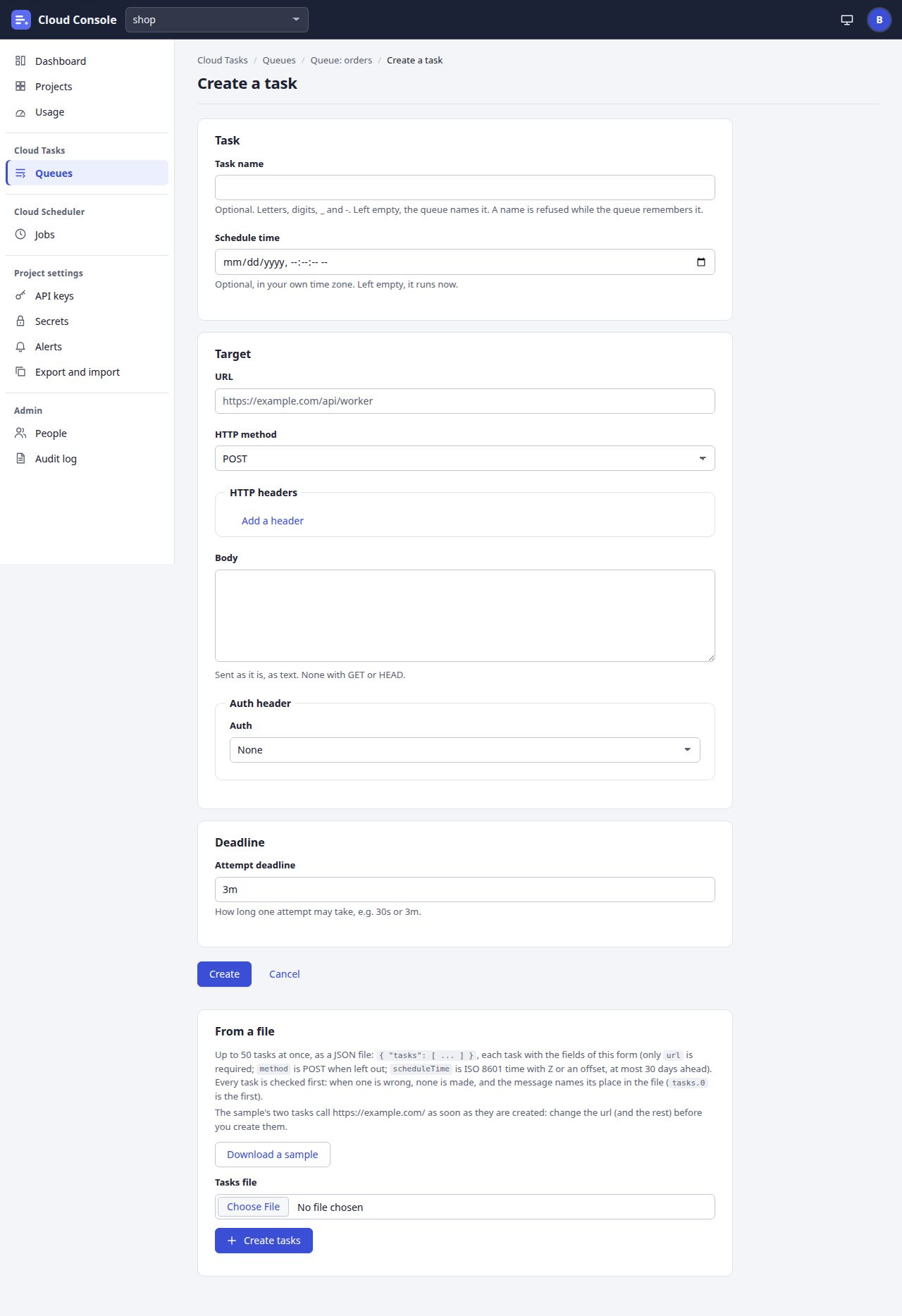
Task name:
Optional. Letters, digits, _ and -. Left empty, the queue names it. A name is refused while the queue remembers it.
- 3
Schedule time:
Optional, in your own time zone. Left empty, it runs now.
At most 30 days ahead.
- 4
URL: a public
http://orhttps://address. Private, local and internal addresses, and the console itself, are refused. - 5
HTTP method: POST, GET, HEAD, PUT, DELETE, PATCH or OPTIONS.
- 6
Add a header adds a row with a name and a value (Remove takes it out). Credentials do not go here: use Auth.
- 7
Body:
Sent as it is, as text. None with GET or HEAD.
- 8
Auth: None, HMAC signature, Basic auth, Bearer token, OIDC token or OAuth token. For HMAC, Basic, Bearer and OAuth, choose a Secret of that kind; for OIDC, a Service account and an Audience (
A URL at one of the service account's allowed origins. Leave empty for the URL without its query.
). With none yet:Add one on the Secrets page.
- 9
Attempt deadline:
How long one attempt may take, e.g. 30s or 3m.
From 15s to 15m. - 10
Click Create.
What you see when it worked
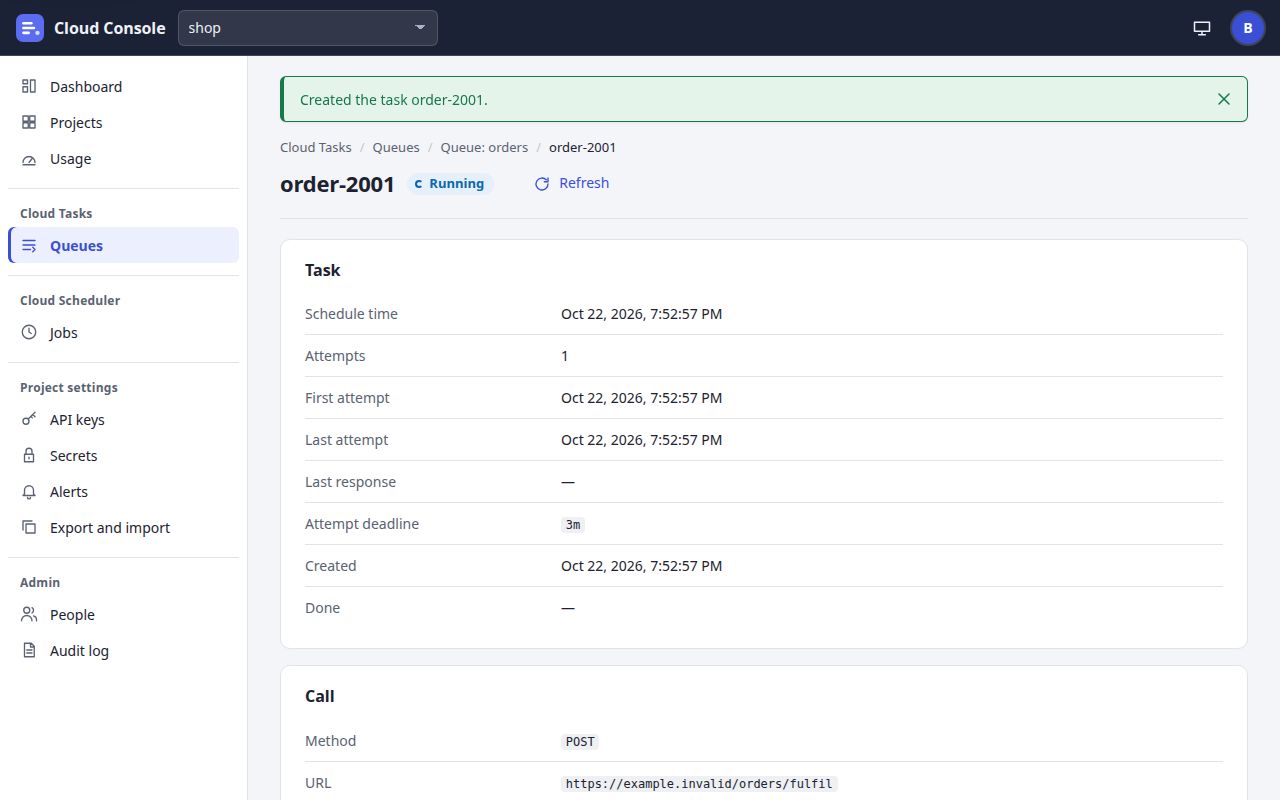
The task's page opens with the notice Created the task …
and its state: Queued while it waits, Running, then Succeeded or Retrying (attempt …). A task in a paused queue waits until the queue is resumed.
If it is refused
A refusal about the whole task (a name taken, the daily quota) shows in red at the top of the form, out of view when you are at the Create button: scroll up to read it. A field's message shows beside its field.
A task named … is in this queue, or succeeded or was deleted within the last day
: choose another name, or leave it empty.- A field's message beside it, such as
The URL is a private, local or reserved address
orscheduleTime is at most 30 days ahead
. - A secret or service account that does not fit the URL (see Troubleshooting).
The project's daily quota of … tasks and job runs is used up
: nothing was added (see Usage).
Add up to 50 tasks from a file
Needs create
Start from: the queue's page, then Create HTTP task. The panel is under the form.
- 1
Click Download a sample. It saves
cloud-console-tasks-sample.json(Saved cloud-console-tasks-sample.json.
). Open it in a text editor and change it:The sample's two tasks call https://example.com/ as soon as they are created: change the url (and the rest) before you create them.
- 2
At Tasks file, choose your file.
- 3
Click Create tasks. Every task is checked first: when one is wrong, none is made.
The file is JSON: { "tasks": [ ... ] }, up to 50 tasks, each with the fields of the form. Only
url is required; method is POST when left out; scheduleTime is ISO 8601 time with
Z or an offset, at most 30 days ahead. The sample, as it downloads:
{
  "tasks": [
    {
      "name": "sample-task-1",
      "method": "POST",
      "url": "https://example.com/",
      "headers": {
        "content-type": "application/json"
      },
      "body": "{\"hello\":\"world\"}",
      "auth": {
        "kind": "none"
      },
      "attemptDeadline": "3m"
    },
    {
      "method": "GET",
      "url": "https://example.com/",
      "auth": {
        "kind": "none"
      }
    }
  ]
}
What you see when it worked
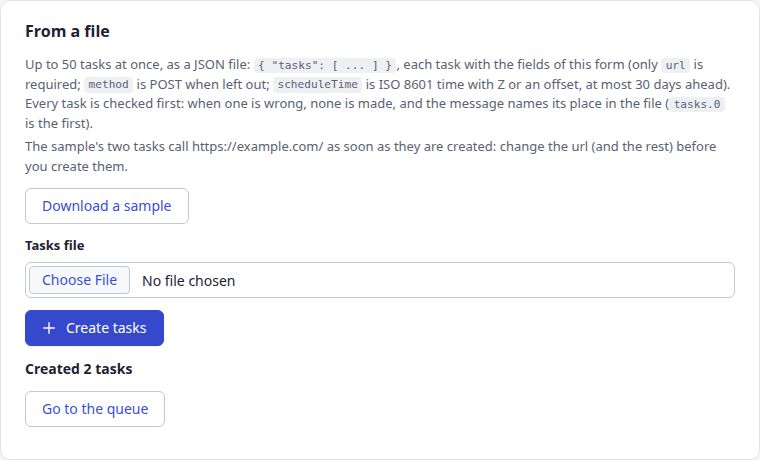
The panel says Created 2 tasks
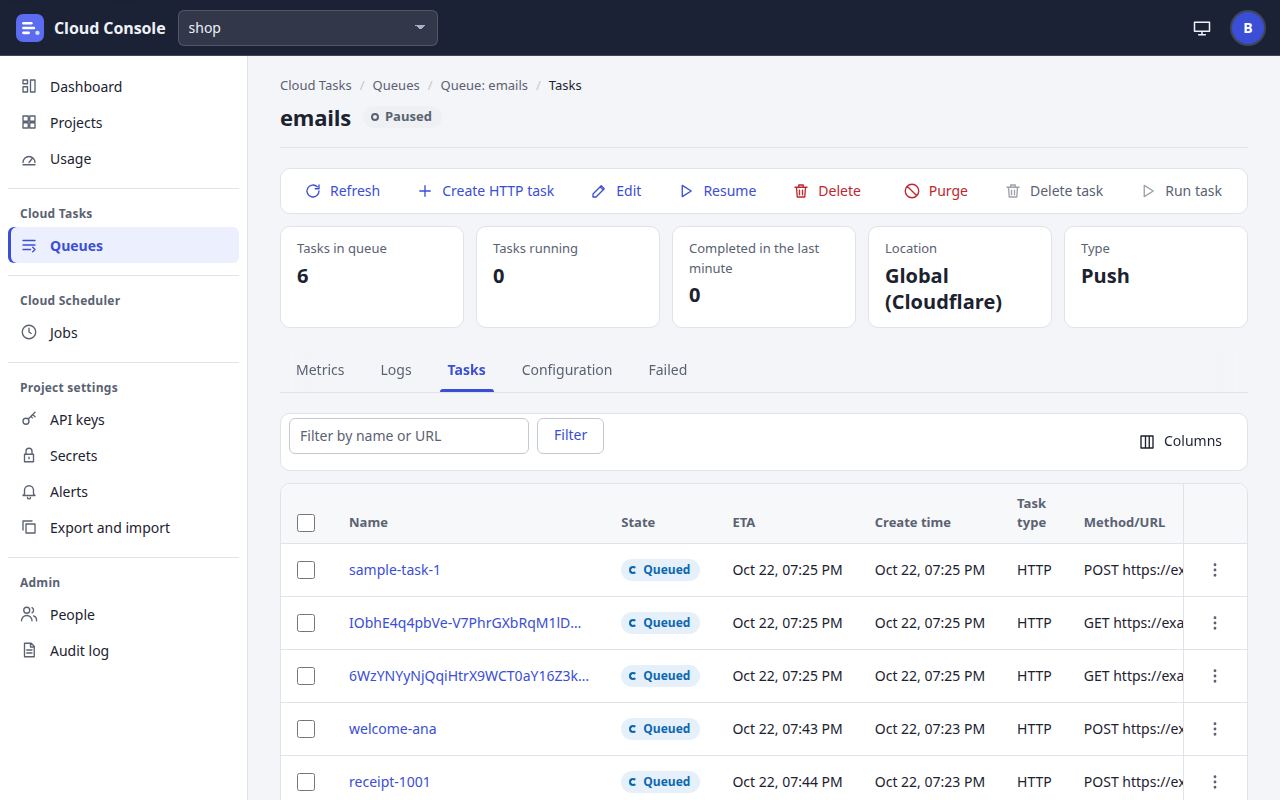
with Go to the queue, and the chosen file is let go, so a second click cannot make its tasks twice. The tasks are in the queue's Tasks tab.
If some or all are refused
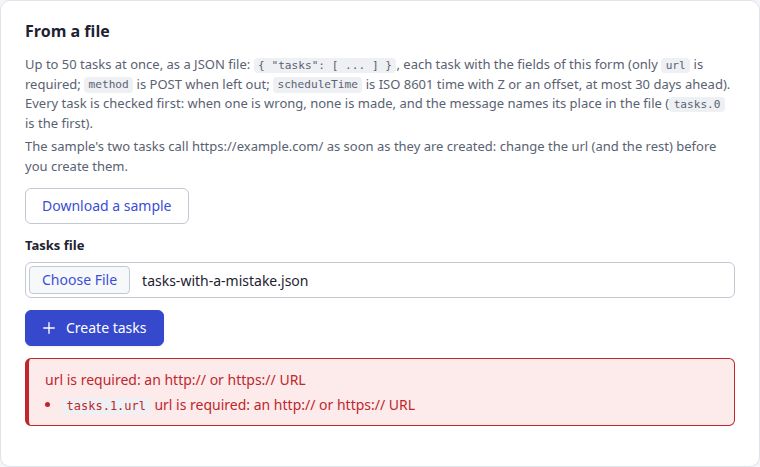
A mistake anywhere stops the whole file, and the message names the task by its place: tasks.0 is the first, so tasks.1.url is the second task's url. A name the queue still remembers refuses that one task only: Created 1 task; 1 could not be
, with a table of the task and why. A file that is not JSON: … is not a JSON file.
With no file chosen: Choose a file of tasks first.
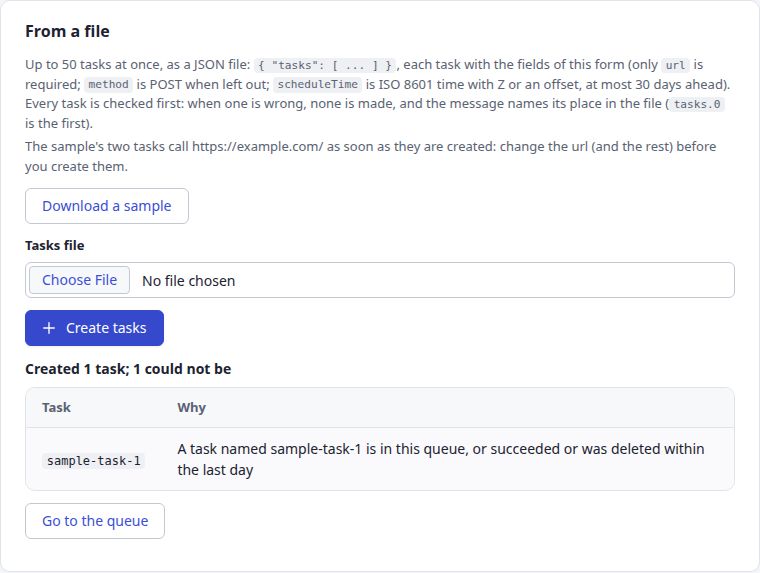
A file's tasks count together against the daily quota: when the day has no room for all of them, none is made. Each 10 tasks count as one change against your hourly change budget.
Find a task and see its attempts
Needs read
- 1
Open the queue and its Tasks tab.
- 2
Type part of the task's name or URL in Filter by name or URL.
- 3
Click Filter.
- 4
Click a column's heading to sort by it (Name, ETA, Create time, Method/URL, Retries, Executions); click again to turn the order round.
- 5
Columns chooses which columns show.
- 6
Click the task's name. Its page opens.
- 7
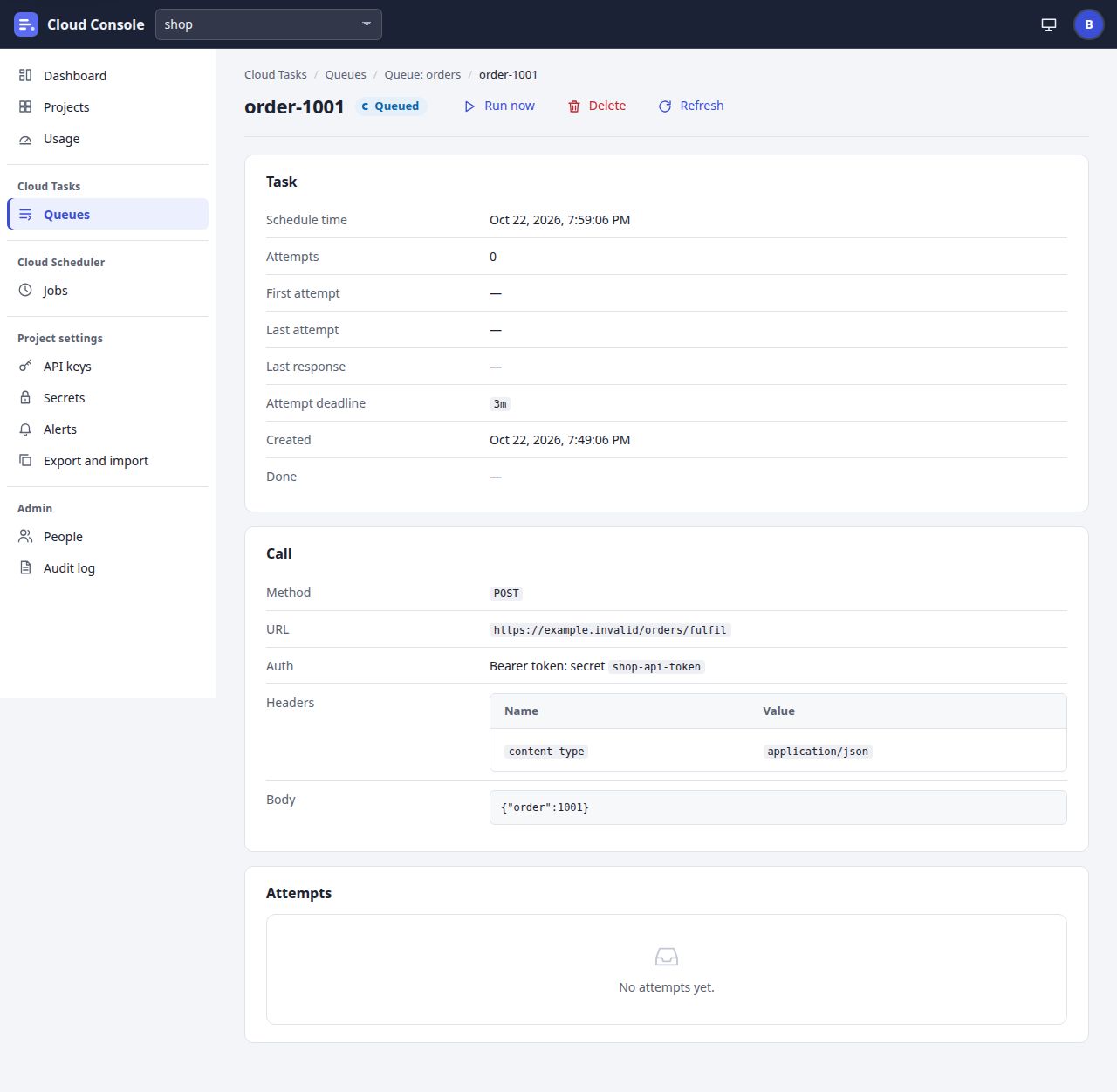
Task: its schedule time, how many attempts, the first and last attempt, the last response, the attempt deadline, when it was made and when it was done.
- 8
Call: the method, URL, auth, headers and body. Headers and body show while the task waits or runs; then
Dropped once the task was done
. - 9
Attempts: each try, newest first: Time, Attempt, Result, Duration and Error. Inspect shows the status code, the error kind, the answer's content type and the first 1 KB of its body.
- 10
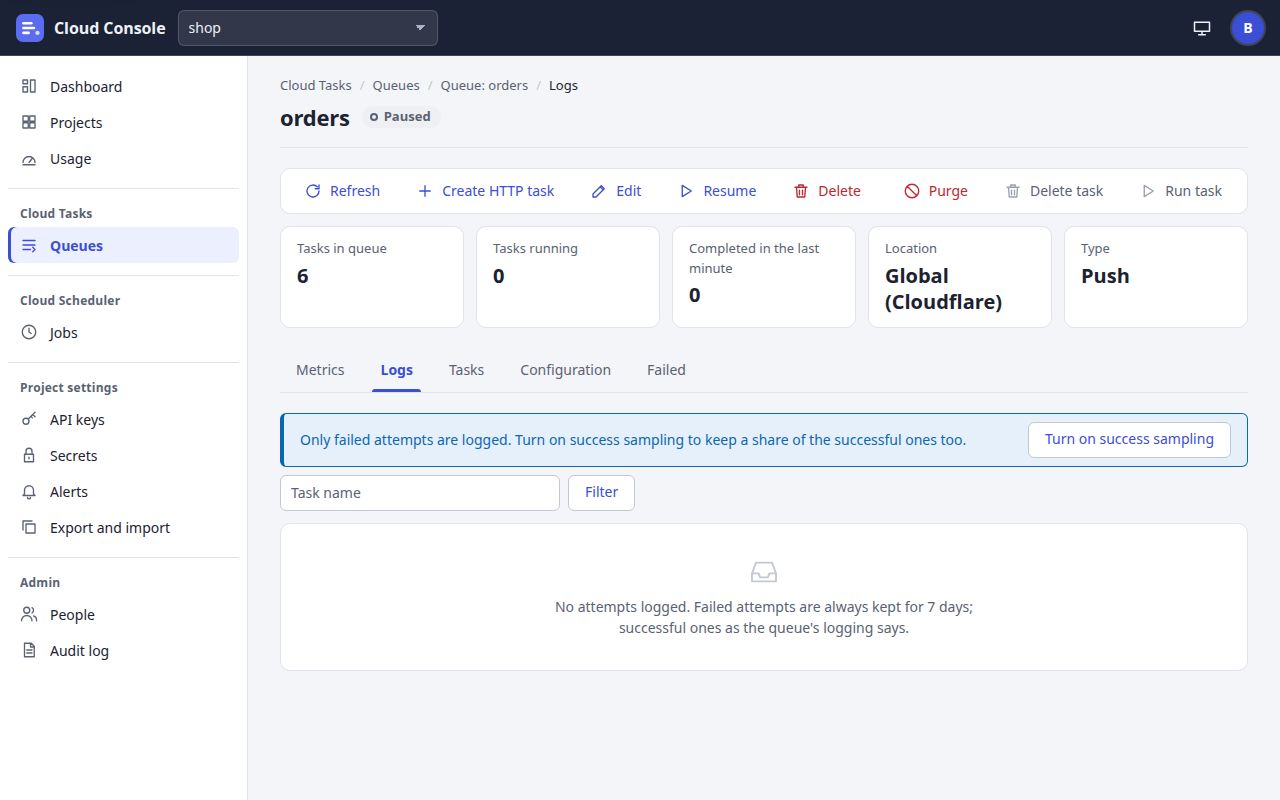
Open the queue's Logs tab: every attempt of every task, newest first.
- 11
Type a task's name in the box (Task name).
- 12
Click Filter. Show all takes the filter off again.
- 13
While the queue keeps failed attempts only, a banner says
Only failed attempts are logged. Turn on success sampling to keep a share of the successful ones too.
Turn on success sampling (with the update permission) changes the queue's logging.
What you see when it worked
Each attempt with its result: an HTTP status such as 503 Service Unavailable, or an error kind when no answer came: Timeout, DNS error, Connection refused, Blocked URL or Auth failed.
- A filtered or sorted list reads only the newest tasks, and says so:
Showing matches among the newest … tasks
. You may filter or sort 10 times an hour. - Failed attempts are always kept; successful ones as the queue's logging says. A task keeps its newest 10 attempts, and every attempt goes after 7 days.
- An attempt never keeps the request's auth headers, secrets or body. One that sent a Basic, Bearer or OAuth credential keeps no answer body either:
Response body not kept (sent with credentials)
.
Retry or delete failed tasks
Needs run (retry) delete
- 1
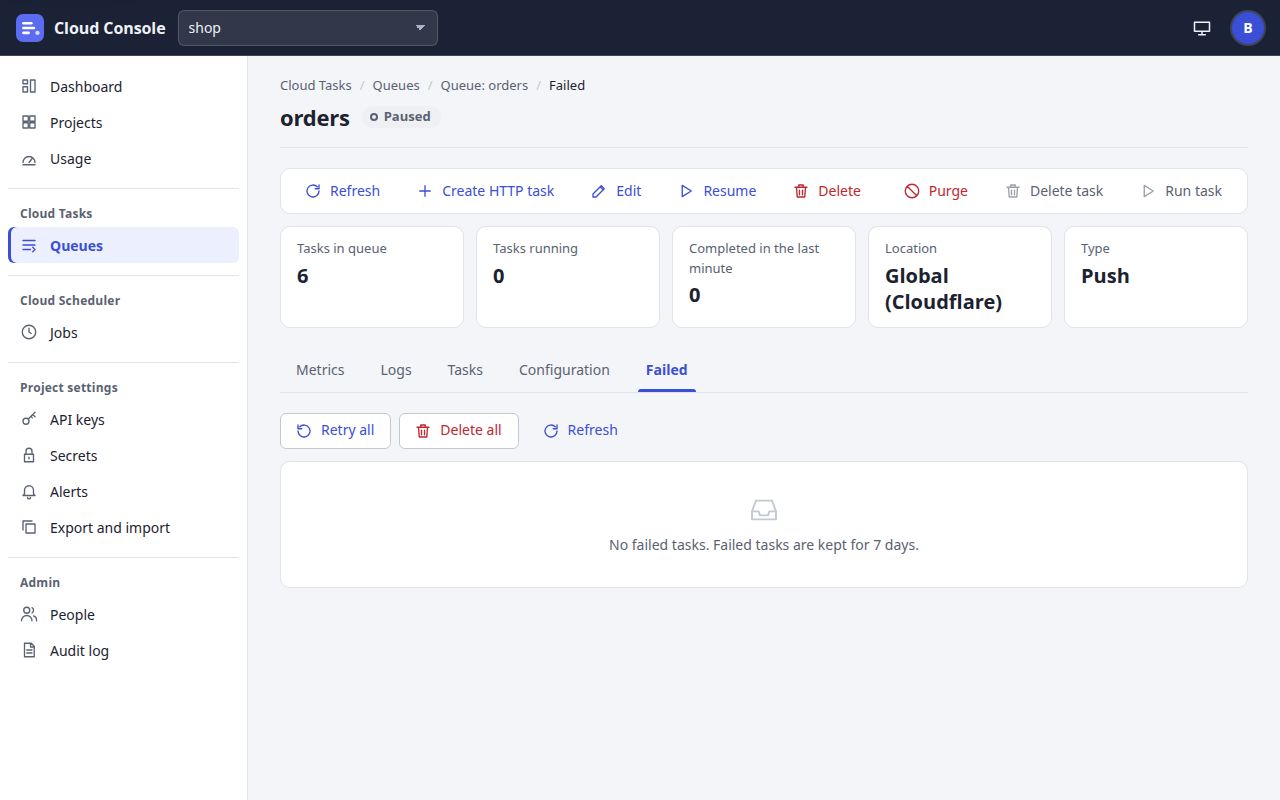
Open the queue and its Failed tab: the tasks that ran out of attempts or retry time.
- 2
Retry all sends every failed task again: the same name and logs, its attempts from 0, due now.
- 3
Delete all asks
Delete every failed task?
(Their logs stay until they are pruned.
) and deletes them.
What you see when it worked
Retried failed tasks: …
or Deleted failed tasks: …
, with the count. For one task, use its row menu on the Failed tab (or the buttons on its page): Retry (Retrying …
) or Delete (Deleted …
).
- A failed task stays in its queue 7 days:
No failed tasks. Failed tasks are kept for 7 days.
- Fix the cause first (read its attempts), or it fails again. Every retry counts against the daily quota.
- For tasks still waiting, tick their rows on the Tasks tab and use Run task or Delete task in the toolbar.
Pause, resume or purge a queue
Needs pause delete (purge)
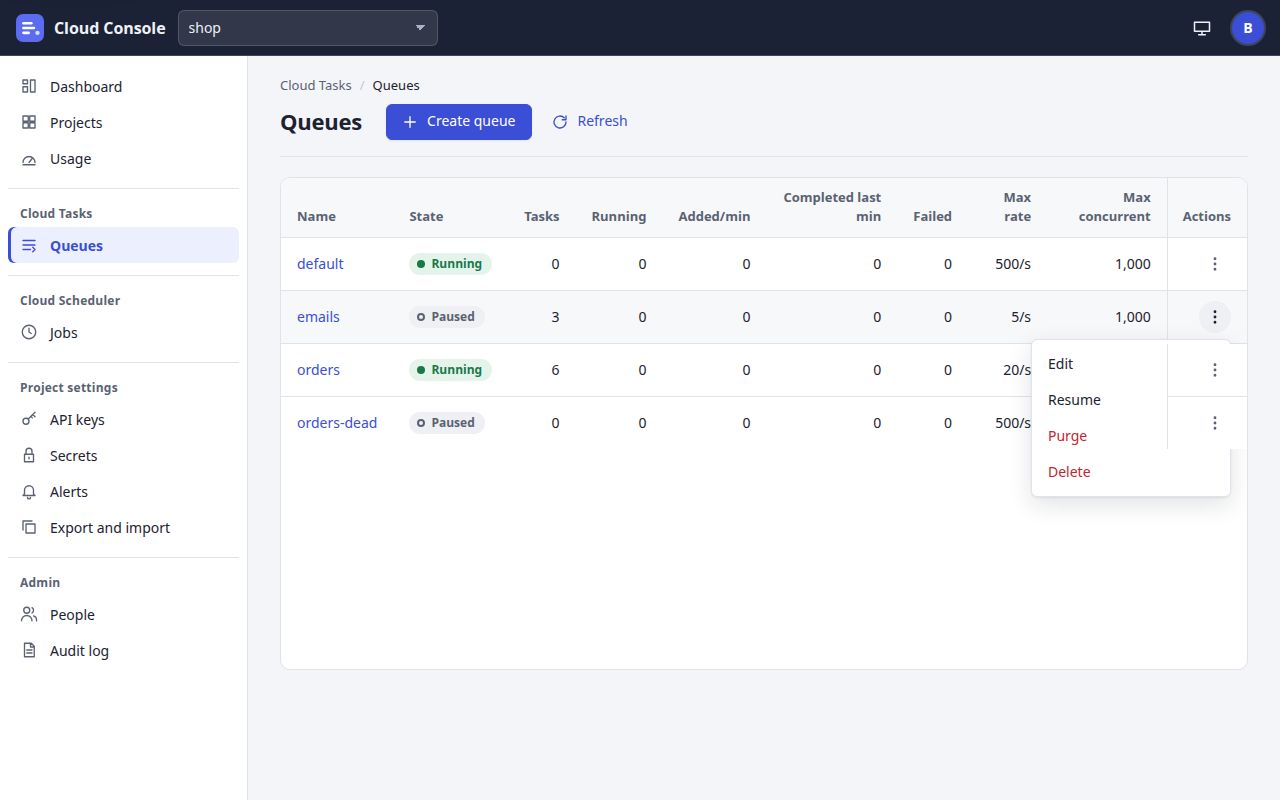
- 1
On Queues, click the three dots of the queue. The same actions are in the toolbar of the queue's page.
- 2
Pause (for a running queue) stops sending; Resume (for a paused one) starts it again. A paused queue still takes new tasks: they wait.
- 3
Purge asks
Purge …?
:Every queued task is deleted. Running tasks finish.
What you see when it worked
Paused …
, Resumed …
or Purged … tasks from …
, and the queue's chip says Running or Paused.
Delete in the same menu asks Delete …?
: The queue and its tasks are deleted. This cannot be undone.
The default queue cannot be deleted. To hold every queue and job of a project for a deploy, use the maintenance switch instead.
Cloud Console user manual, from the console as it is on main. The pictures are of a local copy with a made-up project, shop, and a made-up admin. 22 Oct 2026.