Cloud Scheduler
A job makes a call on a schedule: unix-cron, in a time zone. It calls a URL, adds a task to one of the project's queues, or checks that a site is up. Jobs are made and changed only here, never by an app.
Create a job in three steps
Needs create
- 1
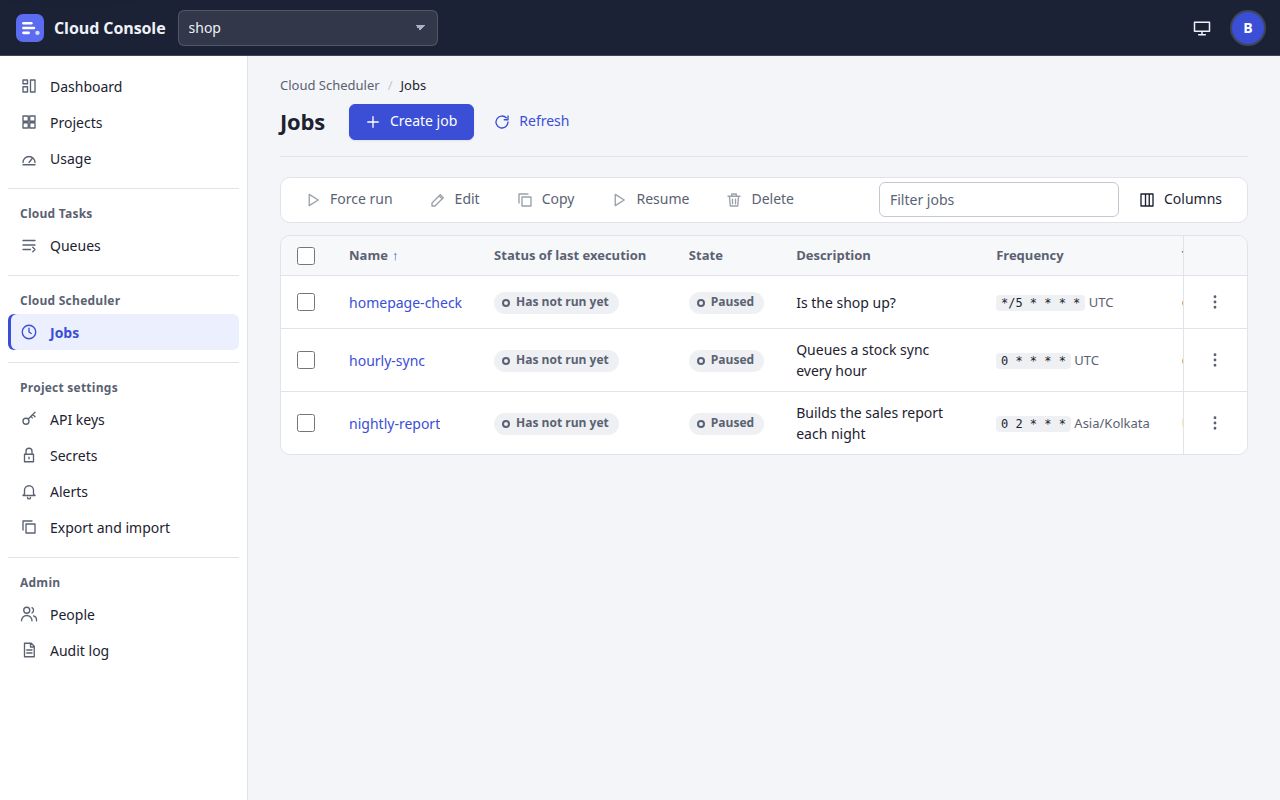
Click Jobs under Cloud Scheduler (a project chosen).
- 2
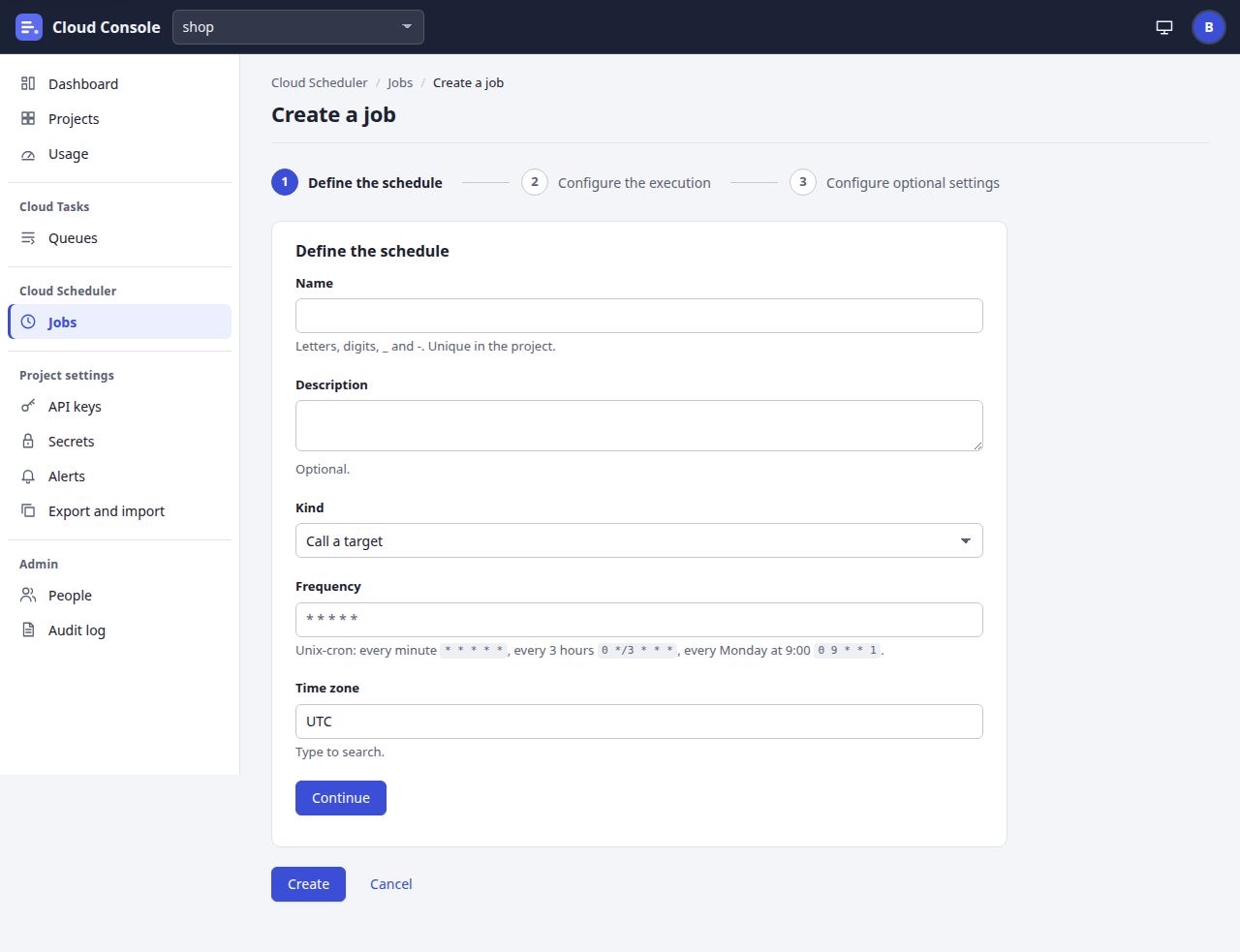
Click Create job. Create a job opens on its first step.
- 3
Name:
Letters, digits, _ and -. Unique in the project.
It cannot change later. - 4
Description:
Optional.
- 5
Kind: Call a target, or Uptime check (see below).
- 6
Frequency: unix-cron, five fields: every minute
* * * * *, every 3 hours0 */3 * * *, every Monday at 9:000 9 * * 1. Under the time zone,The next 5 runs:
shows as you type. - 7
Time zone:
Type to search.
such asUTCorAsia/Kolkata. - 8
Click Continue.
- 9
Step 2, Configure the execution. Target type: HTTP (the call itself) or Queue (add a task), then the Queue:
The job adds a task with this call to the queue; the queue's settings retry it.
Then the call, as for a task: URL, HTTP method, HTTP headers, Body and Auth. Click Continue. - 10
Step 3, Configure optional settings. Retry config: Max retry attempts (
Retries after the first attempt, 0 to 5.
), Max retry duration, Min backoff duration, Max backoff duration, Max doublings and Status codes not retried. Then Attempt deadline, While a run is still going (Skip the run while the previous one is still going, Queue one run to start after it, or Allow runs to overlap) and During the project's quiet hours (Run once when the quiet hours end, or Skip it (logged as skipped)).Back returns a step; a step's name at the top opens it too.
- 11
Click Create.
What you see when it worked
The job's page opens with the notice Created the job …
. The job starts Enabled and runs within a minute of each time in its schedule; Next run says when. Copy makes a new job from one's settings; Edit changes one (Save, Saved …
).
If it is refused
The step with the refused field opens, with the message beside the field, such as schedule has five fields: minute, hour, day of month, month and day of week (found 4)
or timeZone is not a time zone this console knows (e.g. UTC, Asia/Kolkata)
. A refusal about the whole job, such as A job named … exists in this project
or A project has at most 200 jobs
, shows in red at the top of the form: scroll up to read it.
Force run, pause and resume a job
Needs run (force run) pause
- 1
Tick the job, or several.
- 2
Force run runs them now, besides their schedule.
- 3
Pause (for enabled jobs) stops the schedule; Resume (for paused ones) starts it again. The toolbar shows Resume here because every job is paused.
- 4
Or use the job's own menu, three dots: Force run, Pause or Resume, Copy, Edit and Delete. The job's page has the same buttons at the top.
What you see when it worked
… is running now.
, Paused …
or Resumed …
. The State column says Enabled or Paused; a paused job has no Next run. Status of last execution says Success, Failed with the code, Has not run yet, or Skipped and why.
- A toolbar button acts on every ticked job; Edit and Copy take one job.
- Each run counts against the project's daily quota. Over it, a forced run is refused (
The daily quota of … is used up
) and a scheduled one is skipped: Skipped (daily quota). - While maintenance is on, a forced run waits until it is off, and a scheduled time is skipped: Skipped (maintenance).
- The job's Logs tab lists each run (Scheduled for, Status, Forced, Attempts, Status code, Error kind, Started, Finished); Show attempts opens a run's attempts.
No runs yet. Runs are kept for 7 days.
- Delete asks
Delete …?
:The job and its run history are deleted. This cannot be undone.
Set up an uptime check
Needs create
Start from: Jobs, then Create job.
- 1
On Create a job, fill in the name and choose Kind: Uptime check.
- 2
Frequency: how often to check, such as every 5 minutes
*/5 * * * *, and the time zone. Click Continue. - 3
On Configure the execution, type the URL and choose GET or HEAD. Under What counts as up: Lowest status code and Highest status code (200 to 399 unless you change them), Slowest answer (ms) (
Optional.
) and The body contains (Optional. Looked for in the first 64 KB.
). - 4
Click Create. A check has no body and no retries.
- 5
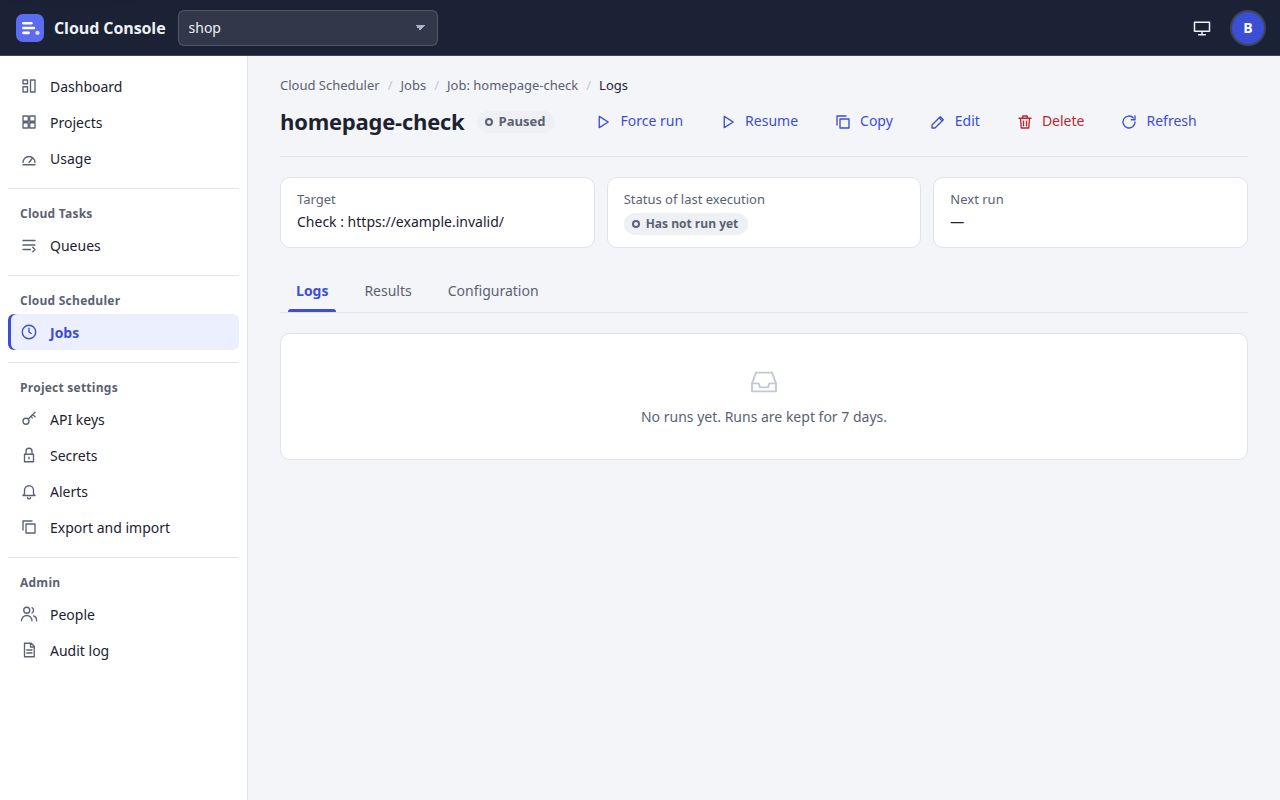
On the check's page, open Results: Uptime, last 24 hours and Uptime, last 7 days, and each result with its Time, Result (Up, or Down and why), Status code, Latency, Error kind and Reason.
What you see when it worked
The check runs on its schedule and its Target tile says Check : and the URL. Results fill in as it runs: No results yet. A check keeps its last 100.
The project alerts when it fails as many runs in a row as its Alerts page says (2 unless changed), and again when it recovers.
Text checks and credentials
The body contains cannot be used with a Basic, Bearer or OAuth auth option: mustContain is not available with credentials that are sent
. The URL rules are the same as for tasks.
Cloud Console user manual, from the console as it is on main. The pictures are of a local copy with a made-up project, shop, and a made-up admin. 22 Oct 2026.