Day to day
The routine checks: how your projects did in the last day, how much of today's quota is used, holding a project still while it deploys, and a morning summary by email.
Read the dashboard
Needs read
- 1
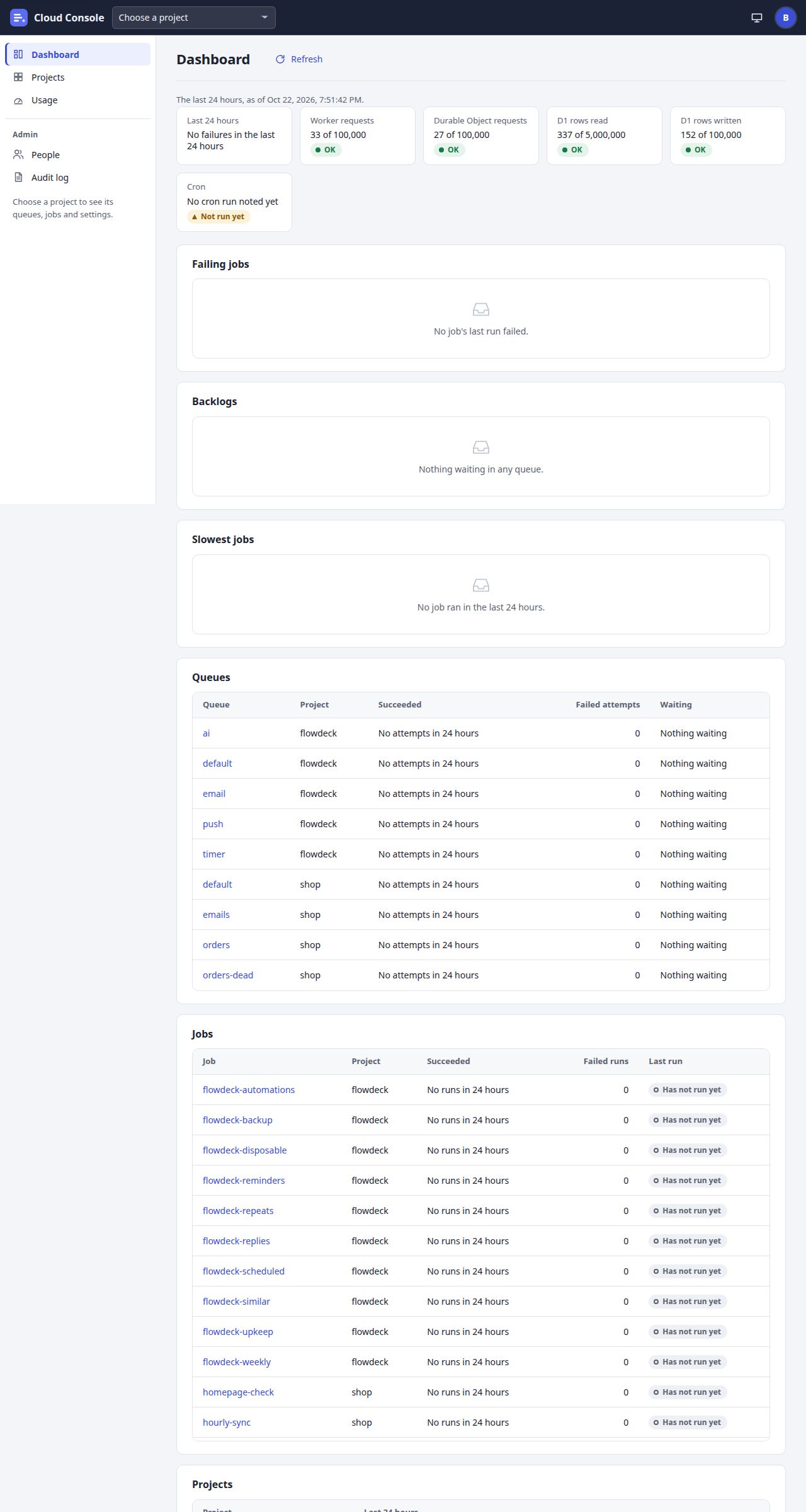
Refresh reads it again. The line under the title says
The last 24 hours, as of …
- 2
Last 24 hours: the failed job runs and failed task attempts in all your projects, such as
3 failed job runs and 12 failed task attempts in the last 24 hours
, orNo failures in the last 24 hours
. - 3
The free-plan tiles, Worker requests, Durable Object requests, D1 rows read and D1 rows written: today's use of each against its free limit, with OK, Near the limit or Over the limit.
- 4
Cron: the console's every-minute work. Running is good. Parts failing names the parts that failed; Stale means no run for over 10 minutes (
… the cron may have stopped
); tell an admin. - 5
Failing jobs: the jobs whose last run failed, newest first.
No job's last run failed.
when there are none. - 6
Backlogs: the queues with tasks waiting, the most first, such as
1,234 waiting; the oldest due 12 minutes ago
.Nothing waiting in any queue.
when there are none.
Further down:
- Slowest jobs: the 5 jobs with the longest final attempt in the last day.
- Queues and Jobs: each one's share that succeeded, such as 98.5% of 200, the lowest first; No attempts in 24 hours or No runs in 24 hours when idle.
- Projects: each project's failures in the last day.
What you see when it worked
Every row links to its queue or job. A queue's numbers may be up to about 15 minutes old while it is busy. While the console is over a free-plan limit, a red line says A free-plan limit is used up: every queue is held, and new tasks and job runs are refused, until …
With no project yet: You have no projects yet. An admin gives you access to one; it shows here.
Check usage against the daily quota
Needs any signed-in person
- 1
Click Usage in the sidebar.
- 2
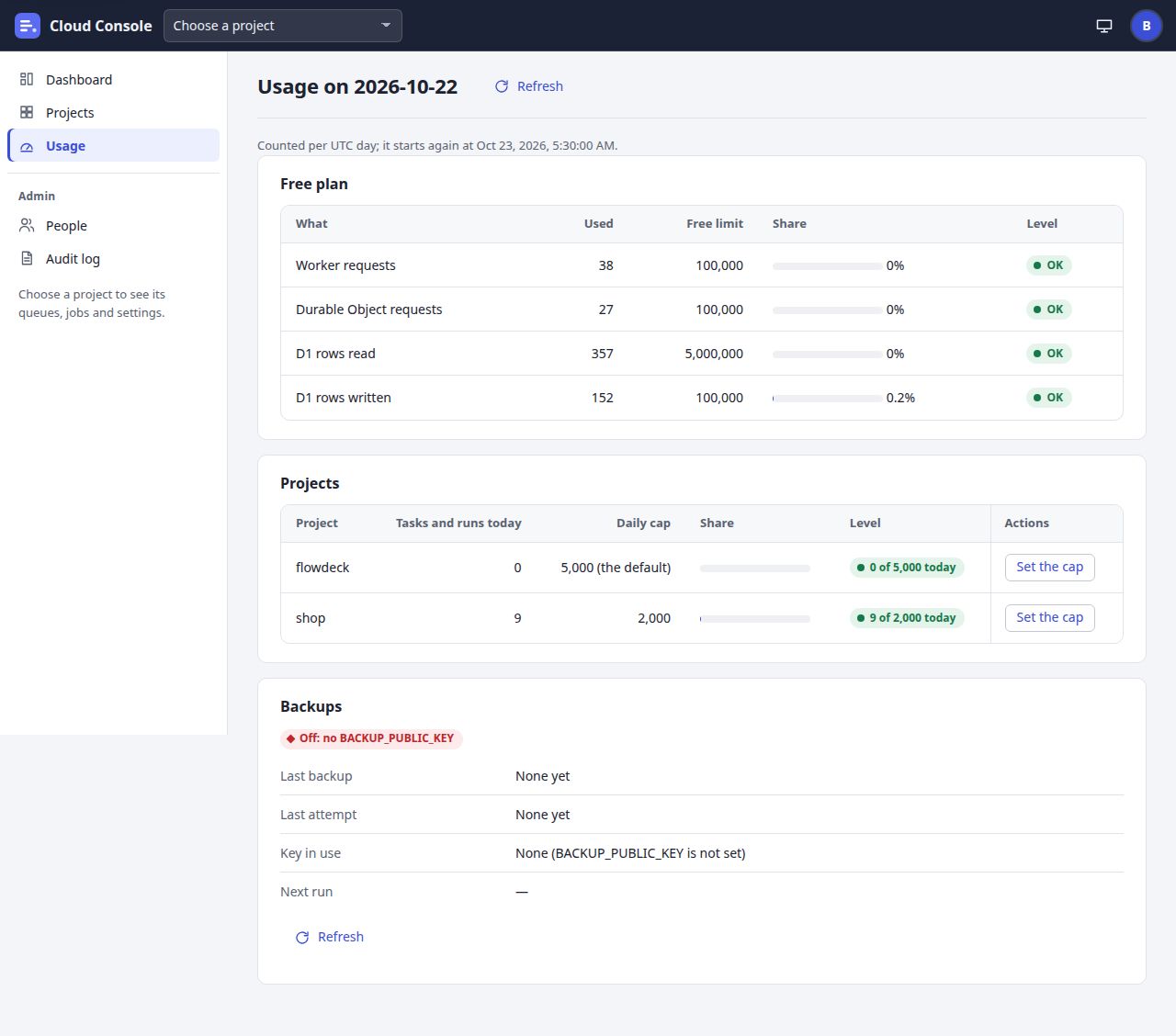
Refresh reads it again. The title is Usage on and today's date:
Counted per UTC day; it starts again at …
- 3
Free plan: the whole console's use today, with Used, Free limit, Share and Level.
- 4
Projects: each project's Tasks and runs today against its Daily cap, such as 5,000 (the default), and its level, such as 9 of 2,000 today.
| You see | What it means | What happens |
|---|---|---|
| A free-plan line at Near the limit | The console used 80% of that free limit today | Low-priority queues are held until the next UTC day, and the admins get an alert |
| A free-plan line at Over the limit | The console used all of it today | Every queue is held, and new tasks and job runs are refused until the next UTC day. Sign-in and the pages go on |
| A project near or at its Daily cap | Its task creations, job runs and task retries today reach the cap | Over it, new tasks are refused, scheduled runs are skipped (Skipped (daily quota)), and retries wait for the next UTC day |
If a project needs more
Only an admin changes a project's cap (how). Nobody can lift the console-wide hold early: it ends at 00:00 UTC. The console's counts reach this page within about 10 minutes, so they may be a little behind.
Switch maintenance on for a deploy
Needs pause
The maintenance switch holds a project's sending while its app deploys or migrates: tasks are still accepted and wait, scheduled job runs are skipped and logged (Skipped (maintenance)), and runs under way and forced runs wait. The project's app can also turn its own switch with its API key (see For apps).
- 1
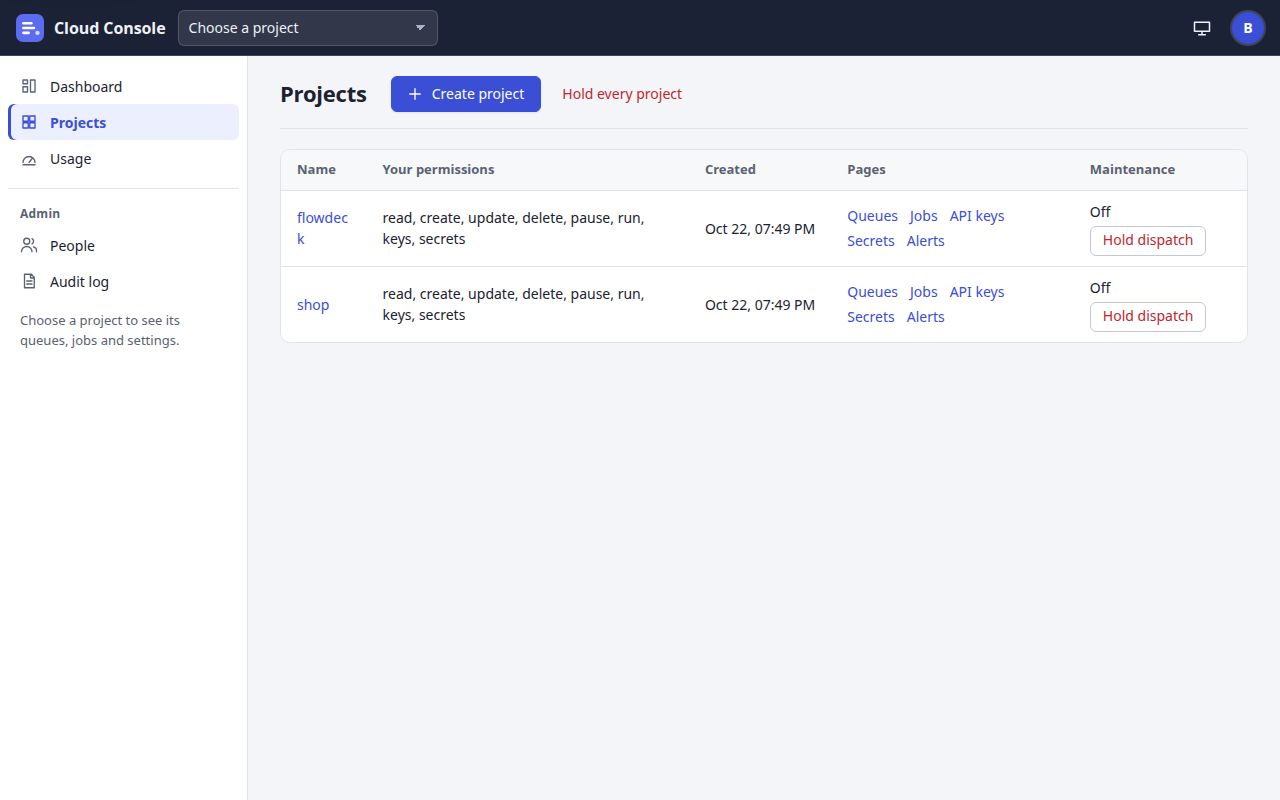
In the project's row, click Hold dispatch. It asks
Hold dispatch for shop?
:No task is sent and no job runs until it is resumed; new tasks are still accepted and wait.
Click Hold dispatch in the dialog. - 2
Admins also have Hold every project, for the whole console (
Hold dispatch for the whole console?
).
What you see when it worked
The page loads again, and every page shows the banner Maintenance is on for shop: its queues and jobs are held
with who switched it on and when. The project's row says so, with Resume dispatch. The project's alert channels are told each way, and once more if it stays on for 24 hours.
The deploy, step by step
- Before the deploy: Hold dispatch for the project, and check the banner.
- Deploy, or run the migration.
- After it, also when it failed: Resume dispatch (Resume every project for the whole console). The banner goes, and the waiting tasks start.
- On the Dashboard, check that Backlogs empties and no job fails.
If it is refused
A maintenance switch changes at most once every 10 seconds; try again shortly
: wait a moment. A hold a person switched on cannot be ended by the app's key: Maintenance was switched on by a person, so only a person with the pause permission can switch it off
.
Turn on the daily summary email
Needs any signed-in person
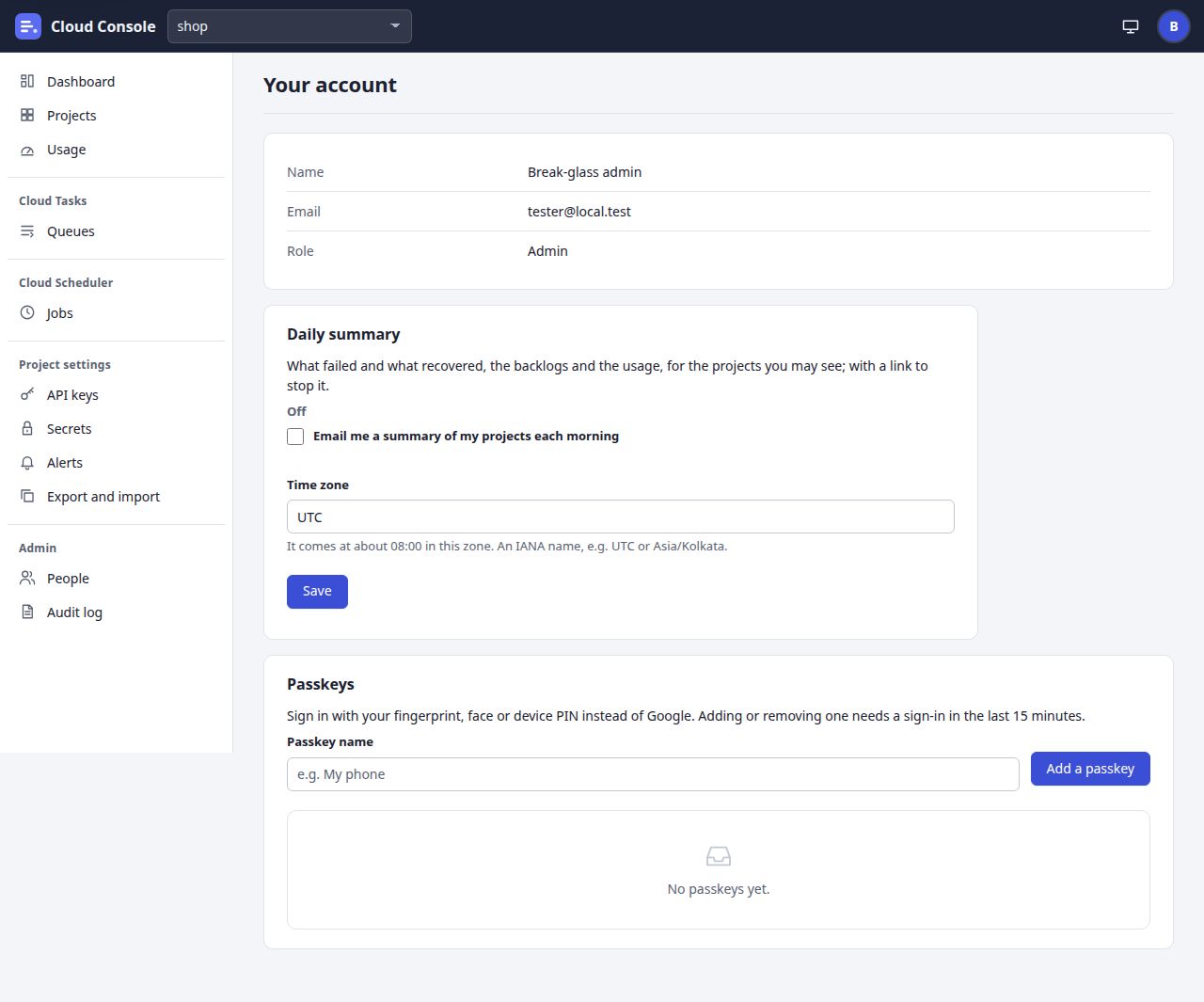
Start from: the person menu, then Your account. What failed and what recovered, the backlogs and the usage, for the projects you may see; with a link to stop it.
- 1
Tick Email me a summary of my projects each morning.
- 2
Time zone:
It comes at about 08:00 in this zone. An IANA name, e.g. UTC or Asia/Kolkata.
- 3
Click Save.
What you see when it worked
Saved the daily summary.
The panel says On: each morning at 08:00 and the zone, then The next one: …
. One mail a day, only while the console's mail is set up.
To stop it, untick the box and save, or open the link at the end of a summary mail: the page Daily summary asks
Stop the daily summary emails of Cloud Console to this address?
; click Turn off the daily summary.
It works without signing in, for 60 days after the mail: The daily summary is off
,
No more summary emails will come. You can turn it on again on your account page.
Cloud Console user manual, from the console as it is on main. The pictures are of a local copy with a made-up project, shop, and a made-up admin. 22 Oct 2026.